

Introduction
- This tutorial will guide you through the steps to connect your Prisma with your PostgreSQL database hosted on Square Cloud.
- First, you need to have an active paid plan on your account. You can view our plans and purchase one according to your needs here.
- Next, you’ll need a PostgreSQL database hosted on Square Cloud. If you haven’t created one yet, you can create it here.
Prerequisites
- Before you begin, ensure you have created database in Square Cloud and connect on some manager client like dbeaver or any other to create a database.
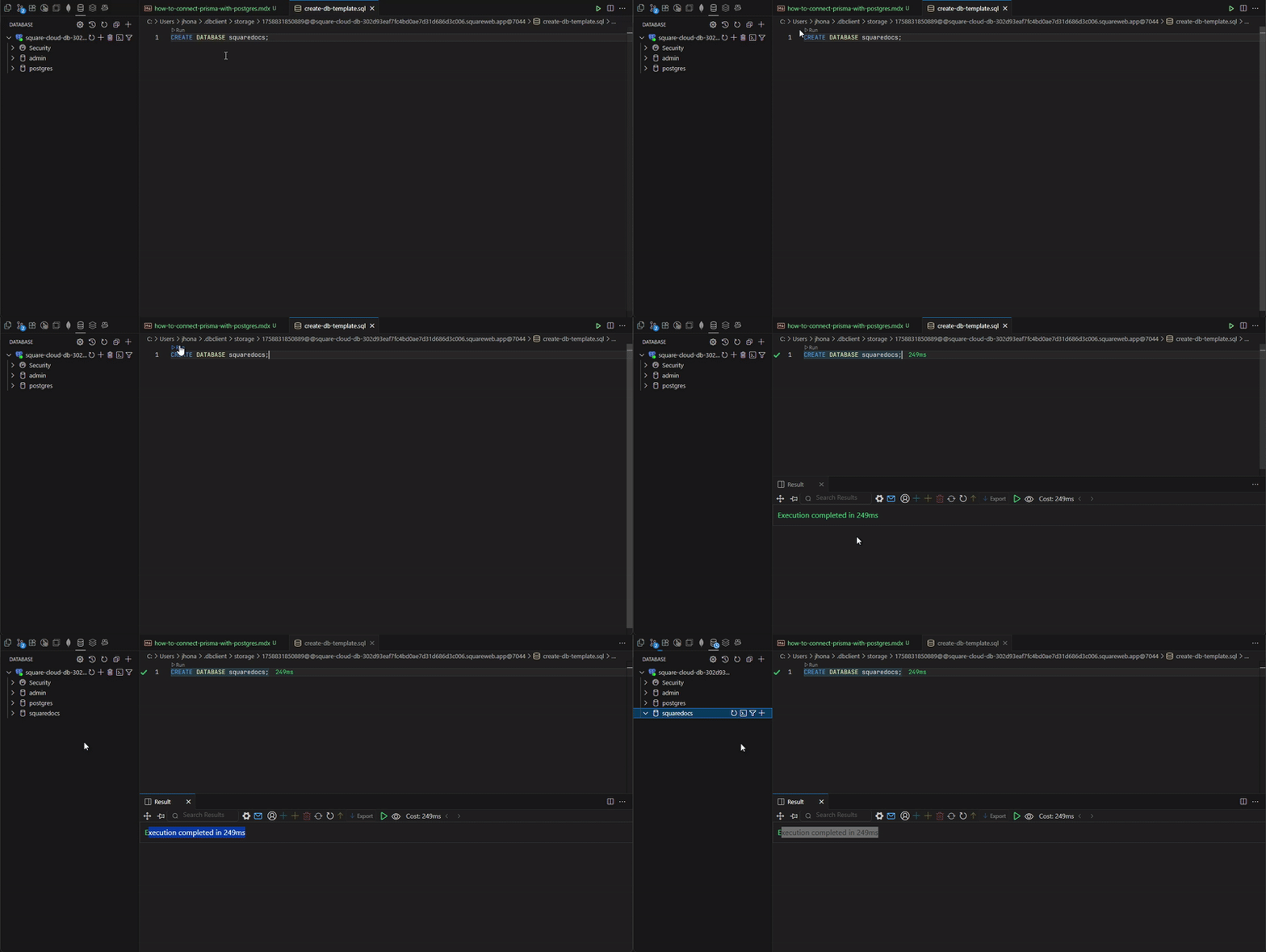
- You will also need to have Prisma set up in your project. If you haven’t done this yet, you can follow the official Prisma documentation here.
Connecting prisma with postgresql
To connect prisma with postgresql, you will need to get the connection info, the url and certificatesDatabase URL
The database URL you get in database connection settings will provide you the user, password, host and port for your connection. PrismaORM may require you to specify the database to connect.If you don’t have created one, you can use squarecloud as dbname.
Certificates
- Prisma CLI, v6 or lower
- Prisma v7 or higher
Getting base certificates
In the database connection settings, get the 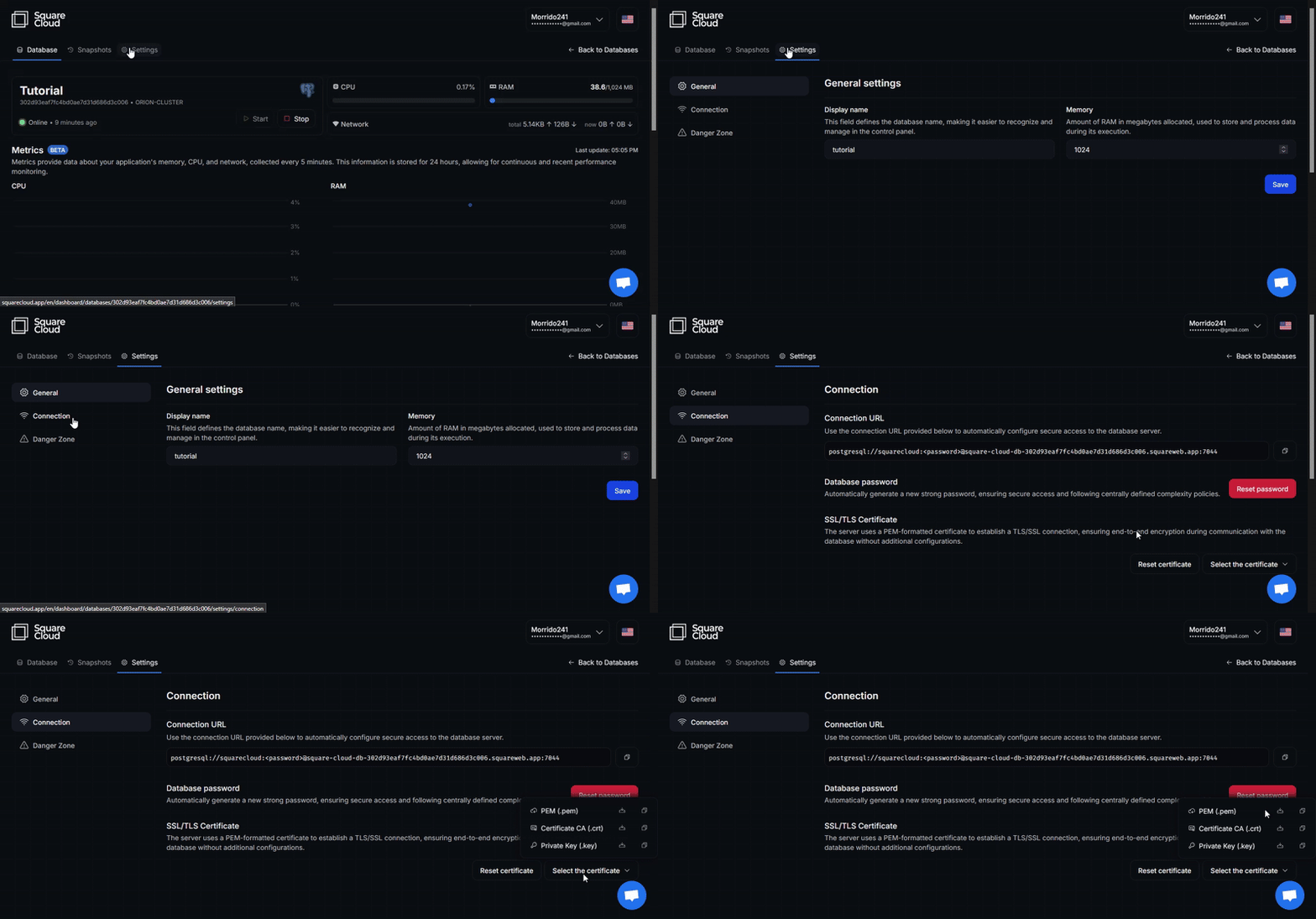
certificate.pem. With this certificate, do a copy of it and removes the key part and in the other, remove the certificate part.
Name them as key.pem and cert.pem to know which is which.Creating client-identity.p12
With the previous 2 files Replace 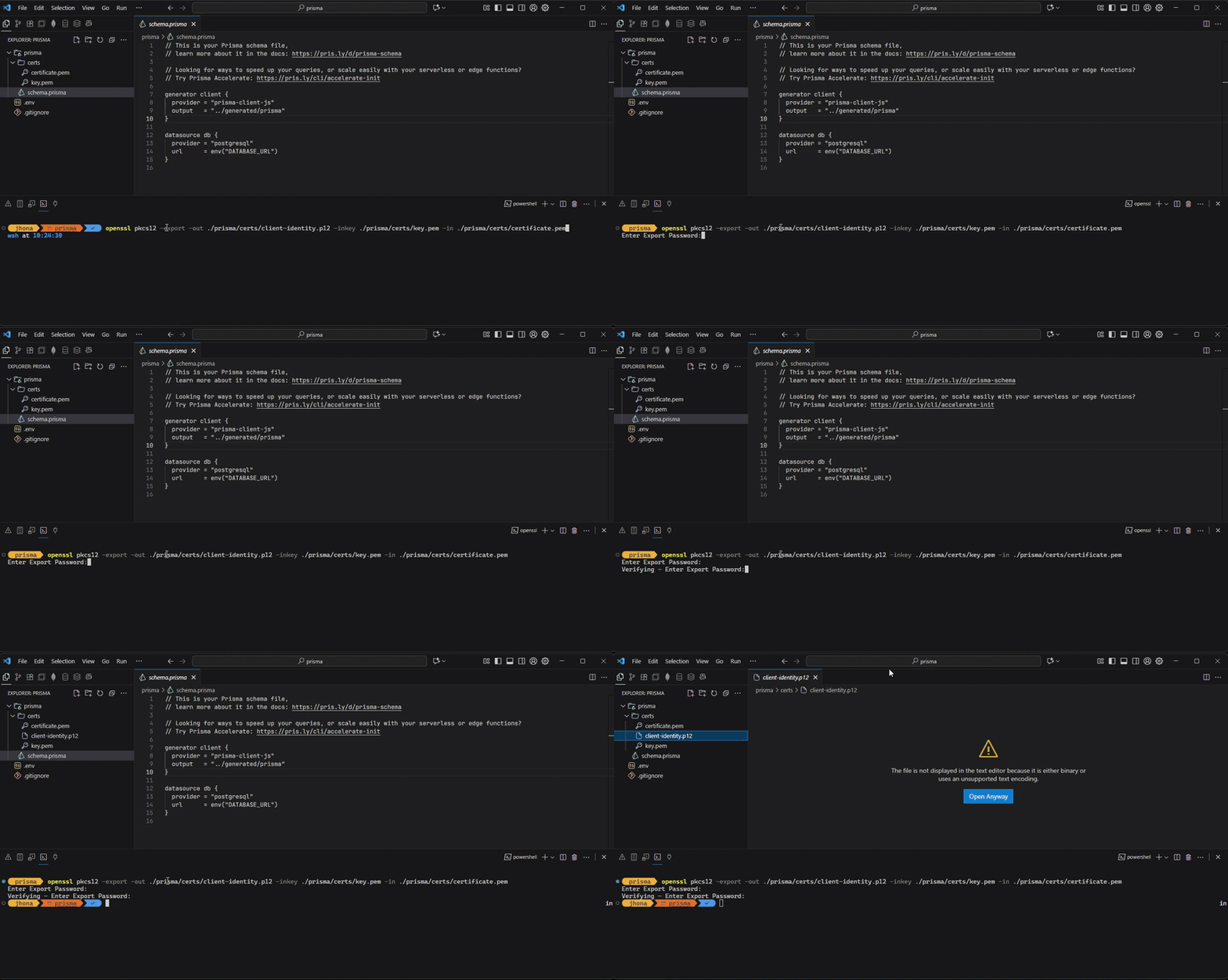
.pem, the key and cert, you will create the .p12 certificate. To do so, you will need to have openssl tool installed or use it through Git Bash.
To convert the .pem files to .p12, you can use the following OpenSSL command:path/to/key.pem and path/to/cert.pem with the actual paths to your key and certificate files.
You will be prompted to set an export password. Remember this password, as you will need it later.
Save the client-identity.p12 file in a folder within your prisma folder, for example, in a folder named certs.Setting up certificate
Update your 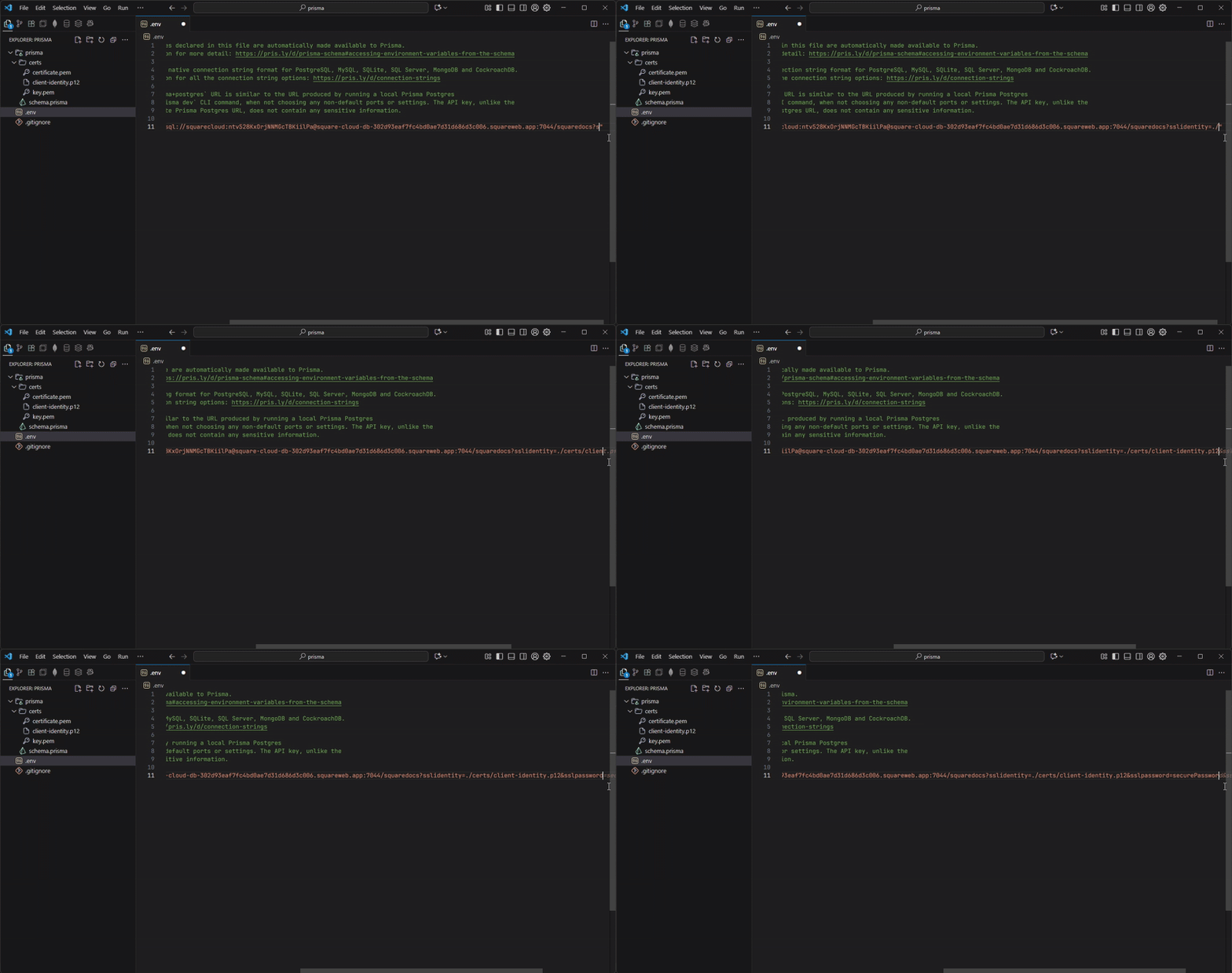
.env file to include the connection string and SSL configuration.
In your Prisma project, locate the .env file and update the DATABASE_URL variable with your PostgreSQL connection string.
Make sure to include the SSL configuration in the connection string. It should look something like this: