

Introduction
To develop and host a Preact application on Square Cloud, it’s essential to follow a structured sequence of configurations and prerequisites. This technical guide will cover the entire process, from initial setup to production deployment.Prerequisites
- Square Cloud Account: Register through the signup page using your email.
- Active plan: Ensures dedicated resources and optimized performance for your application. Check our available plans and choose the most suitable for your needs.
Create the project
You need Node.js and npm on your machine. If you don’t have them, download them from the official Node.js website. Create a project with the official initializer,create-preact:
preact-cli. Then enter the project folder and install the dependencies if the initializer did not:
npm run dev and edit src/index.jsx (or src/index.tsx) to change the home page.
Build for production
create-preact projects build with Vite, which writes the production files to the dist/ folder.
Choose how to serve it
A Preact build is a static site: HTML, CSS and JavaScript files that any web server can deliver. Pick one of these options:- Static runtime (recommended)
- Express server
- serve package
The static runtime serves the files of your build with a web server managed by Square Cloud. No Node.js process runs, so it is the lightest way to host a site without server-side code.
1
Build the site
Run
npm run build. The output goes to the dist folder.2
Keep client-side routes working
If your app changes pages in the browser without a reload (client-side routing), rename
dist/index.html to vite.html. The static runtime answers every path that is not a file with vite.html, so refreshing a route such as /about still loads your app. A site with one HTML file per page keeps index.html: unknown paths then return your 404.html. See how the static runtime serves files.3
Add the configuration file
Create a Use
squarecloud.app file inside dist. A MAIN that points to an HTML file selects the static runtime:squarecloud.app
MAIN=index.html if you kept index.html. 512 MB is the minimum memory for a website. When you upload through the dashboard, it asks for these values and writes the file for you.4
Zip the build output
Zip the contents of
dist, not the folder itself, so that squarecloud.app sits at the root of the ZIP. With the CLI, run squarecloud upload from inside dist.Deploy and verify
Create the ZIP described in the option you picked, then upload it:Via dashboard
1
Access the Upload Page
Access the upload page and upload your project zip file.
2
Configure Your Environment
After uploading your zip, you will need to configure the name, main file or runtime environment and other settings for your project.
If you are uploading a web project, make sure to select “Web Publication” and set a subdomain to your project.
If you are uploading a web project, make sure to select “Web Publication” and set a subdomain to your project.
3
Deploy Your Project
Finally, click on the “Deploy” button to host your project on Square Cloud.
After deployment, you can monitor your project’s status and logs from the dashboard.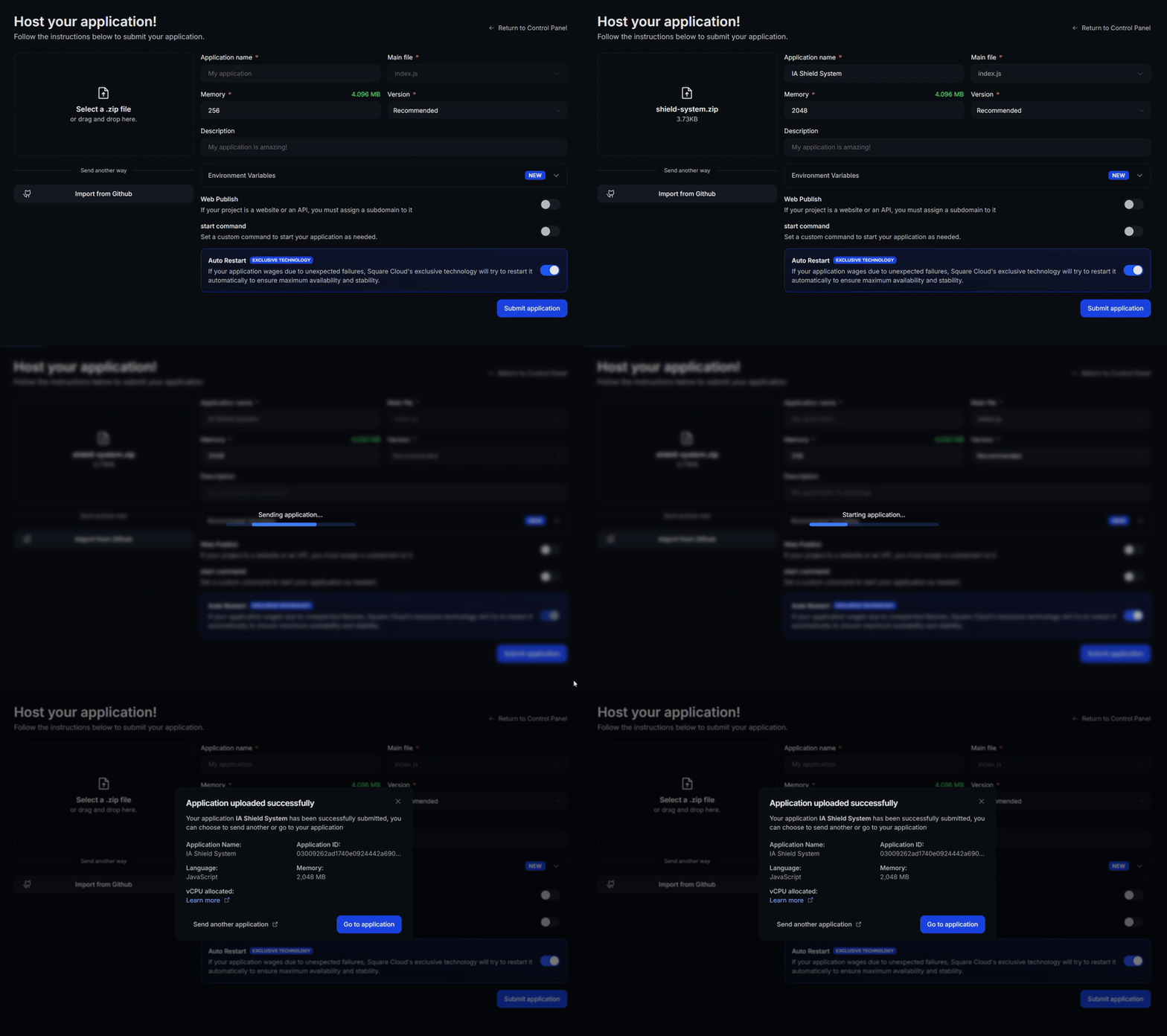
After deployment, you can monitor your project’s status and logs from the dashboard.
4
Confirm Your App Is Live
Your first deploy usually takes less than a minute. In the dashboard, wait for your application status to show as running and check the logs for any startup errors.
If you deployed a website or API, open
If you deployed a website or API, open
https://<your-subdomain>.squareweb.app in your browser: you should see your application responding. If you deployed a bot, send it a command to confirm it is online.
Via CLI
To use this method, your project needs a configuration file namedsquarecloud.app at its root. It tells Square Cloud how to run your application.
Configuration file guide
Learn how to create the
squarecloud.app configuration file that defines your application’s environment.1
Install the CLI
Install the Square Cloud CLI. If you already have it, run the same command to update it:
2
Log In
Run the command below. It opens your browser: approve the login there and the CLI is ready. There is no API key to copy. For scripts and CI, see CLI authentication.
3
Upload Your Project
From your project folder, run the command below. The CLI zips the current folder, leaving out what To upload a zip you created yourself, pass it with
squarecloud.ignore lists, and uploads it:--file:4
Confirm Your App Is Live
Your first deploy usually takes less than a minute. Check your application status and logs directly from the terminal:If you deployed a website or API, open
https://<your-subdomain>.squareweb.app in your browser: you should see your application responding. If you deployed a bot, send it a command to confirm it is online.
Common errors
Custom domain
To use a custom domain (e.g.,
mysite.com) instead of the default URL mysite.squareweb.app, you need the Standard plan or higher. The default URL comes from the SUBDOMAIN field in the configuration file. To connect your domain, follow how to set up your own domain.Minimum RAM requirements
Minimum: 512MB RAM for websites and APIs, enough for a static build on the static runtime. For apps that render pages on a server (Next.js, Nuxt, Angular SSR and similar), we recommend at least 1GB RAM. For larger applications, allocate more RAM to prevent the application from running out of memory and crashing.
Could not find this site.
Check if the subdomain/domain matches what’s configured in the SUBDOMAIN field or in the custom domain settings. If you just uploaded the site, wait up to 60 seconds for Square to enable first access.
Site took too long to respond…
Your server must listen on port 80 and host 0.0.0.0. Square Cloud sets the PORT (
80) and HOST (0.0.0.0) environment variables in your application: read them in your code instead of hardcoding other values. A server that listens only on localhost or 127.0.0.1 never receives requests.A refresh on a route returns 404
Your app uses the Preact router and the server does not know the route. On the static runtime, renameindex.html to vite.html. The Express and serve options above already return index.html for unknown paths.
Next steps
Environment variables
Keep secrets and settings out of your code and read them at runtime.
Custom domain
Serve your app on your own domain, on the Standard plan and above.
Troubleshooting
Fix an app that does not start or a site that does not respond.