

Introduction
To develop and host a Spring Boot application on Square Cloud, it’s essential to follow a structured sequence of configurations and prerequisites. This technical guide will cover the entire process, from initial setup to production deployment.Prerequisites
- Square Cloud Account: Register through the signup page using your email.
- Active plan: Ensures dedicated resources and optimized performance for your application. Check our available plans and choose the most suitable for your needs.
Create the project
You need a Java Development Kit (JDK) on your machine. Generate a project on Spring Initializr with the Spring Web dependency, download it and unzip it. The examples below use the default artifact name,demo.
Port and host
Spring Boot does not read thePORT environment variable by itself. Set it in src/main/resources/application.properties:
src/main/resources/application.properties
${PORT:80} uses the PORT variable, which Square Cloud sets to 80, and falls back to 80. To run the app on another port locally, set PORT, for example PORT=8080 ./mvnw spring-boot:run. server.address=0.0.0.0 makes the server listen on all network interfaces.
Build for production
Square Cloud does not compile Java projects: build an executable JAR on your machine.mvnw.cmd clean package or gradlew.bat bootJar. Maven writes the JAR to target/demo-0.0.1-SNAPSHOT.jar and Gradle to build/libs/demo-0.0.1-SNAPSHOT.jar. Build with JDK 25 or an earlier version: the runtime cannot run classes compiled for a newer Java.
Configure Square Cloud
Create asquarecloud.app file at the root of your project and point MAIN to the JAR:
squarecloud.app
java -jar target/demo-0.0.1-SNAPSHOT.jar. In the dashboard upload, set the same main file.
MAIN accepts up to 32 characters. The Gradle path, build/libs/demo-0.0.1-SNAPSHOT.jar, is longer: replace the MAIN line with RUNTIME=java and START=java -jar build/libs/demo-0.0.1-SNAPSHOT.jar.
What goes in the ZIP
- The JAR, in the path set in
MAIN. squarecloud.app.
Deploy and verify
Via dashboard
1
Access the Upload Page
Access the upload page and upload your project zip file.
2
Configure Your Environment
After uploading your zip, you will need to configure the name, main file or runtime environment and other settings for your project.
If you are uploading a web project, make sure to select “Web Publication” and set a subdomain to your project.
If you are uploading a web project, make sure to select “Web Publication” and set a subdomain to your project.
3
Deploy Your Project
Finally, click on the “Deploy” button to host your project on Square Cloud.
After deployment, you can monitor your project’s status and logs from the dashboard.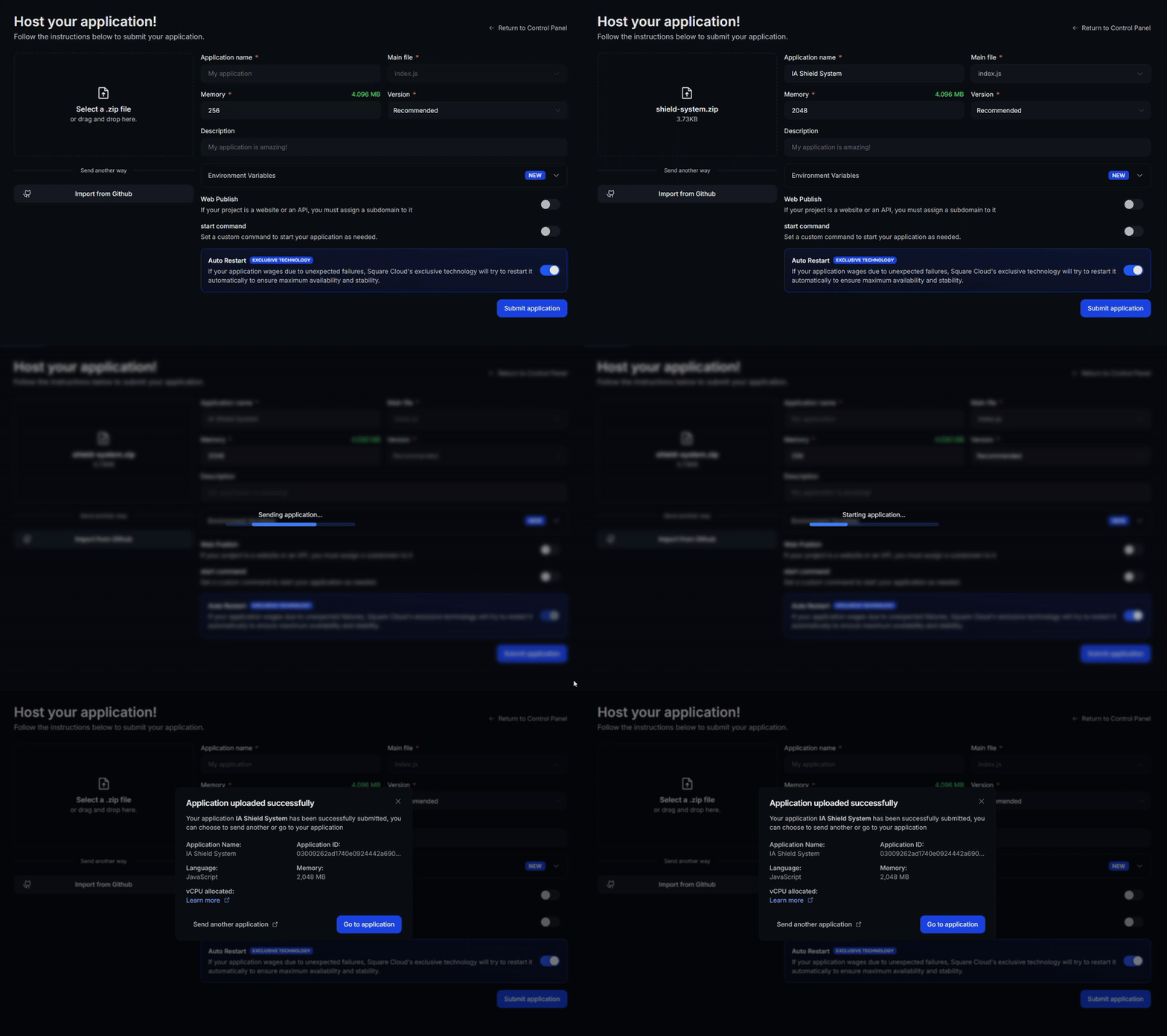
After deployment, you can monitor your project’s status and logs from the dashboard.
4
Confirm Your App Is Live
Your first deploy usually takes less than a minute. In the dashboard, wait for your application status to show as running and check the logs for any startup errors.
If you deployed a website or API, open
If you deployed a website or API, open
https://<your-subdomain>.squareweb.app in your browser: you should see your application responding. If you deployed a bot, send it a command to confirm it is online.
Via CLI
To use this method, your project needs a configuration file namedsquarecloud.app at its root. It tells Square Cloud how to run your application.
Configuration file guide
Learn how to create the
squarecloud.app configuration file that defines your application’s environment.1
Install the CLI
Install the Square Cloud CLI. If you already have it, run the same command to update it:
2
Log In
Run the command below. It opens your browser: approve the login there and the CLI is ready. There is no API key to copy. For scripts and CI, see CLI authentication.
3
Upload Your Project
From your project folder, run the command below. The CLI zips the current folder, leaving out what To upload a zip you created yourself, pass it with
squarecloud.ignore lists, and uploads it:--file:4
Confirm Your App Is Live
Your first deploy usually takes less than a minute. Check your application status and logs directly from the terminal:If you deployed a website or API, open
https://<your-subdomain>.squareweb.app in your browser: you should see your application responding. If you deployed a bot, send it a command to confirm it is online.
Common errors
Custom domain
To use a custom domain (e.g.,
mysite.com) instead of the default URL mysite.squareweb.app, you need the Standard plan or higher. The default URL comes from the SUBDOMAIN field in the configuration file. To connect your domain, follow how to set up your own domain.Minimum RAM requirements
Minimum: 512MB RAM for websites and APIs, enough for a static build on the static runtime. For apps that render pages on a server (Next.js, Nuxt, Angular SSR and similar), we recommend at least 1GB RAM. For larger applications, allocate more RAM to prevent the application from running out of memory and crashing.
Could not find this site.
Check if the subdomain/domain matches what’s configured in the SUBDOMAIN field or in the custom domain settings. If you just uploaded the site, wait up to 60 seconds for Square to enable first access.
Site took too long to respond…
Your server must listen on port 80 and host 0.0.0.0. Square Cloud sets the PORT (
80) and HOST (0.0.0.0) environment variables in your application: read them in your code instead of hardcoding other values. A server that listens only on localhost or 127.0.0.1 never receives requests.UnsupportedClassVersionError
The JAR was compiled for a newer Java than the runtime’s JDK 25. Build it with JDK 25 or earlier, or setjava.version in your pom.xml (or the toolchain in build.gradle) to 25 or lower.
Next steps
Environment variables
Keep secrets and settings out of your code and read them at runtime.
Custom domain
Serve your app on your own domain, on the Standard plan and above.
Troubleshooting
Fix an app that does not start or a site that does not respond.