

Introduction
This tutorial will guide you through the steps to connect to a PostgreSQL database using JDBC (Java Database Connectivity). JDBC is a Java API that allows you to connect and execute queries in .Prerequisites
- Square Cloud Account: Register through the signup page using your email.
- Active Paid Plan: Ensures dedicated resources and optimized performance for your application. Check our available plans and choose the most suitable for your needs.
- Before you begin, ensure you have created database in Square Cloud and connect on some manager client like dbeaver or any other to create a database.
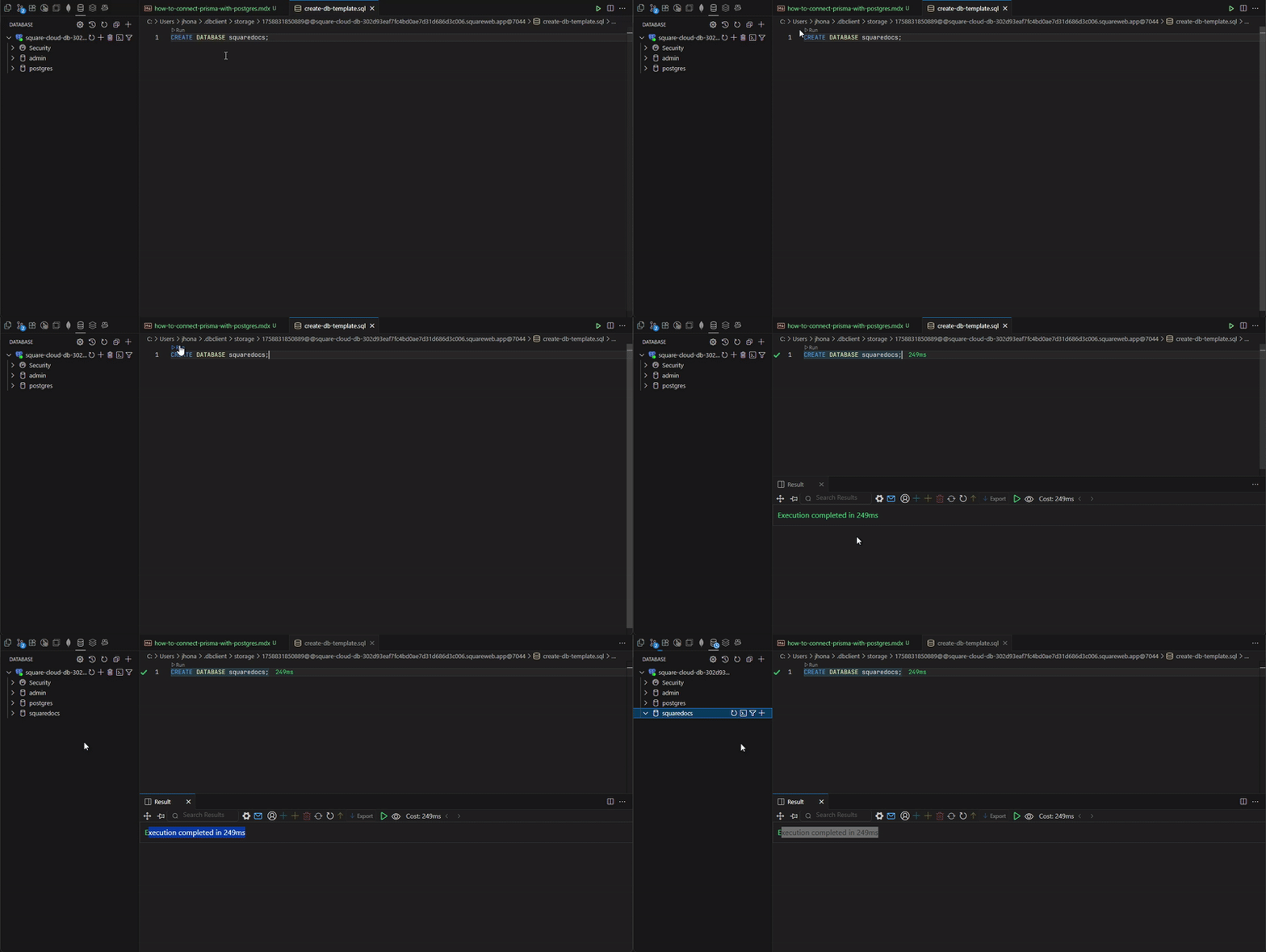
Steps to connect to PostgreSQL with JDBC
Get your PostgreSQL connection details
Get your PostgreSQL connection details
To connect your Java application to your PostgreSQL database, you need the following connection details: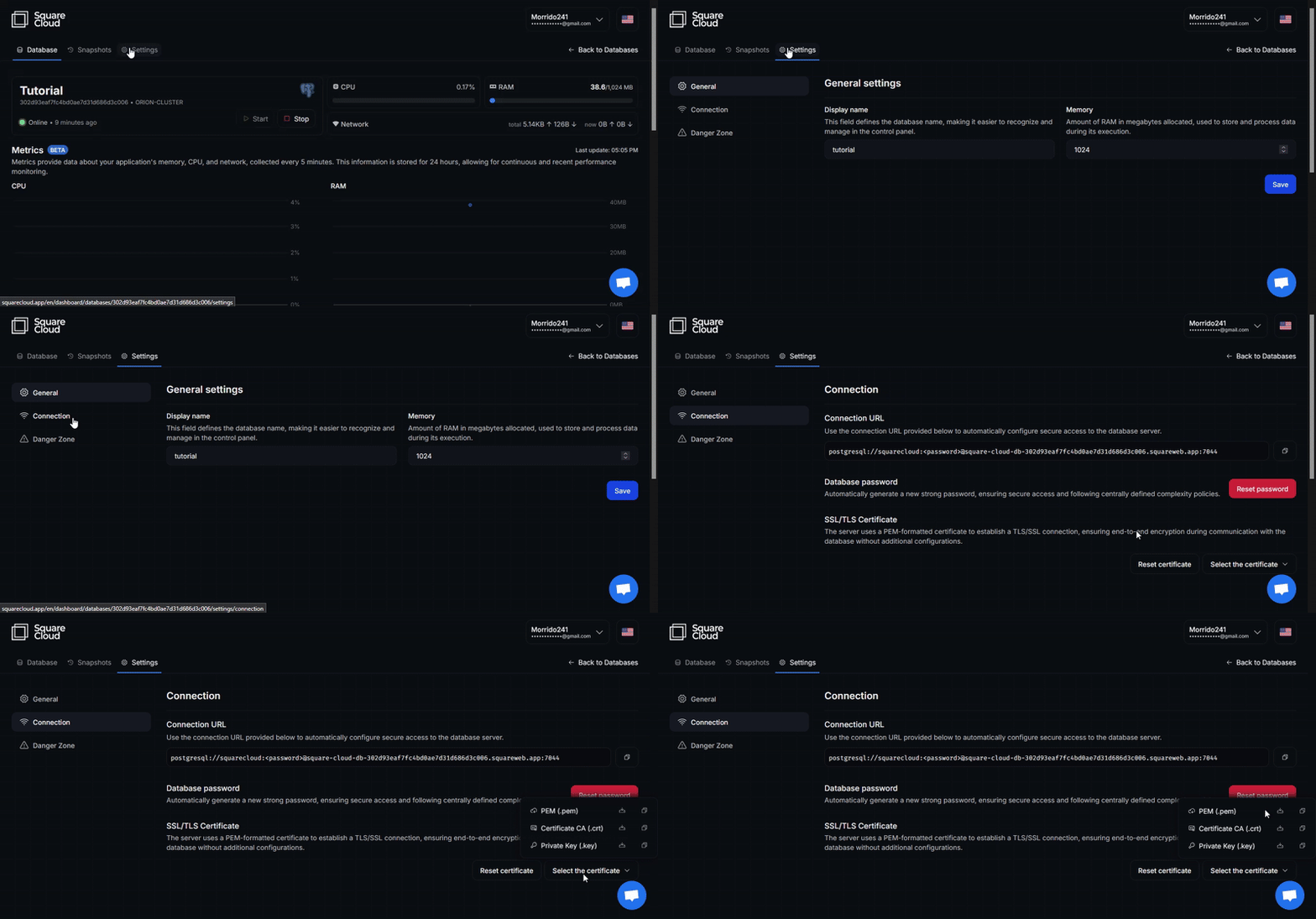 You can find these details in the Square Cloud dashboard under the “Databases” section. Click on your PostgreSQL database to view its connection details,
then go to its “Configuration” tab to find the connection string. If you didn’t copied when created, you will need to regenerate the password and paste it in the URL.
You can find these details in the Square Cloud dashboard under the “Databases” section. Click on your PostgreSQL database to view its connection details,
then go to its “Configuration” tab to find the connection string. If you didn’t copied when created, you will need to regenerate the password and paste it in the URL.
- Connection String: The connection string to connect to your PostgreSQL database.
- Certificate: The SSL certificate for secure connections, use the
.crtand.keycertificates.
Creating the pk8
JDBC requires the SSL key certificate to be in a specific format, a Replace
.pk8 file. You can create this file using OpenSSL.
To convert the .key file to .pk8, you can use the following OpenSSL command:path/to/key.key with the actual paths to your key file.
Save the private-key.pk8 file in a folder with the other needed certificates, for example, in a folder named certs.Update the DATABASE_URL
Update your
.env file to include the connection string and SSL configuration.
In your Prisma project, locate the .env file and update the DATABASE_URL variable with your PostgreSQL connection string.
Make sure to include the SSL configuration in the connection string. It should look something like this: