

java -jar.
Before you begin
- A Java Development Kit (JDK) on your machine. If you don’t have one yet, you can download Eclipse Temurin from Adoptium.
- A Square Cloud account: sign up with your email or GitHub.
- An active plan. See the plans and pick the one that fits your project.
Configure Square Cloud
If you upload your application through the dashboard, you can skip this section: the dashboard creates the
squarecloud.app configuration file for you.Configuration file reference
The
squarecloud.app file tells Square Cloud how to run your application: its main file, memory, runtime version, name and, for a website, its subdomain.MAIN to your JAR. A complete configuration file for each kind of app:
- Bot or worker
- Website or API
squarecloud.app
MAIN accepts up to 32 characters. For a longer path, replace it with RUNTIME=java and START=java -jar <path-to-your.jar>.
What Square Cloud runs
- If the
STARTfield is not defined in the configuration file, Square Cloud will executejava -jar MAIN, where the file specified inMAINis the JAR file. If theSTARTfield is defined, the value in it will be executed directly. For more information about configuration file parameters, visit configuration parameters.
Port and host for websites and APIs
Square Cloud sets thePORT environment variable to 80. Your server must listen on that port and on all network interfaces (0.0.0.0). With Spring Boot, set server.port=${PORT:80} in application.properties, as shown in the Spring Boot guide.
Prepare the project
Square Cloud does not compile Java projects: build an executable JAR on your machine and upload it.- Maven: run
mvn package; the JAR is written totarget/. To bundle your dependencies into a single runnable JAR, use the Maven Shade or Assembly plugin and configure it to setMain-Class. - Gradle: run
./gradlew build(orgradle build); the JAR is written tobuild/libs/. To bundle your dependencies, use the Shadow plugin (./gradlew shadowJar) or setMain-Classin thejartask’s manifest.
java -jar your-app.jar before uploading it. Compile it for Java 25 or earlier: the runtime cannot run classes built for a newer Java.
Required files
squarecloud.app, at the root of the ZIP.- Your executable JAR, set in
MAIN. ItsMETA-INF/MANIFEST.MFgoes inside the JAR, not as a separate file, and must declare theMain-Classof your application.
What to leave out
- Your source code and build folders are optional: the JAR already contains the compiled application.
Framework guides
Spring Boot
Troubleshooting
no main manifest attribute
no main manifest attribute
The JAR has no
Main-Class in its manifest, so java -jar cannot start it. Build an executable JAR as described in Prepare the project.UnsupportedClassVersionError
UnsupportedClassVersionError
The JAR was compiled for a newer Java than JDK 25. Build it for Java 25 or earlier.
Deploy
Via dashboard
1
Access the Upload Page
Access the upload page and upload your project zip file.
2
Configure Your Environment
After uploading your zip, you will need to configure the name, main file or runtime environment and other settings for your project.
If you are uploading a web project, make sure to select “Web Publication” and set a subdomain to your project.
If you are uploading a web project, make sure to select “Web Publication” and set a subdomain to your project.
3
Deploy Your Project
Finally, click on the “Deploy” button to host your project on Square Cloud.
After deployment, you can monitor your project’s status and logs from the dashboard.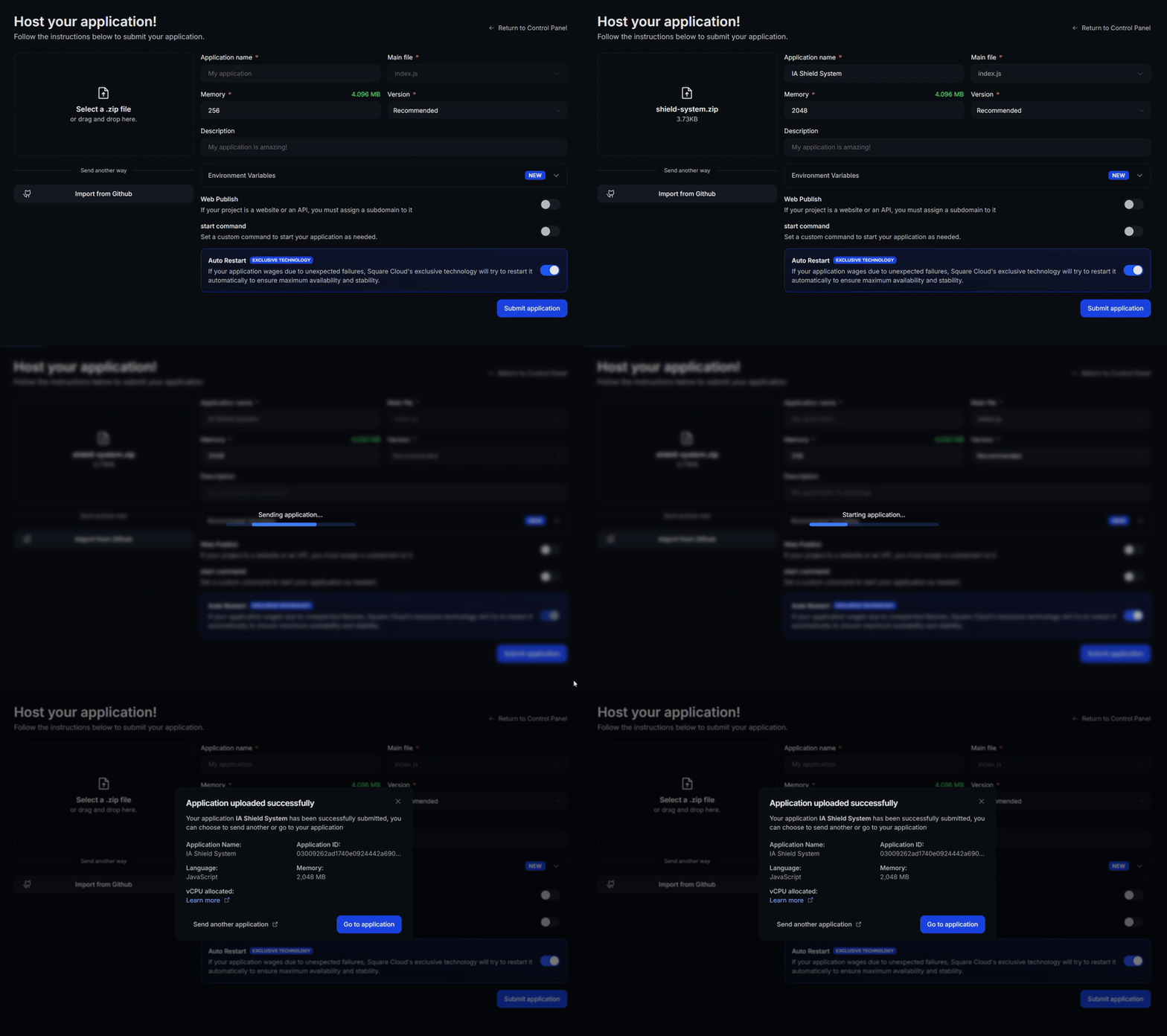
After deployment, you can monitor your project’s status and logs from the dashboard.
4
Confirm Your App Is Live
Your first deploy usually takes less than a minute. In the dashboard, wait for your application status to show as running and check the logs for any startup errors.
If you deployed a website or API, open
If you deployed a website or API, open
https://<your-subdomain>.squareweb.app in your browser: you should see your application responding. If you deployed a bot, send it a command to confirm it is online.
Via CLI
To use this method, your project needs a configuration file namedsquarecloud.app at its root. It tells Square Cloud how to run your application.
Configuration file guide
Learn how to create the
squarecloud.app configuration file that defines your application’s environment.1
Install the CLI
Install the Square Cloud CLI. If you already have it, run the same command to update it:
2
Log In
Run the command below. It opens your browser: approve the login there and the CLI is ready. There is no API key to copy. For scripts and CI, see CLI authentication.
3
Upload Your Project
From your project folder, run the command below. The CLI zips the current folder, leaving out what To upload a zip you created yourself, pass it with
squarecloud.ignore lists, and uploads it:--file:4
Confirm Your App Is Live
Your first deploy usually takes less than a minute. Check your application status and logs directly from the terminal:If you deployed a website or API, open
https://<your-subdomain>.squareweb.app in your browser: you should see your application responding. If you deployed a bot, send it a command to confirm it is online.
Next steps
Environment variables
Keep secrets and settings out of your code and read them at runtime.
Custom domain
Serve your app on your own domain, on the Standard plan and above.
Troubleshooting
Fix an app that does not start or a site that does not respond.