

npx deno.
Before you begin
- Deno on your machine, from the official Deno installer, or the npm package (
npm install deno). - A Square Cloud account: sign up with your email or GitHub.
- An active plan. See the plans and pick the one that fits your project.
Configure Square Cloud
If you upload your application through the dashboard, you can skip this section: the dashboard creates the
squarecloud.app configuration file for you.Configuration file reference
The
squarecloud.app file tells Square Cloud how to run your application: its main file, memory, runtime version, name and, for a website, its subdomain.deno package to your project’s dependencies, so that the npx deno command is available on Square Cloud. Don’t add it to devDependencies: they are not installed in production.
RUNTIME=nodejs and start your app with Deno in the START field, with the permissions it needs. A complete configuration file for each kind of app:
- Bot or worker
- Website or API
squarecloud.app
--allow-net, --allow-env, --allow-read and others) to what your app uses. If you use tasks defined in deno.json, start with START=npx deno task start.
What Square Cloud runs
STARTis executed directly. For more information about configuration file parameters, visit configuration parameters.- If the app has no
node_modulesfolder, Square Cloud runsnpm install --no-audit --no-fundbefore starting it, which also installsdenoand any npm modules listed inpackage.json. Packages indevDependenciesare not installed, because the runtime setsNODE_ENV=production. Whennode_modulesalready exists, the install step is skipped.
Port and host for websites and APIs
Deno.serve() listens on port 8000 by default and does not read the PORT environment variable. Pass the port and host yourself: Square Cloud sets PORT to 80, and 0.0.0.0 accepts connections from outside the container.
main.ts
PORT needs --allow-env, and serving needs --allow-net, as in the START examples above.
Prepare the project
Required files
squarecloud.app, at the root of the ZIP.- Your entry file, for example
main.ts. package.json, which listsdenoindependencies. An upload without it fails withINVALID_DEPENDENCY.- Optionally, a
deno.jsonordeno.jsoncfor tasks, imports and other Deno settings.
What to leave out
node_modules: Square Cloud removes this folder from your upload and installs the dependencies frompackage.jsonon the first start.deno_diror.cache/deno: the Deno cache directory, which Deno fills again on the server.- Lockfiles: the CLI and the VS Code extension leave
package-lock.json,yarn.lockandpnpm-lock.yamlout by default. When you need the exact versions of yourpackage-lock.json, re-include it with!package-lock.jsonin yoursquarecloud.ignore.
Troubleshooting
PermissionDenied: Requires net or env access
PermissionDenied: Requires net or env access
Deno blocks network and environment access unless you allow it. Add the flag named in the error, such as
--allow-net or --allow-env, to your START command.Insufficient memory
Insufficient memory
The minimum amount of RAM required to host a bot is 256MB and for
a site/API it is 512MB. However, depending on the size and complexity of
your application, it may be advisable to allocate a larger amount of RAM to
avoid your application running out of memory and crashing.
Deploy
Via dashboard
1
Access the Upload Page
Access the upload page and upload your project zip file.
2
Configure Your Environment
After uploading your zip, you will need to configure the name, main file or runtime environment and other settings for your project.
If you are uploading a web project, make sure to select “Web Publication” and set a subdomain to your project.
If you are uploading a web project, make sure to select “Web Publication” and set a subdomain to your project.
3
Deploy Your Project
Finally, click on the “Deploy” button to host your project on Square Cloud.
After deployment, you can monitor your project’s status and logs from the dashboard.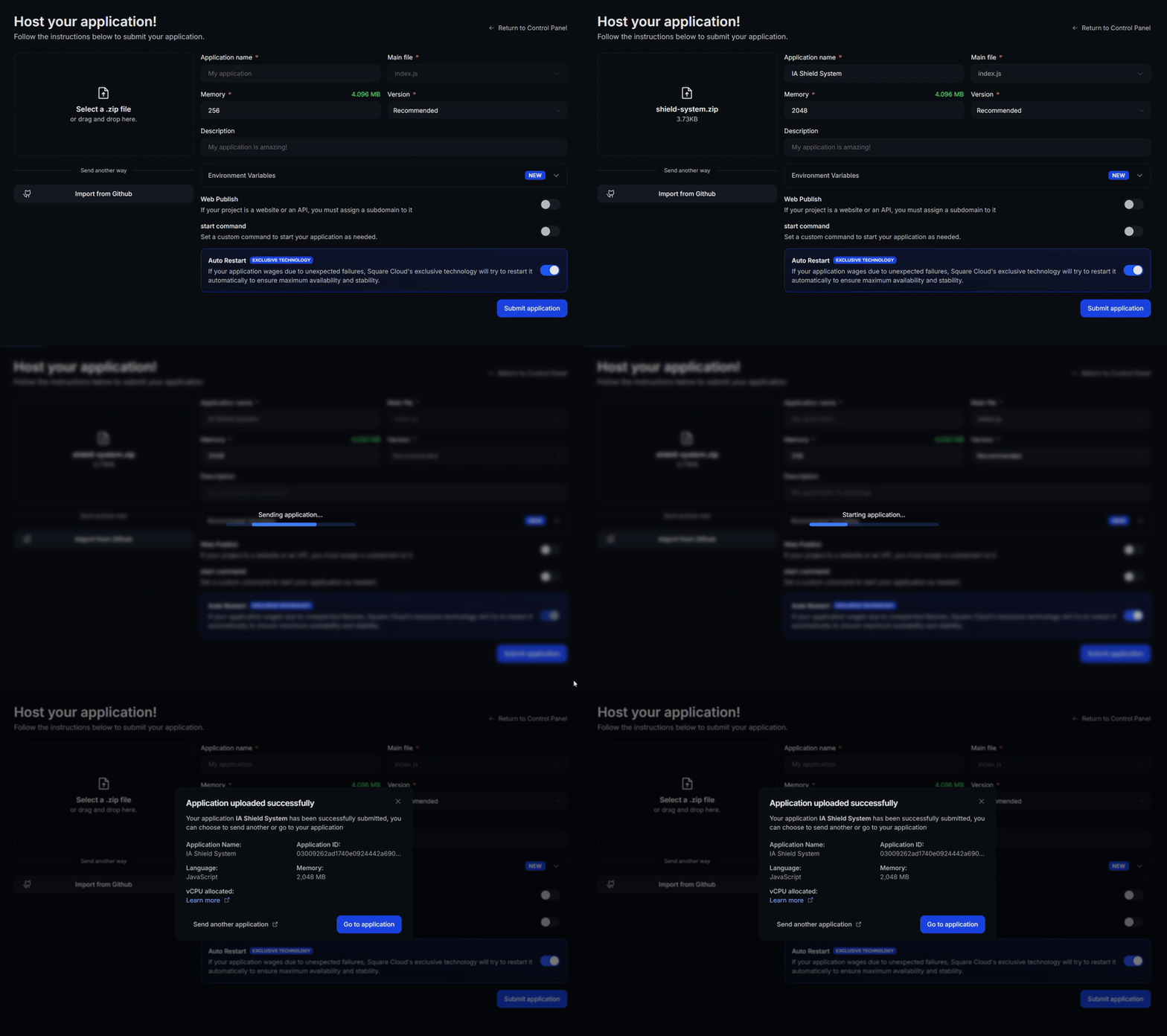
After deployment, you can monitor your project’s status and logs from the dashboard.
4
Confirm Your App Is Live
Your first deploy usually takes less than a minute. In the dashboard, wait for your application status to show as running and check the logs for any startup errors.
If you deployed a website or API, open
If you deployed a website or API, open
https://<your-subdomain>.squareweb.app in your browser: you should see your application responding. If you deployed a bot, send it a command to confirm it is online.
Via CLI
To use this method, your project needs a configuration file namedsquarecloud.app at its root. It tells Square Cloud how to run your application.
Configuration file guide
Learn how to create the
squarecloud.app configuration file that defines your application’s environment.1
Install the CLI
Install the Square Cloud CLI. If you already have it, run the same command to update it:
2
Log In
Run the command below. It opens your browser: approve the login there and the CLI is ready. There is no API key to copy. For scripts and CI, see CLI authentication.
3
Upload Your Project
From your project folder, run the command below. The CLI zips the current folder, leaving out what To upload a zip you created yourself, pass it with
squarecloud.ignore lists, and uploads it:--file:4
Confirm Your App Is Live
Your first deploy usually takes less than a minute. Check your application status and logs directly from the terminal:If you deployed a website or API, open
https://<your-subdomain>.squareweb.app in your browser: you should see your application responding. If you deployed a bot, send it a command to confirm it is online.
Next steps
Environment variables
Keep secrets and settings out of your code and read them at runtime.
Custom domain
Serve your app on your own domain, on the Standard plan and above.
Troubleshooting
Fix an app that does not start or a site that does not respond.