

始める前に
Square Cloud は有料プラットフォームです。デプロイには有効なプランが必要で、初日からプロジェクトが本番グレードのインフラ上で稼働します。まずはアカウントを作成し、その後あなたに最適なプランを選択してください(各プランに含まれる内容はこちら)。サインアップ
Square を初めてご利用の場合は、サインアップして始めましょう。
ログイン
すでにアカウントをお持ちの場合は、ログインして始めましょう。
プロジェクトを作成する
フォルダを作成し、次の 3 つのファイルを置きます。1
アプリを書く
index.js は、すべてのリクエストに短いメッセージで応答します。ポートとホストは、Square Cloud が 80 と 0.0.0.0 に設定する環境変数 PORT と HOST から読み取ります。index.js
2
依存関係を記載する
Node.js のプロジェクトには必ず
package.json が必要です。Square Cloud は、アプリを起動する前にこのファイルに記載されたパッケージをインストールします。この例では依存関係はありませんが、ファイル自体は必要で、空にはできません。package.json
3
設定ファイルを追加する
squarecloud.app は、実行するファイル、確保するメモリ量、使用するランタイムのバージョンを Square Cloud に伝えます。SUBDOMAIN を指定すると、アプリは https://<subdomain>.squareweb.app で Web サイトとして公開されます。まだ誰も使っていない名前を選んでください。squarecloud.app
プロジェクトを zip にする
CLI でデプロイする場合、このセクションは不要です。squarecloud upload がフォルダを zip にまとめます。
1
フォルダではなくファイルを選択する
プロジェクトのフォルダを開き、中身をすべて選択します。
squarecloud.app は zip の最上位に置く必要があります。フォルダ自体を圧縮すると、ファイルがサブフォルダに入ってしまい、デプロイが MISSING_CONFIG で失敗します。2
zip を作成する
- Windows
- macOS
- Linux
選択したファイルを右クリックし、ZIP ファイルに圧縮する(Windows 11)、または 送る → 圧縮 (zip 形式) フォルダー を選びます。
3
サイズを確認する
zip のサイズは最大 100 MB です。
node_modules、仮想環境、ビルドキャッシュは含めないでください。依存関係はサーバー上でインストールされ、これらのフォルダはいずれにしてもデプロイ時に削除されます。デプロイ
ダッシュボードで zip をアップロードするか、CLI から 1 コマンドでデプロイします。ダッシュボード経由
1
アップロードページにアクセス
アップロードページにアクセスし、プロジェクトの zip ファイルをアップロードします。
2
環境を設定
zip をアップロードした後、プロジェクトの名前、メインファイルまたはランタイム環境、その他の設定を構成する必要があります。
ウェブプロジェクトをアップロードする場合は、必ず「Web Publication」を選択し、プロジェクトにサブドメインを設定してください。
ウェブプロジェクトをアップロードする場合は、必ず「Web Publication」を選択し、プロジェクトにサブドメインを設定してください。
3
プロジェクトをデプロイ
最後に「Deploy」ボタンをクリックして、プロジェクトを Square Cloud にホストします。
デプロイ後、ダッシュボードからプロジェクトのステータスとログを監視できます。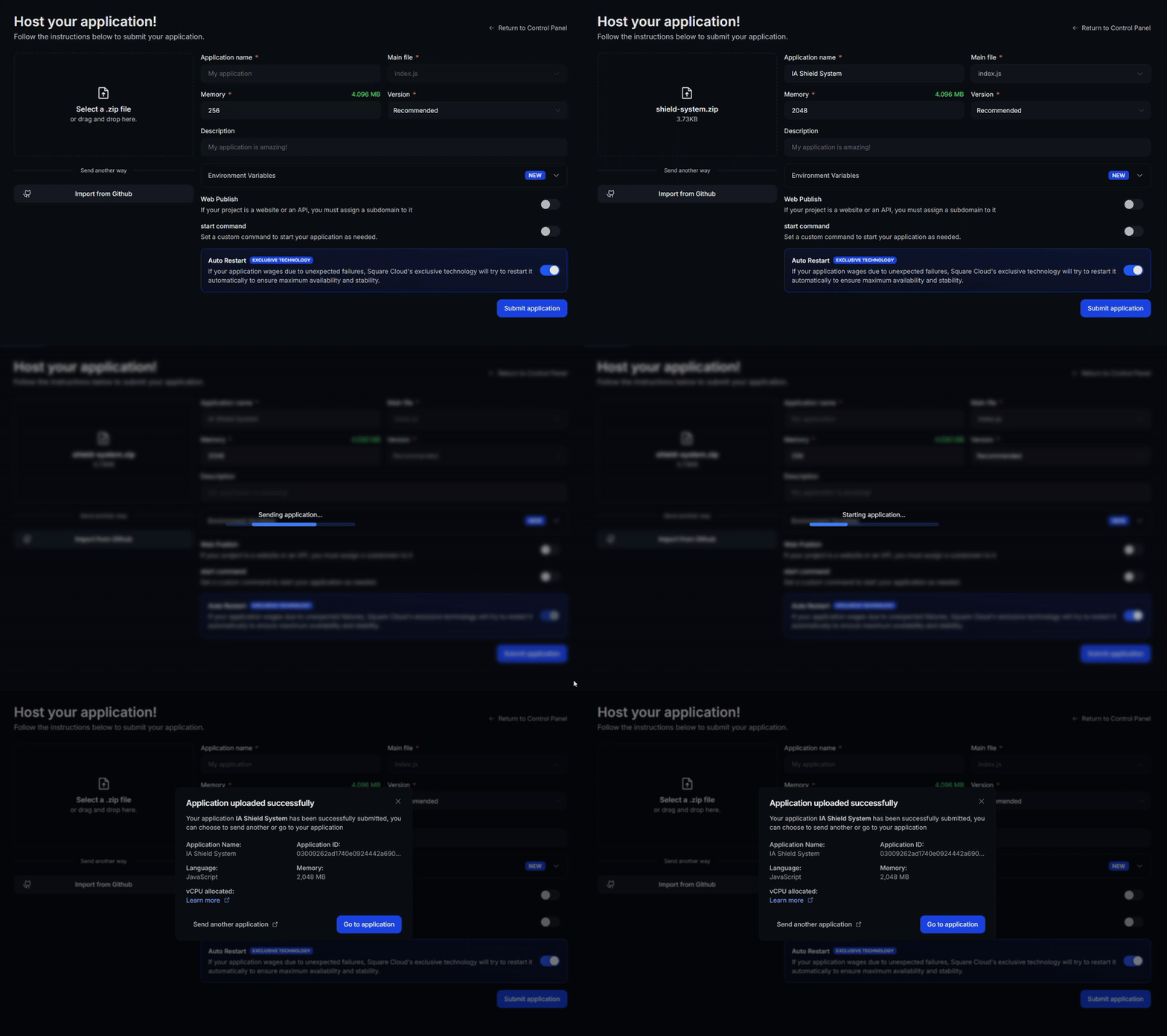
デプロイ後、ダッシュボードからプロジェクトのステータスとログを監視できます。
4
アプリが稼働していることを確認
最初のデプロイは、通常 1 分もかからずに完了します。ダッシュボードでアプリケーションのステータスが running になるのを待ち、起動時のエラーがないかログを確認してください。
ウェブサイトや API をデプロイした場合は、ブラウザで
ウェブサイトや API をデプロイした場合は、ブラウザで
https://<your-subdomain>.squareweb.app を開き、アプリケーションが応答することを確認してください。ボットをデプロイした場合は、コマンドを送信してオンラインになっていることを確認してください。
CLI 経由
この方法を使用するには、プロジェクトのルートにsquarecloud.app という名前の設定ファイルが必要です。このファイルは、アプリケーションの実行方法を Square Cloud に伝えます。
設定ファイルガイド
アプリケーションの環境を定義する
squarecloud.app 設定ファイルの作成方法を学びます。1
CLI をインストール
Square Cloud CLI をインストールします。すでにお持ちの場合は、同じコマンドを実行すると更新されます:
2
ログイン
次のコマンドを実行します。ブラウザが開くので、そこでログインを承認すれば CLI の準備は完了です。API キーをコピーする必要はありません。スクリプトや CI については、CLI の認証を参照してください。
3
プロジェクトをアップロード
プロジェクトのフォルダで次のコマンドを実行します。CLI は 自分で作成した zip をアップロードするには、
squarecloud.ignore に記載されたものを除いて現在のフォルダを zip にし、アップロードします:--file で指定します:4
アプリが稼働していることを確認
最初のデプロイは、通常 1 分もかからずに完了します。ターミナルから直接、アプリケーションのステータスとログを確認してください。ウェブサイトや API をデプロイした場合は、ブラウザで
https://<your-subdomain>.squareweb.app を開き、アプリケーションが応答することを確認してください。ボットをデプロイした場合は、コマンドを送信してオンラインになっていることを確認してください。
https://hello-square-yourname.squareweb.app(あなたのサブドメイン)が Hello from Square Cloud! と応答します。
次のステップ
設定ファイル
メモリ、起動コマンド、サブドメイン、自動再起動など、
squarecloud.app のすべてのフィールド。環境変数
トークンや接続文字列をコードの外に保存します。
トラブルシューティング
アップロードのエラー、表示されないサイト、起動しないアプリを解決します。
VS Code 拡張機能
エディターを離れずに、アップロード、コミット、ログの確認ができます。