

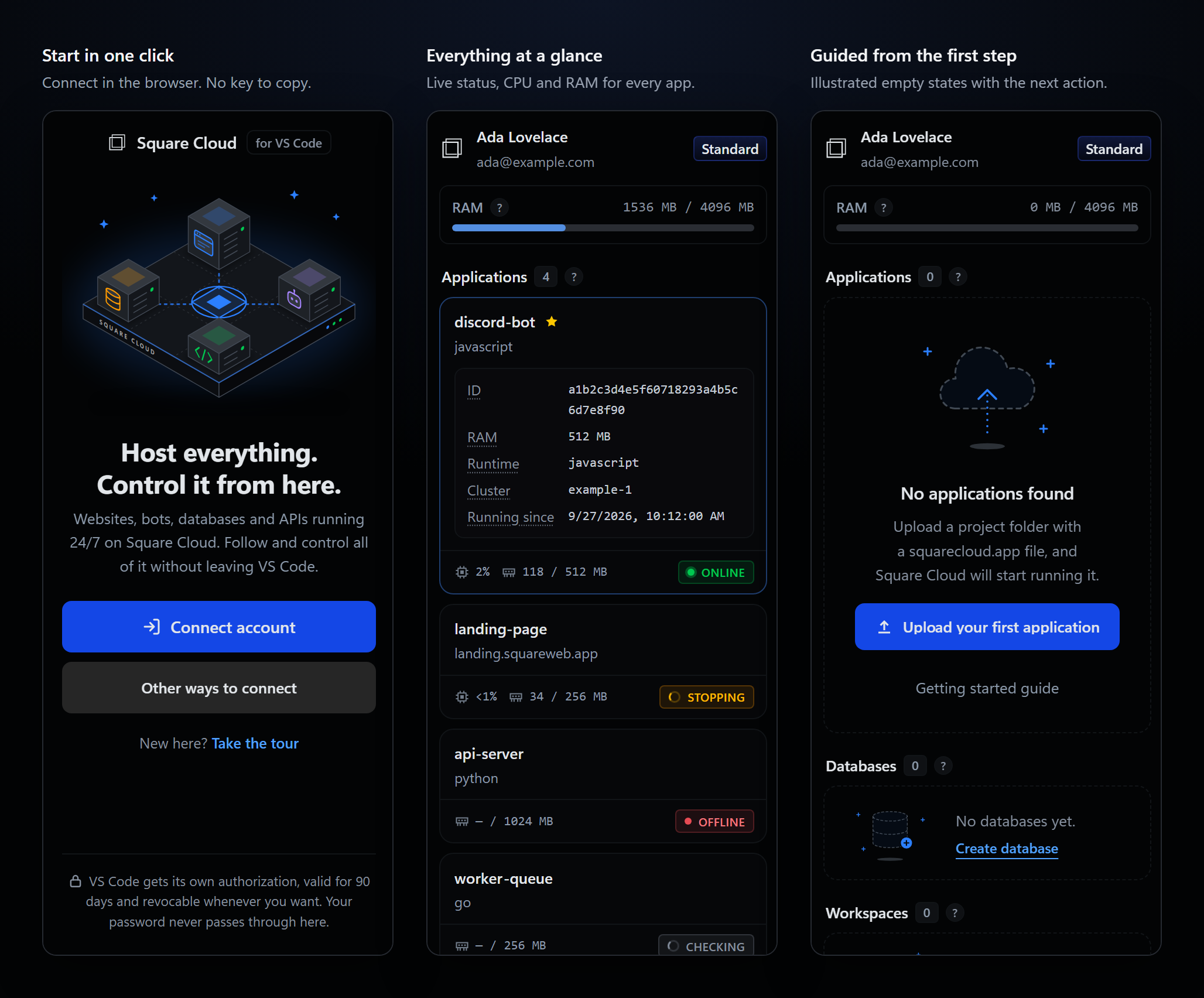
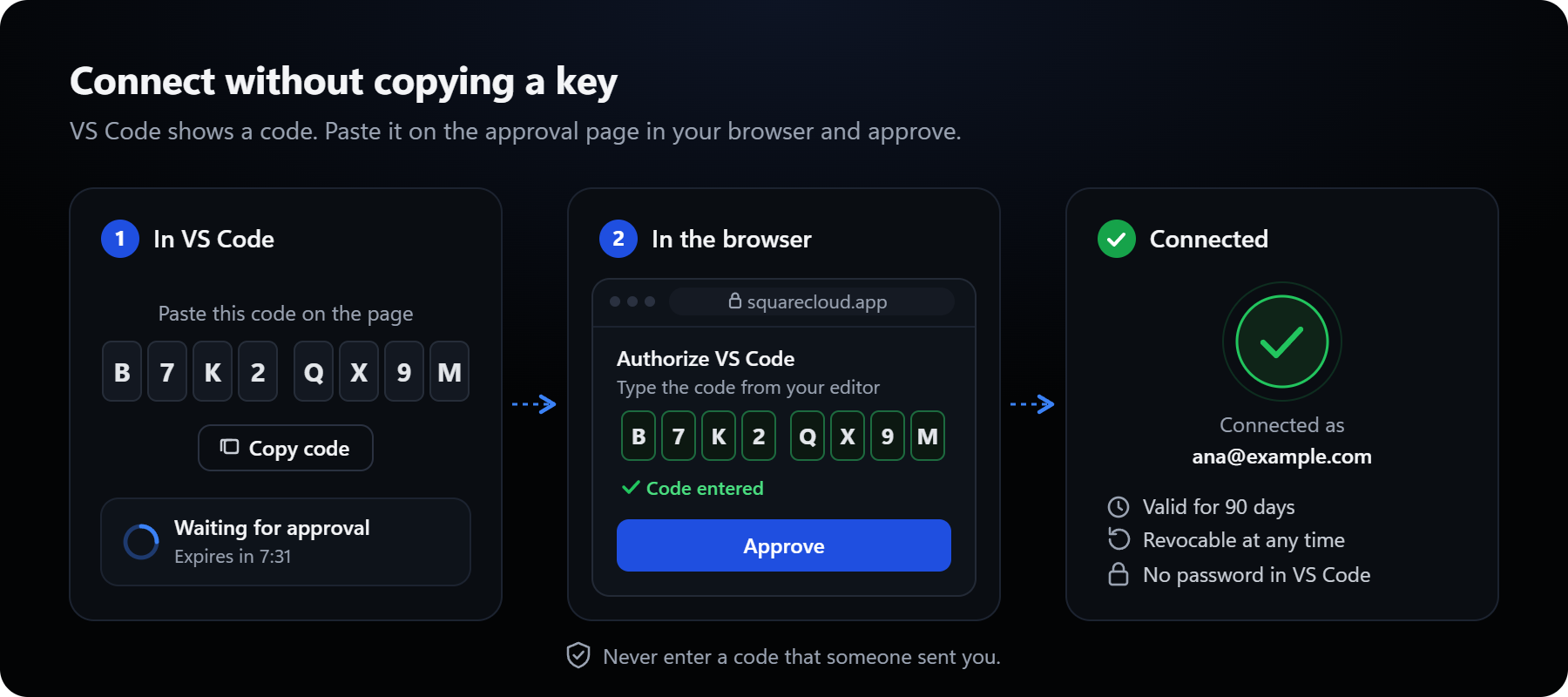
- Connect in the browser: approve with an eight-character code, no key to copy or paste.
- Every application at a glance: live status, CPU and RAM, one-click start, stop, restart and logs.
- Deploy from the editor: upload a new application or commit to an existing one, with your
squarecloud.ignorerules applied. - The whole toolbox: realtime logs, 24h metrics, snapshots, environment variables, GitHub deploys, edge analytics, databases and workspaces.
- A config file that checks itself: autocomplete, validation and quick fixes for
squarecloud.app.
Install
1
Install the extension
Install Square Cloud from the VS Marketplace, or from Open VSX in editors that use it, such as VSCodium and Cursor. You can also search for “Square Cloud” in the Extensions view.
2
Connect your account
Click the Square Cloud icon in the activity bar and press Connect account, or run
Square Cloud: Connect Account from the command palette (Ctrl+Shift+P / Cmd+Shift+P).3
Approve in the browser
The side bar shows an eight-character code and copies it to your clipboard. Paste it on the approval page that opens in your browser and approve.
4
Done
The side bar confirms which account you connected, then loads your applications, databases and workspaces.
Get Started walkthrough
Square Cloud: Get Started opens a guided walkthrough on VS Code’s Welcome page. It opens by itself the first time the extension runs without a connected account, and is also linked from the sign-in view and the side bar’s ... menu.
Each step explains one idea in plain words, with an animated illustration and buttons that run the real command:
- Connect your account
- Describe your app in
squarecloud.app - Upload your application
- Start, stop and restart
- Follow logs and metrics
- Back up with snapshots
- Create a database
- Work as a team with workspaces
- Deploy on every git push with the GitHub App
- Understand your traffic with edge analytics
Languages
The extension speaks the eight languages of the Square Cloud website: English, Portuguese, Spanish, German, French, Italian, Japanese and Chinese. It follows VS Code’s display language, and links into the website open in the same language.Requirements
- VS Code 1.125 or newer.
- A Square Cloud account. Some features (databases, workspaces, edge analytics, GitHub App linking and the snapshot list) need an active plan; the extension says so when your plan doesn’t include an action.
Privacy
- The extension talks only to Square Cloud, through the official JavaScript SDK. There is no telemetry and no third-party service.
- When you create a database, its connection URL is copied to your clipboard once, and the password only through Copy password. The extension never stores either.
Next steps
Features
Deploy, manage applications, databases and workspaces from the side bar.
Commands and settings
Every command, the settings and how to solve common problems.
Square Cloud CLI
Deploy and manage the same applications from the terminal.