> ## Documentation Index
> Fetch the complete documentation index at: https://docs.squarecloud.app/llms.txt
> Use this file to discover all available pages before exploring further.
# 如何在 Square Cloud 上托管 Selenium 应用
> 在 Square Cloud 上使用 Selenium 和 Chromium 实现网页导航自动化的完整指南,包含专业实现与高级配置。
## 专业 Selenium 脚本开发
要在 Square Cloud 上实现高效的网页自动化,建立合适的开发环境并遵循配置最佳实践至关重要。
### 基本技术前置条件
* **Python 和 pip**:确保你的系统上已安装 **Python** 和 **pip**。如果没有,请从 [Python 官网](https://www.python.org/)和 [Pip 官网](https://pypi.org/)下载。
* **Square Cloud 账户**:通过[注册页面](https://squarecloud.app/zh/signup)创建你的账户,使用你的邮箱地址进行注册。
* **有效的付费计划**:需要一个付费计划以确保为运行 Selenium 应用提供充足的资源。查看我们的[可用计划](https://squarecloud.app/zh/pricing),选择最适合你需求的计划。
### Selenium 环境配置
在安装好 Python 和 pip 后,继续创建 Selenium 脚本。首先,安装 Selenium 库:
```bash Terminal theme={null}
pip install selenium
```
接下来,创建一个 Python 文件(例如 `main.py`),并添加以下代码来实现一个基础的 Selenium 脚本:
```python main.py theme={null}
import time
from selenium import webdriver
from selenium.webdriver.chrome.options import Options
from selenium.webdriver.chrome.service import Service
# Configuration options for Chromium
options = Options()
options.add_argument("--headless") # Runs in background without graphical interface
options.add_argument("--no-sandbox") # Required for execution as root in containerized environments
options.add_argument("--disable-dev-shm-usage") # Overcomes shared memory limitations on large pages
# Driver initialization
service = Service('/usr/bin/chromedriver') # Default ChromeDriver path on Square Cloud
driver = webdriver.Chrome(service=service, options=options)
# Browser window dimensions configuration
driver.set_window_size(1920, 1080) # Adjust as needed for your application
# Navigate to web page
driver.get('https://www.google.com')
# Loop for screenshot capture every minute
while True:
driver.save_screenshot('page.png')
print("Page screenshot saved successfully.")
time.sleep(60) # 60-second pause between captures
```
## 使用 requirements.txt 管理依赖
`requirements.txt` 文件是一个必不可少的组件,它列出了项目所需的所有外部库。务必包含所使用的全部依赖项,但排除 Python 原生库,如 `random` 和 `datetime`。在向 Square Cloud 提交应用时应包含此文件。
```txt requirements.txt theme={null}
selenium
```
## Chromium 路径配置
在上面展示的实现中,无需显式定义 Chromium 路径,因为当浏览器安装在标准系统位置时,Selenium WebDriver 可以自动定位它。通过 `Service('/usr/bin/chromedriver')` 指定的 ChromeDriver 知道在何处定位 Chromium/Chrome 可执行文件。
### Square Cloud 架构
在 Square Cloud 上,Chromium 安装在 `/usr/bin/chromium`,这是标准的系统位置。因此,Selenium WebDriver 可以通过指定的 ChromeDriver 自动定位它。这样,除非有特定原因(例如自定义安装或不同的环境配置),否则无需在代码中显式指定 Chromium 路径。
## Square Cloud 配置文件
squarecloud.app 文件是一个必不可少的配置文件,将用于配置你在 Square Cloud 上的应用。它定义了名称、描述、版本、主文件等基本配置。
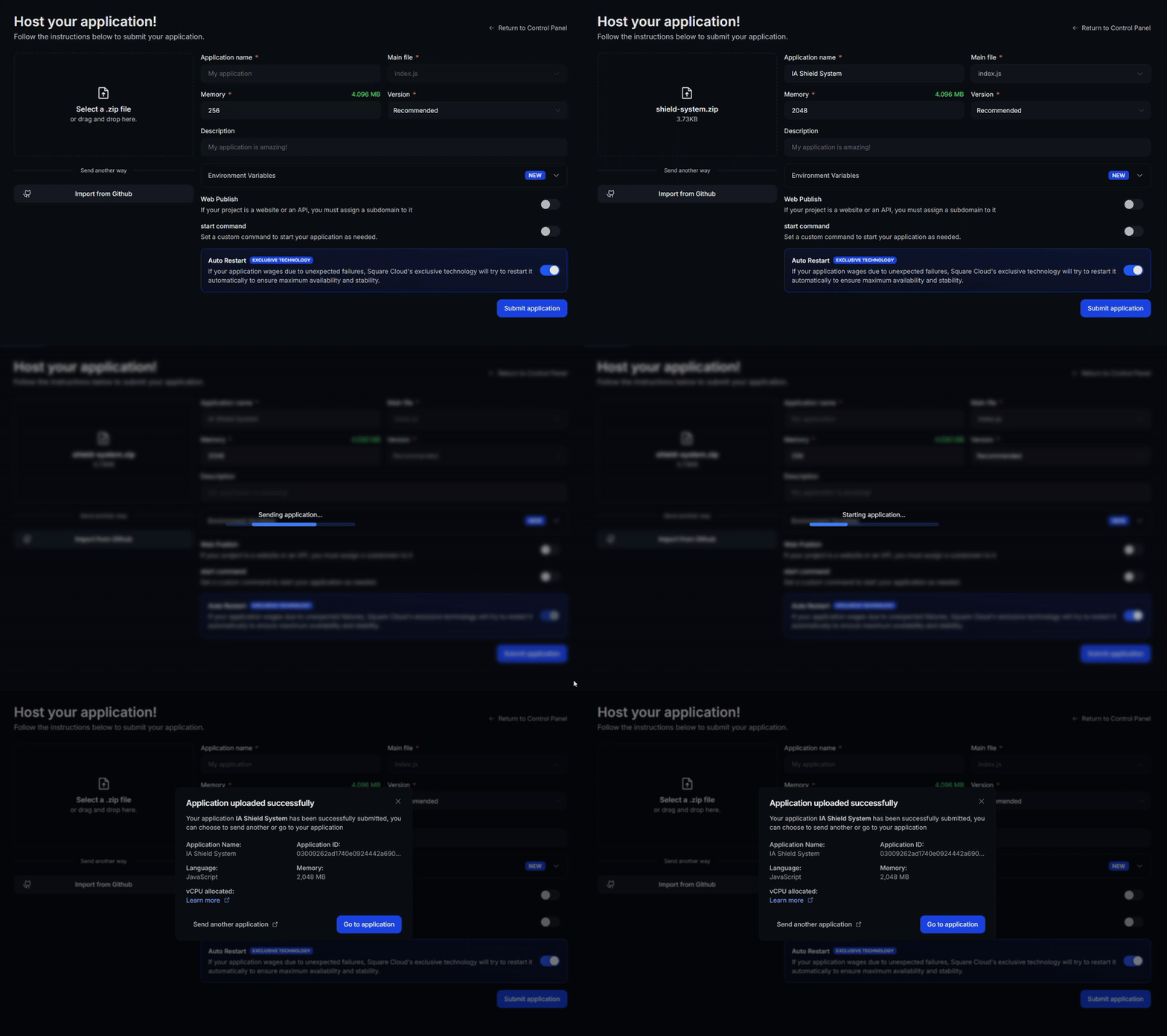
## 将项目上传到 Square Cloud
准备好所有项目文件后,继续上传到 Square Cloud 并专业地托管你的应用。
访问 [Square Cloud 控制台](https://squarecloud.app/zh/dashboard/new)并上传你的项目文件。
 首先,你需要在环境中安装 CLI。如果你还没有安装,请在终端中运行以下命令:
```bash Terminal theme={null}
npm install -g @squarecloud/cli
```
如果你已经安装了,我们建议你更新它。为此,请在终端中运行以下命令:
```bash Terminal theme={null}
squarecloud update
```
为了进行身份验证并使用其他 CLI 命令,你可以在[此处](https://squarecloud.app/zh/account/security)点击 "Request API Key" 找到你的授权密钥。获取授权密钥后,运行以下命令:
```bash Terminal theme={null}
squarecloud auth login
```
最后,要使用 CLI 将你的应用部署到 Square Cloud,请执行以下命令,并提供你的 zip 文件路径:
```bash Terminal theme={null}
squarecloud upload zip
```
## 更多资源与文档
有关 Selenium 及其高级工具的更详细信息,请访问 [Selenium 官方文档](https://www.selenium.dev/documentation/webdriver/getting_started/)。在那里你会找到详细的技术指南、专业教程和完整的 API 文档,以最大化利用 Selenium 的功能。
## 联系我们
如果你仍然遇到**技术问题**,我们的**专业支持团队**可以为你提供帮助。[**联系我们**](https://squarecloud.app/zh/support),我们很乐意协助你解决任何问题。
首先,你需要在环境中安装 CLI。如果你还没有安装,请在终端中运行以下命令:
```bash Terminal theme={null}
npm install -g @squarecloud/cli
```
如果你已经安装了,我们建议你更新它。为此,请在终端中运行以下命令:
```bash Terminal theme={null}
squarecloud update
```
为了进行身份验证并使用其他 CLI 命令,你可以在[此处](https://squarecloud.app/zh/account/security)点击 "Request API Key" 找到你的授权密钥。获取授权密钥后,运行以下命令:
```bash Terminal theme={null}
squarecloud auth login
```
最后,要使用 CLI 将你的应用部署到 Square Cloud,请执行以下命令,并提供你的 zip 文件路径:
```bash Terminal theme={null}
squarecloud upload zip
```
## 更多资源与文档
有关 Selenium 及其高级工具的更详细信息,请访问 [Selenium 官方文档](https://www.selenium.dev/documentation/webdriver/getting_started/)。在那里你会找到详细的技术指南、专业教程和完整的 API 文档,以最大化利用 Selenium 的功能。
## 联系我们
如果你仍然遇到**技术问题**,我们的**专业支持团队**可以为你提供帮助。[**联系我们**](https://squarecloud.app/zh/support),我们很乐意协助你解决任何问题。