> ## Documentation Index
> Fetch the complete documentation index at: https://docs.squarecloud.app/llms.txt
> Use this file to discover all available pages before exploring further.
# 如何托管你的 Uptime Kuma
> 本教程将引导你在 Square Cloud 上创建并部署你的 Uptime Kuma 应用。
## 简介
* 本文将引导你在 Square Cloud 上创建并托管一个 Uptime Kuma 应用。
* 在开始之前,请确保你已拥有 Square Cloud 账户,可通过注册页面完成注册。你可以使用邮箱来创建账户。
* 最后,你的账户需要有一个有效的付费计划。你可以在[此处](https://squarecloud.app/zh/pricing)查看我们的计划,并根据需要购买。
## 选择版本
* 首先,我们需要从[此处](https://github.com/squarecloud-education/uptimekuma-web/releases)选择一个可用的版本。
* 下载所选版本的 `project.zip`。
## 配置文件
* 如果你想要一个自定义子域名而不是随机哈希,可以修改你的 squarecloud.config 来设置所需的子域名。
```systemd squarecloud.config theme={null}
DISPLAY_NAME=Uptime Kuma
MEMORY=1024
VERSION=recommended
AUTORESTART=true
MAIN=server/server.js
SUBDOMAIN=my-uptime-kuma
```
你也可以通过上传菜单来设置这一项。
## 将项目上传到 Square Cloud
准备好项目文件后,你现在可以将它们上传到 Square Cloud 并托管你的项目。
访问 [Square Cloud 控制台](https://squarecloud.app/zh/dashboard/new)并上传你的项目文件。
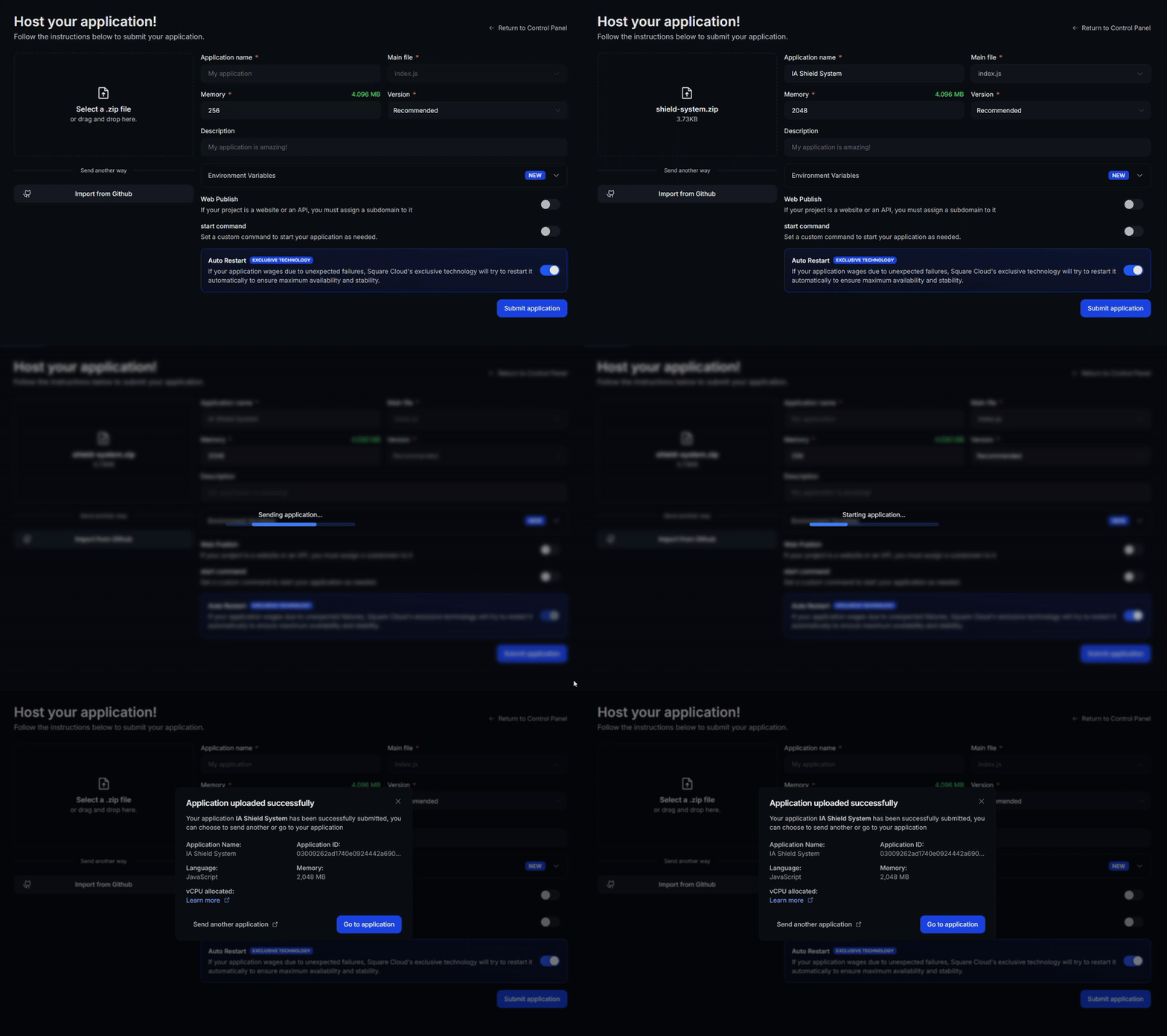 首先,你需要在环境中安装 CLI。如果你还没有安装,请在终端中运行以下命令:
```
npm install -g @squarecloud/cli
```
如果你已经安装了,我们建议你更新它。为此,请在终端中运行以下命令:
```bash theme={null}
squarecloud update
```
```bash theme={null}
curl -fsSL https://cli.squarecloud.app/install | bash
```
现在,为了进行身份验证并使用其他 CLI 命令,你可以在[此处](https://squarecloud.app/zh/account/security)点击 "Request API Key" 找到你的授权密钥。获取授权密钥后,运行以下命令:
```bash theme={null}
squarecloud auth login
```
最后,要使用 CLI 将你的应用部署到 Square Cloud,你需要运行以下命令,并传入你的 zip 文件路径:
```bash theme={null}
squarecloud upload zip
```
首先,你需要在环境中安装 CLI。如果你还没有安装,请在终端中运行以下命令:
```
npm install -g @squarecloud/cli
```
如果你已经安装了,我们建议你更新它。为此,请在终端中运行以下命令:
```bash theme={null}
squarecloud update
```
```bash theme={null}
curl -fsSL https://cli.squarecloud.app/install | bash
```
现在,为了进行身份验证并使用其他 CLI 命令,你可以在[此处](https://squarecloud.app/zh/account/security)点击 "Request API Key" 找到你的授权密钥。获取授权密钥后,运行以下命令:
```bash theme={null}
squarecloud auth login
```
最后,要使用 CLI 将你的应用部署到 Square Cloud,你需要运行以下命令,并传入你的 zip 文件路径:
```bash theme={null}
squarecloud upload zip
```