> ## Documentation Index
> Fetch the complete documentation index at: https://docs.squarecloud.app/llms.txt
> Use this file to discover all available pages before exploring further.
# VS Code extension features
> Deploy, manage and monitor Square Cloud applications, databases and workspaces from the VS Code side bar.
## Deploying
### Upload a new application
Run `Square Cloud: Upload New Application` from the command palette, the upload icon in the side bar's title bar, or **Upload your first application** on an empty account.
Your open workspace folders come first; **Browse...** picks any other folder.
The folder must contain a [`squarecloud.app` or `squarecloud.config`](/en/getting-started/config-file) file. Without one, nothing is uploaded and the error links to the config file guide.
A dialog asks before anything leaves your machine.
The folder is zipped with your ignore rules applied, with a live file count, and you can cancel until the upload starts. Zips are limited to 100 MB.
The notification shows the detected runtime and offers **Open dashboard** and **Copy ID**. If the config file declares a `SUBDOMAIN`, the application answers at `https://.squareweb.app` once it starts.
### Commit changes to an existing application
Open an application's action menu (right-click its card, or use its ⋯ button) and pick **Commit**. Choose whether to restart the application afterwards, then pick one or more files, or a folder. A folder is zipped with the same ignore rules and lands inside a folder of the same name in the application.
*Upload* creates a new application, with a new ID. *Commit* sends files to an application that already exists and keeps its ID, domain and configuration.
### Ignore rules
The extension and the [Square Cloud CLI](/en/cli-reference/installation) read the same [`squarecloud.ignore`](/en/getting-started/squarecloud-ignore) file, with the same `.gitignore` syntax and the same defaults: `node_modules`, `.git`, `.github`, `.vscode` and the lockfiles are always left out unless a `!` rule brings them back. Your `.gitignore` is not read, since it often lists files the application needs to run, like `.env`.
## Applications
The side bar opens with your account: name, plan and a RAM meter for the plan's memory. Below it, every application is a card with a live status badge (**Online**, **Offline**, **Checking** while the status loads, or amber while an action you clicked is on its way), its RAM and, while it runs, its CPU. Click a card to see its ID, memory, runtime, cluster, domain and when it started.
* Pointing at a card shows start or stop, restart and logs. The star next to the name marks a favorite and keeps it at the top.
* **Right-click a card, or use its ⋯ button, for the full action menu**, grouped by purpose, with destructive actions last.
* Past 10 applications, the list shows 10 at a time with previous and next arrows, and a filter by name, domain or ID finds any of them.
* Actions that can't work are not offered: edge tools only appear for applications with a domain, and metrics only for applications with 512 MB or more.
| Action | What it does |
| - | - |
| **Start**, **Stop**, **Restart** | Sends the action and follows the status until it changes. Starting a running application, or stopping a stopped one, is shown as information, not as an error. |
| **Show logs** | Fetches the latest logs into an output channel of their own, with colors preserved. |
| **Toggle realtime stream** | Opens a live feed of the application in an output channel; run it again to stop. When the server closes the connection, the extension reconnects on its own. |
| **Show 24h metrics** | Prints the last 24 hours of CPU, RAM and network in 5-minute samples, plus the latest sample and the averages. Needs 512 MB or more. |
| **Download snapshot** | Generates a fresh snapshot and saves the zip to the folder you choose. A large application can take a couple of minutes to generate one: the extension says so, and running the command again then saves it. |
| **Restore snapshot** | Lists stored snapshots, newest first with their size, and restores the one you pick after a confirmation. |
| **Environment variables** | Lists, adds, edits and deletes variables, or clears them all after a confirmation. Changes apply right away. |
| **Link / Unlink GitHub repository** | Links a repository and branch through the [Square Cloud GitHub App](/en/api-reference/endpoint/apps/deploy/github-app-link), so every push deploys the application. |
| **Edge logs / errors / performance** | For applications with a domain: pick a range (1 hour, 6 hours, 24 hours or 7 days) and the report opens in an output channel. |
| **Purge edge cache** | Clears the whole edge cache of the application after a confirmation. |
| **Delete** | Asks you to type the application's name, takes a recovery snapshot and then deletes. If that snapshot is still being generated, nothing is deleted and you are asked to try again in a couple of minutes. |
## Databases
The **Databases** section lists your managed databases with engine and memory. Right-click one, or use its ⋯ button, for **Start**, **Stop**, **Download TLS certificate** and **Delete** (type the name to confirm). The certificate is saved as a `.pem` file readable only by you.
**Create database** is in the side bar's `...` menu, the command palette and the empty Databases section. Give it a name, an engine (`mongo`, `mysql`, `redis` or `postgres`), its memory in MB and a version. As soon as the database exists, its connection URL, password included, is copied to your clipboard, with a **Copy password** button.
Square Cloud shows a new database's credentials only once. Keep them somewhere safe.
## Workspaces
The **Workspaces** section shows every workspace you own or joined, with its member and application counts. Right-click one, or use its ⋯ button, to **Leave** or **Delete** it (only the owner can delete). **Create workspace** is in the side bar's `...` menu, the command palette and the empty Workspaces section.
To join someone else's workspace, use **Copy My Invite Code** in the side bar's `...` menu. It copies your personal invite code: send it to the workspace owner, who uses it to add you.
## Status and problems
* Platform health sits in the footer of the side bar. When Square Cloud reports trouble, a banner at the top shows its message and a link to the [status page](https://status.squarecloud.app/).
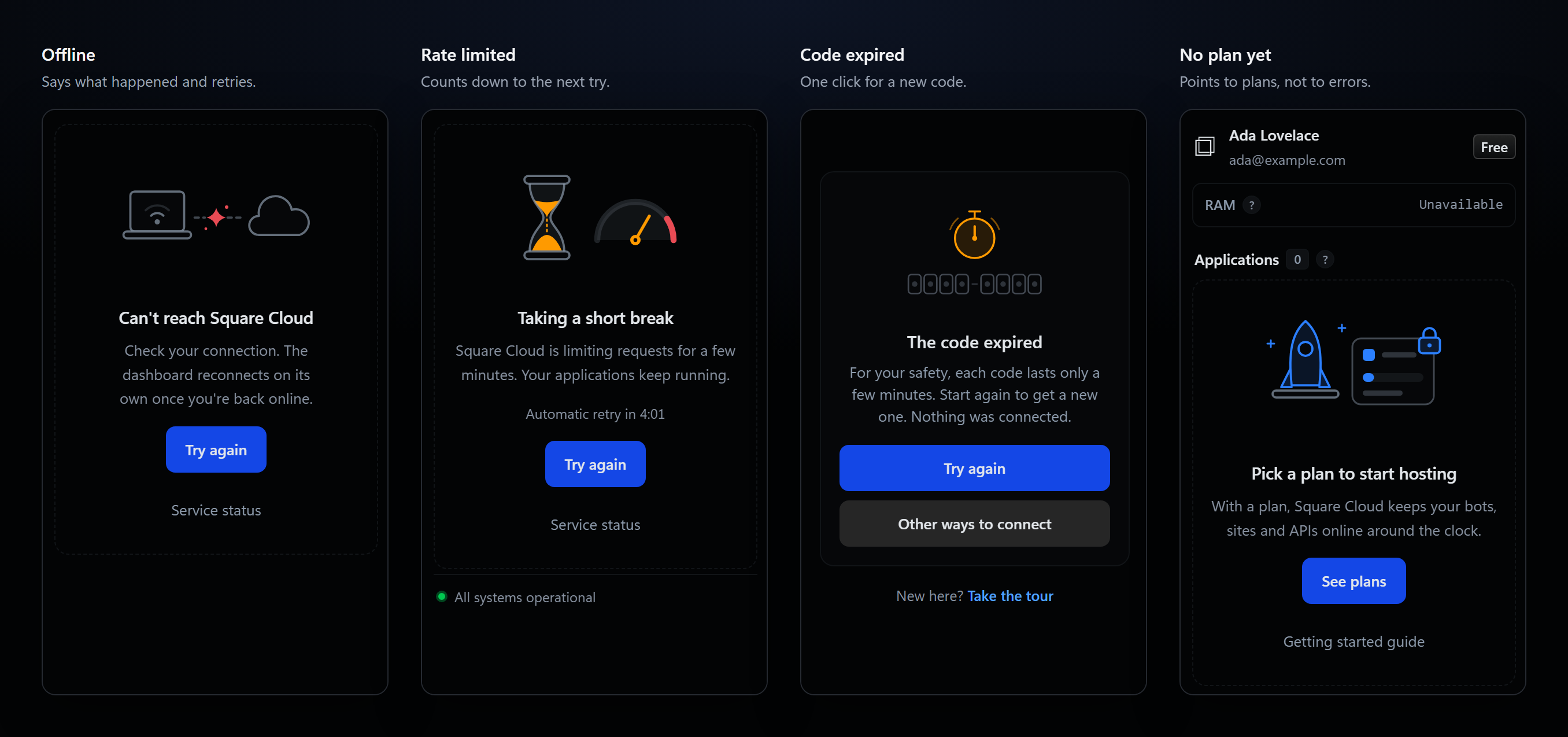
* **Every problem has its own illustrated state:** no connection, a rate-limit pause with a countdown to the automatic retry, maintenance, an authorization that needs connecting again, an unexpected error, and an account without a plan. Each one offers the button that helps: **Try again**, **Connect account**, **Service status** or **See plans**.
* If a refresh fails while your data is on screen, a small banner says so and keeps the last data it loaded.
* The **status bar item** shows whether an account is connected, how many applications are online, and whether Square Cloud is offline, pausing requests or degraded. Hover it for the account, plan and service status; click it to refresh.
 ## Config file IntelliSense
`squarecloud.app` and `squarecloud.config` get full editor support, with nothing else to install.
## Config file IntelliSense
`squarecloud.app` and `squarecloud.config` get full editor support, with nothing else to install.
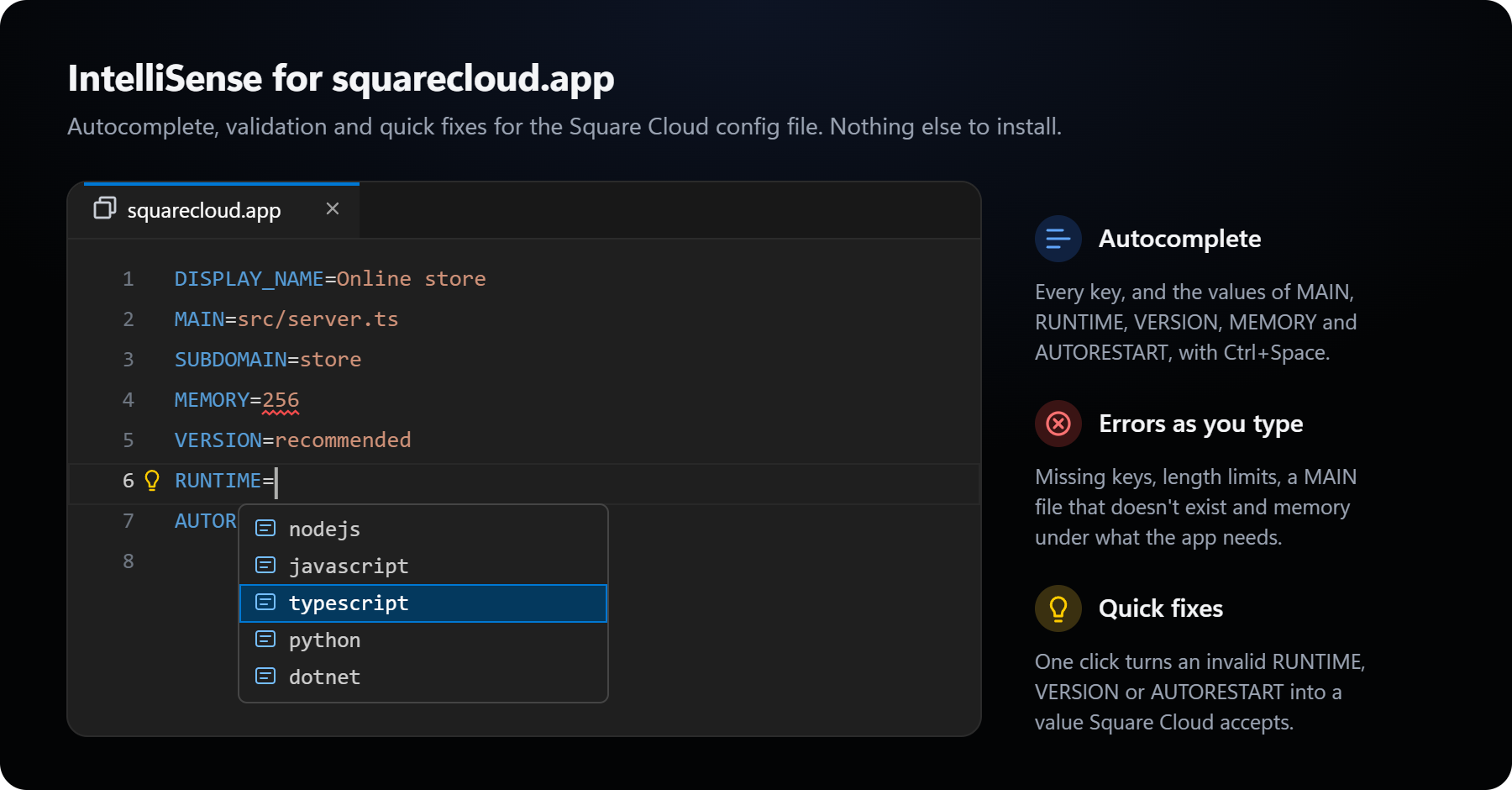 * **Validation as you type:** missing required keys and duplicates, value lengths, a `MAIN` file that doesn't exist, a `MEMORY` below the minimum or above what your plan has free, invalid `SUBDOMAIN` characters, and unknown `RUNTIME` or `VERSION` values are underlined as errors.
* **Autocomplete:** every key on an empty line, and after `=` the source files for `MAIN`, the runtimes for `RUNTIME`, `recommended` and `latest` for `VERSION`, `true` and `false` for `AUTORESTART`, and memory sizes for `MEMORY`.
* **Quick fixes:** the light bulb on an `AUTORESTART`, `VERSION` or `RUNTIME` line sets a valid value in one click.
* **Highlighting and icons** for `squarecloud.app`, `squarecloud.config` and `squarecloud.ignore`.
See the [config file guide](/en/getting-started/config-file) for every key.
* **Validation as you type:** missing required keys and duplicates, value lengths, a `MAIN` file that doesn't exist, a `MEMORY` below the minimum or above what your plan has free, invalid `SUBDOMAIN` characters, and unknown `RUNTIME` or `VERSION` values are underlined as errors.
* **Autocomplete:** every key on an empty line, and after `=` the source files for `MAIN`, the runtimes for `RUNTIME`, `recommended` and `latest` for `VERSION`, `true` and `false` for `AUTORESTART`, and memory sizes for `MEMORY`.
* **Quick fixes:** the light bulb on an `AUTORESTART`, `VERSION` or `RUNTIME` line sets a valid value in one click.
* **Highlighting and icons** for `squarecloud.app`, `squarecloud.config` and `squarecloud.ignore`.
See the [config file guide](/en/getting-started/config-file) for every key.