> ## Documentation Index
> Fetch the complete documentation index at: https://docs.squarecloud.app/llms.txt
> Use this file to discover all available pages before exploring further.

# Deploy a Nuxt App (Nitro Server)

> Deploy a Nuxt app on Square Cloud: build it with npm run build, run the .output/server/index.mjs server as MAIN, or generate a static site instead.

export const folder_0 = ".output/public"

export const PortNote = ({lang}) => {
  const t = {
    'en': {
      q: 'Which port and host should my server use?',
      a1: <>Listen on port <b>80</b> and host <b>0.0.0.0</b>. Square Cloud sends your site's HTTPS traffic to that port; a server bound to <code>localhost</code>, <code>127.0.0.1</code> or another port can't be reached and the site times out.</>,
      a2: <>The runtime sets <code>PORT=80</code> and <code>HOST=0.0.0.0</code> for you, so read the <code>PORT</code> and <code>HOST</code> environment variables instead of hard-coding them.</>
    },
    'pt-br': {
      q: 'Qual porta e host meu servidor deve usar?',
      a1: <>Escute na porta <b>80</b> e no host <b>0.0.0.0</b>. A Square Cloud envia o tráfego HTTPS do seu site para essa porta; um servidor preso a <code>localhost</code>, <code>127.0.0.1</code> ou a outra porta não é alcançado e o site dá timeout.</>,
      a2: <>O runtime já define <code>PORT=80</code> e <code>HOST=0.0.0.0</code>, então leia as variáveis de ambiente <code>PORT</code> e <code>HOST</code> em vez de fixar os valores no código.</>
    },
    'es': {
      q: '¿Qué puerto y host debe usar mi servidor?',
      a1: <>Escucha en el puerto <b>80</b> y en el host <b>0.0.0.0</b>. Square Cloud envía el tráfico HTTPS de tu sitio a ese puerto; un servidor vinculado a <code>localhost</code>, <code>127.0.0.1</code> u otro puerto no es accesible y el sitio agota el tiempo de espera.</>,
      a2: <>El runtime define <code>PORT=80</code> y <code>HOST=0.0.0.0</code> por ti, así que lee las variables de entorno <code>PORT</code> y <code>HOST</code> en lugar de escribirlas a mano en el código.</>
    },
    'fr': {
      q: 'Quel port et quel hôte mon serveur doit-il utiliser ?',
      a1: <>Écoutez sur le port <b>80</b> et l'hôte <b>0.0.0.0</b>. Square Cloud envoie le trafic HTTPS de votre site vers ce port ; un serveur lié à <code>localhost</code>, <code>127.0.0.1</code> ou à un autre port est injoignable et le site expire.</>,
      a2: <>Le runtime définit <code>PORT=80</code> et <code>HOST=0.0.0.0</code> pour vous : lisez les variables d'environnement <code>PORT</code> et <code>HOST</code> plutôt que de les écrire en dur dans le code.</>
    },
    'de': {
      q: 'Welchen Port und Host sollte mein Server verwenden?',
      a1: <>Ihr Server muss auf Port <b>80</b> und Host <b>0.0.0.0</b> lauschen. Square Cloud leitet den HTTPS-Traffic Ihrer Website an diesen Port weiter; ein Server, der an <code>localhost</code>, <code>127.0.0.1</code> oder einen anderen Port gebunden ist, ist nicht erreichbar und die Website läuft in einen Timeout.</>,
      a2: <>Die Runtime setzt <code>PORT=80</code> und <code>HOST=0.0.0.0</code> für Sie. Lesen Sie daher die Umgebungsvariablen <code>PORT</code> und <code>HOST</code>, statt die Werte fest im Code einzutragen.</>
    },
    'it': {
      q: 'Quale porta e quale host deve usare il mio server?',
      a1: <>Resta in ascolto sulla porta <b>80</b> e sull'host <b>0.0.0.0</b>. Square Cloud inoltra il traffico HTTPS del tuo sito a quella porta; un server legato a <code>localhost</code>, <code>127.0.0.1</code> o a un'altra porta non è raggiungibile e il sito va in timeout.</>,
      a2: <>Il runtime imposta già <code>PORT=80</code> e <code>HOST=0.0.0.0</code>, quindi leggi le variabili d'ambiente <code>PORT</code> e <code>HOST</code> invece di scrivere i valori nel codice.</>
    },
    'ja': {
      q: 'サーバーはどのポートとホストを使えばよいですか？',
      a1: <>ポート<b>80</b>、ホスト<b>0.0.0.0</b>で待ち受けてください。Square Cloudはサイトへの HTTPS トラフィックをこのポートに転送します。<code>localhost</code>、<code>127.0.0.1</code>、または別のポートにバインドしたサーバーには到達できず、サイトはタイムアウトします。</>,
      a2: <>ランタイムが <code>PORT=80</code> と <code>HOST=0.0.0.0</code> を自動で設定するため、値をコードに直接書かずに環境変数 <code>PORT</code> と <code>HOST</code> を読み取ってください。</>
    },
    'zh': {
      q: '我的服务器应该使用哪个端口和主机？',
      a1: <>请监听端口 <b>80</b> 和主机 <b>0.0.0.0</b>。Square Cloud 会把网站的 HTTPS 流量转发到该端口；绑定到 <code>localhost</code>、<code>127.0.0.1</code> 或其他端口的服务器无法访问，网站会超时。</>,
      a2: <>运行时已自动设置 <code>PORT=80</code> 和 <code>HOST=0.0.0.0</code>，因此请读取 <code>PORT</code> 和 <code>HOST</code> 环境变量，而不要在代码中写死这些值。</>
    }
  };
  const c = t[lang] || t['en'];
  return <Note>
            <b>{c.q}</b><br />
            {c.a1}<br />
            {c.a2}
        </Note>;
};

export const RecommendedPlan = ({lang, plan, tier, cpu, appType, min}) => {
  const t = {
    'en': {
      q: <>Which plan should you choose for {appType}?</>,
      rec: p => <>We recommend the {p} plan: its <b>{tier} GB</b> of RAM and <b>{cpu} vCPU</b> handle most projects of this kind, with headroom for traffic spikes.</>,
      min: m => <> Lighter projects also run on the {m} plan.</>,
      pro: p => <> For larger projects, the {p} plan adds more RAM and CPU.</>
    },
    'pt-br': {
      q: <>Qual plano escolher para {appType}?</>,
      rec: p => <>Recomendamos o plano {p}: seus <b>{tier} GB</b> de RAM e <b>{cpu} vCPU</b> atendem a maioria dos projetos desse tipo, com folga para picos de tráfego.</>,
      min: m => <> Projetos mais leves também rodam no plano {m}.</>,
      pro: p => <> Para projetos maiores, o plano {p} oferece mais RAM e CPU.</>
    },
    'es': {
      q: <>¿Qué plan elegir para {appType}?</>,
      rec: p => <>Te recomendamos el plan {p}: sus <b>{tier} GB</b> de RAM y <b>{cpu} vCPU</b> cubren la mayoría de los proyectos de este tipo, con margen para picos de tráfico.</>,
      min: m => <> Los proyectos más ligeros también funcionan en el plan {m}.</>,
      pro: p => <> Para proyectos más grandes, el plan {p} ofrece más RAM y CPU.</>
    },
    'fr': {
      q: <>Quel plan choisir pour héberger {appType} ?</>,
      rec: p => <>Nous recommandons le plan {p} : ses <b>{tier} Go</b> de RAM et <b>{cpu} vCPU</b> suffisent pour la plupart des projets de ce type, avec une marge pour les pics de trafic.</>,
      min: m => <> Les projets plus légers fonctionnent aussi avec le plan {m}.</>,
      pro: p => <> Pour les projets plus importants, le plan {p} offre davantage de RAM et de CPU.</>
    },
    'de': {
      q: <>Welcher Plan eignet sich für {appType}?</>,
      rec: p => <>Wir empfehlen den {p}-Plan: <b>{tier} GB</b> RAM und <b>{cpu} vCPU</b> reichen für die meisten Projekte dieser Art, mit Reserven für Lastspitzen.</>,
      min: m => <> Kleinere Projekte laufen auch mit dem {m}-Plan.</>,
      pro: p => <> Für größere Projekte bietet der {p}-Plan mehr RAM und CPU.</>
    },
    'it': {
      q: <>Quale piano scegliere per {appType}?</>,
      rec: p => <>Ti consigliamo il piano {p}: i suoi <b>{tier}GB</b> di RAM e <b>{cpu}vCPU</b> bastano per la maggior parte dei progetti di questo tipo, con margine per i picchi di traffico.</>,
      min: m => <> I progetti più leggeri funzionano anche con il piano {m}.</>,
      pro: p => <> Per progetti più grandi, il piano {p} offre più RAM e CPU.</>
    },
    'ja': {
      q: <>{appType}にはどのプランを選べばよいですか？</>,
      rec: p => <>{p}プランをおすすめします。<b>{tier}GB</b>のRAMと<b>{cpu}vCPU</b>があれば、この種のプロジェクトの多くをトラフィックのピークにも余裕を持って動かせます。</>,
      min: m => <>軽量なプロジェクトは{m}プランでも動作します。</>,
      pro: p => <>より大規模なプロジェクトには、RAMとCPUが増える{p}プランをご検討ください。</>
    },
    'zh': {
      q: <>托管{appType}应该选择哪个套餐？</>,
      rec: p => <>我们推荐 {p} 套餐：<b>{tier}GB</b> RAM 和 <b>{cpu}vCPU</b> 足以运行大多数此类项目，并能从容应对流量高峰。</>,
      min: m => <>较轻量的项目也可以在 {m} 套餐上运行。</>,
      pro: p => <>对于更大的项目，{p} 套餐提供更多 RAM 和 CPU。</>
    }
  };
  const siteLang = t[lang] ? lang : 'en';
  const c = t[siteLang];
  const pay = (name, query) => <a href={`https://squarecloud.app/${siteLang}/pay?${query}`}>{name}</a>;
  const isPro = plan.toLowerCase() === 'pro';
  return <Note>
      <b>{c.q}</b><br />
      {c.rec(pay(plan, `plan=${plan.toLowerCase()}&tier=${tier}`))}
      {min ? c.min(pay(min, `plan=${min.toLowerCase()}`)) : null}
      {isPro ? null : c.pro(pay('Pro', 'plan=pro'))}
    </Note>;
};

export const appType_0 = "a Nuxt application"

## Introduction

To develop and host {appType_0} on Square Cloud, it's essential to follow a structured sequence of configurations and prerequisites. This technical guide will cover the entire process, from initial setup to production deployment.

### Prerequisites

* **Square Cloud Account**: Register through the [signup page](https://squarecloud.app/en/signup) using your email.
* **Active plan**: Ensures dedicated resources and optimized performance for your application. Check our [available plans](https://squarecloud.app/en/pricing) and choose the most suitable for your needs.

<RecommendedPlan appType="Nuxt applications" plan="Standard" tier="4" cpu="4" min="Hobby" lang="en" />

This guide runs on the [Node.js runtime](/en/articles/getting-started-with-nodejs), or on the [static runtime](/en/articles/getting-started-with-html) for a generated site. Tested with Nuxt 4 on Node.js 24 in September 2026.

## Create the project

You need Node.js and npm on your machine. If you don't have them, download them from the [official Node.js website](https://nodejs.org/). Create a project with the official initializer, which replaces `nuxi init`:

```bash theme={"system"}
npm create nuxt@latest my-nuxt-app
```

The initializer asks for a template and the package manager, then installs the dependencies. Enter the project folder and start the development server:

```bash theme={"system"}
cd my-nuxt-app
npm run dev
```

The development server listens on `http://localhost:3000`. Edit `app/app.vue` to change the home page, or create `app/pages/index.vue` to use file-based routing.

## Build for production

```bash theme={"system"}
npm run build
```

Nuxt builds a standalone Node.js server with Nitro into the `.output` folder. Its entry file is `.output/server/index.mjs`, and `.output/server` carries its own dependencies.

## Port and host

<PortNote lang="en" />

Nothing to change in Nuxt: the Nitro server reads the `PORT` and `HOST` environment variables, which Square Cloud sets to `80` and `0.0.0.0`.

## Configure Square Cloud

Create a `squarecloud.app` file at the root of your project and point `MAIN` to the Nitro server:

```systemd squarecloud.app theme={"system"}
MAIN=.output/server/index.mjs
MEMORY=1024
VERSION=recommended
DISPLAY_NAME=My Nuxt app
SUBDOMAIN=my-nuxt-app
```

Square Cloud starts it with `node .output/server/index.mjs`. In the dashboard upload, set the same main file.

## What goes in the ZIP

* `.output/`, the production build.
* `package.json`, `nuxt.config.ts` and your source folders (`app/`, `public/` and the others your project has): on the first start, Square Cloud runs `npm install`, and the `postinstall` script of Nuxt projects (`nuxt prepare`) needs them.
* `squarecloud.app`.

Leave out `node_modules` and `.nuxt`: they are regenerated on the server.

## Static generation instead of a server

If every page can be generated at build time, run `npm run generate` instead of `npm run build`. Nuxt writes a [static site](/en/articles/getting-started-with-html#static-sites-and-server-rendered-apps) to `.output/public`, which the static runtime serves without a Node.js process:

The static runtime serves the files of your build with a web server managed by Square Cloud. No Node.js process runs, so it is the lightest way to host a site without server-side code.

<Steps>
  <Step title="Build the site">
    Run `npm run build`. The output goes to the <code>{folder_0}</code> folder.
  </Step>

  <Step title="Keep client-side routes working">
    If your app changes pages in the browser without a reload (client-side routing), rename <code>{folder_0}/index.html</code> to `vite.html`. The static runtime answers every path that is not a file with `vite.html`, so refreshing a route such as `/about` still loads your app. A site with one HTML file per page keeps `index.html`: unknown paths then return your `404.html`. See [how the static runtime serves files](/en/articles/getting-started-with-html#how-the-static-runtime-serves-files).
  </Step>

  <Step title="Add the configuration file">
    Create a `squarecloud.app` file inside <code>{folder_0}</code>. A `MAIN` that points to an HTML file selects the static runtime:

    ```systemd squarecloud.app theme={"system"}
    MAIN=vite.html
    MEMORY=512
    VERSION=recommended
    DISPLAY_NAME=My website
    SUBDOMAIN=mywebsite
    ```

    Use `MAIN=index.html` if you kept `index.html`. 512 MB is the minimum memory for a website. When you upload through the dashboard, it asks for these values and writes the file for you.
  </Step>

  <Step title="Zip the build output">
    Zip the contents of <code>{folder_0}</code>, not the folder itself, so that `squarecloud.app` sits at the root of the ZIP. With the CLI, run `squarecloud upload` from inside <code>{folder_0}</code>.
  </Step>
</Steps>

<Warning>Everything in the ZIP is public on your site. Upload only the build output, never your source code or `.env` files.</Warning>

<Tip>Most build tools empty <code>{folder_0}</code> on every build. Keep a copy of `squarecloud.app` in the folder that your framework copies unchanged into the build (`public/` in Vite-based projects), or repeat the last three steps after each build.</Tip>

`nuxt generate` prerenders one HTML file per page and a `404.html`, so keep `index.html` (no `vite.html` rename).

## Deploy and verify

### Via dashboard

<Steps>
  <Step title="Access the Upload Page">
    Access the [upload page](https://squarecloud.app/en/dashboard/new) and upload your project zip file.
  </Step>

  <Step title="Configure Your Environment">
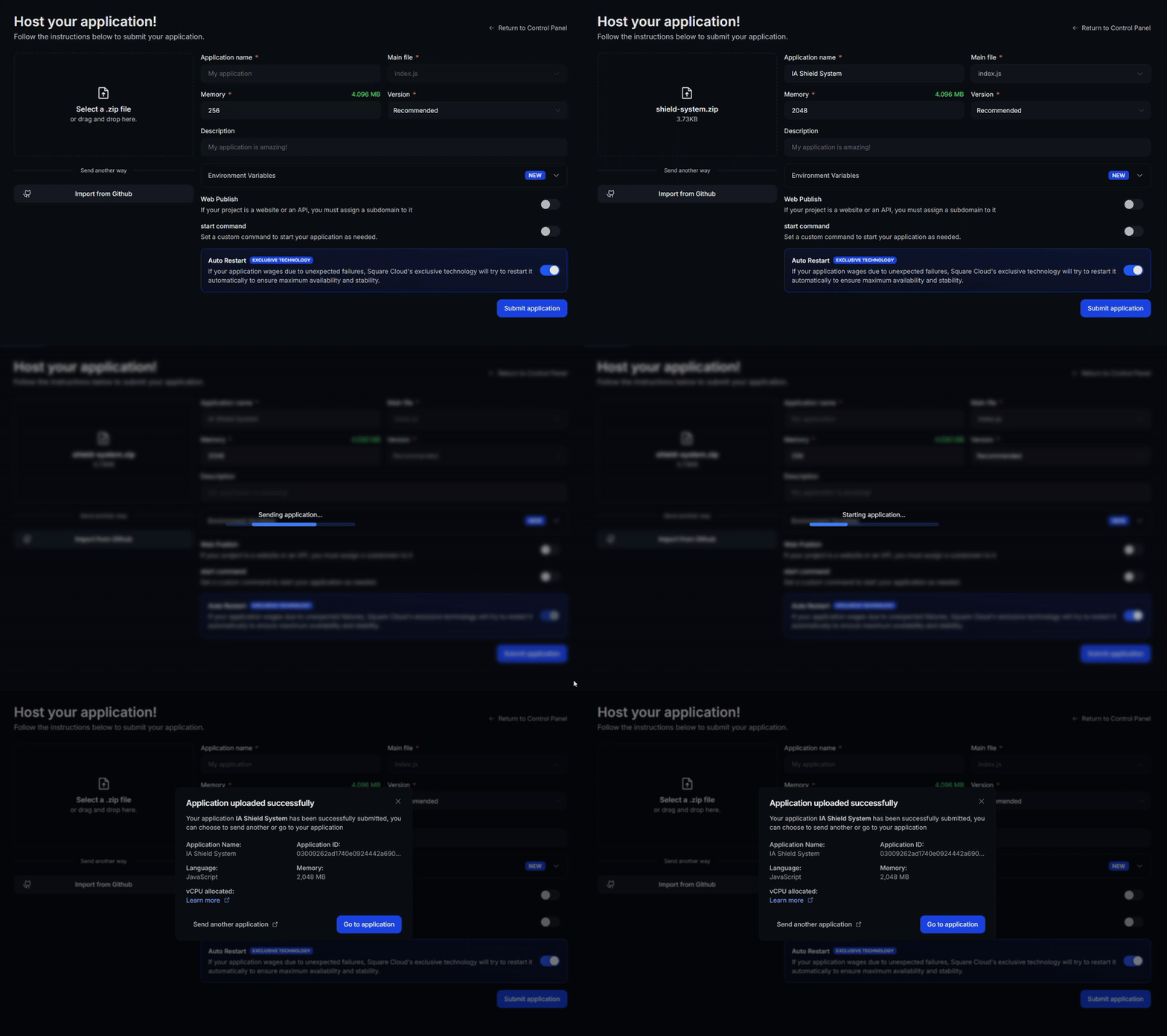
    After uploading your zip, you will need to configure the name, main file or runtime environment and other settings for your project.\
    If you are uploading a web project, make sure to select "Web Publication" and set a subdomain to your project.
  </Step>

  <Step title="Deploy Your Project">
    Finally, click on the "Deploy" button to host your project on Square Cloud.\
    After deployment, you can monitor your project's status and logs from the dashboard.
    <Frame>
      <img src="https://cdn.squarecloud.app/docs/articles/dashboard/uploading.gif" alt="Uploading application to Square Cloud" style={{ borderRadius: "0.2rem" }} />
    </Frame>
  </Step>

  <Step title="Confirm Your App Is Live">
    Your first deploy usually takes less than a minute. In the [dashboard](https://squarecloud.app/en/dashboard), wait for your application status to show as running and check the logs for any startup errors.\
    If you deployed a website or API, open `https://<your-subdomain>.squareweb.app` in your browser: you should see your application responding. If you deployed a bot, send it a command to confirm it is online.
    <Tip>App not starting? See the [Troubleshooting guide](/en/platform/troubleshooting/app-wont-start) for the most common causes and fixes.</Tip>
  </Step>
</Steps>

### Via CLI

To use this method, your project needs a configuration file named `squarecloud.app` at its root. It tells Square Cloud how to run your application.

<Card title="Configuration file guide" icon="link" href="/en/getting-started/config-file">
  Learn how to create the `squarecloud.app` configuration file that defines your application's environment.
</Card>

<Steps>
  <Step title="Install the CLI">
    Install the [Square Cloud CLI](/en/cli-reference/installation). If you already have it, run the same command to update it:

    <CodeGroup>
      ```bash macOS, Linux, and WSL theme={"system"}
      curl -fsSL https://cli.squarecloud.app/install | bash
      ```

      ```bash Windows with npm theme={"system"}
      npm install -g @squarecloud/cli@latest
      ```
    </CodeGroup>
  </Step>

  <Step title="Log In">
    Run the command below. It opens your browser: approve the login there and the CLI is ready. There is no API key to copy. For scripts and CI, see [CLI authentication](/en/cli-reference/authentication).

    ```bash theme={"system"}
    squarecloud auth login
    ```
  </Step>

  <Step title="Upload Your Project">
    From your project folder, run the command below. The CLI zips the current folder, leaving out what [`squarecloud.ignore`](/en/getting-started/squarecloud-ignore) lists, and uploads it:

    ```bash theme={"system"}
    squarecloud upload
    ```

    To upload a zip you created yourself, pass it with `--file`:

    ```bash theme={"system"}
    squarecloud upload --file <path/to/zip>
    ```
  </Step>

  <Step title="Confirm Your App Is Live">
    Your first deploy usually takes less than a minute. Check your application status and logs directly from the terminal:

    ```bash theme={"system"}
    squarecloud app status
    squarecloud app logs
    ```

    If you deployed a website or API, open `https://<your-subdomain>.squareweb.app` in your browser: you should see your application responding. If you deployed a bot, send it a command to confirm it is online.
    <Tip>App not starting? See the [Troubleshooting guide](/en/platform/troubleshooting/app-wont-start) for the most common causes and fixes.</Tip>
  </Step>
</Steps>

## Common errors

<CardGroup cols={1}>
  ### Custom domain

  <Card horizontal>
    To use a custom domain (e.g., `mysite.com`) instead of the default URL `mysite.squareweb.app`, you need the **Standard plan or higher**. The default URL comes from the **SUBDOMAIN** field in the configuration file. To connect your domain, follow [how to set up your own domain](https://help.squarecloud.app/en-us/article/how-to-set-up-your-own-domain-cnamedns-1fzbrgh/).
  </Card>

  ### Minimum RAM requirements

  <Card horizontal>
    **Minimum: 512MB RAM** for websites and APIs, enough for a static build on the static runtime. For apps that render pages on a server (Next.js, Nuxt, Angular SSR and similar), we recommend **at least 1GB RAM**. For larger applications, allocate more RAM to prevent the application from running out of memory and crashing.
  </Card>

  ### Could not find this site.

  <Card horizontal>
    Check if the **subdomain/domain** matches what's configured in the **SUBDOMAIN** field or in the **custom domain settings**. If you just uploaded the site, wait up to **60 seconds** for Square to enable **first access**.
  </Card>

  ### Site took too long to respond...

  <Card horizontal>
    Your server must listen on **port 80** and **host 0.0.0.0**. Square Cloud sets the **PORT** (`80`) and **HOST** (`0.0.0.0`) environment variables in your application: read them in your code instead of hardcoding other values. A server that listens only on `localhost` or `127.0.0.1` never receives requests.
  </Card>
</CardGroup>

### Cannot find module .output/server/index.mjs

The build is missing from the ZIP. Run `npm run build` and check that the `.output` folder is at the root of the ZIP, next to `squarecloud.app`.

## Next steps

<CardGroup cols={3}>
  <Card title="Environment variables" icon="key" href="/en/platform/environment-variables">
    Keep secrets and settings out of your code and read them at runtime.
  </Card>

  <Card title="Custom domain" icon="globe" href="https://help.squarecloud.app/en-us/article/how-to-set-up-your-own-domain-cnamedns-1fzbrgh/">
    Serve your app on your own domain, on the Standard plan and above.
  </Card>

  <Card title="Troubleshooting" icon="wrench" href="/en/platform/troubleshooting">
    Fix an app that does not start or a site that does not respond.
  </Card>
</CardGroup>

For more about Nuxt, see the [official Nuxt documentation](https://nuxt.com/docs).

## Contact us

If you continue facing **technical difficulties**, our **specialized support team** is available to assist you. [**Contact us**](https://squarecloud.app/en/support) and we'll be happy to help you resolve any issue: support quality is a big part of why developers rate Square Cloud [**4.9/5 across 402 reviews**](https://www.trustpilot.com/review/squarecloud.app) on Google and Trustpilot.


This documentation is built and hosted on [Mintlify](https://mintlify.com), a developer documentation platform.