> ## Documentation Index
> Fetch the complete documentation index at: https://docs.squarecloud.app/llms.txt
> Use this file to discover all available pages before exploring further.
# How to Host Angular Applications
> Learn how to deploy your Angular application on Square Cloud.
export const PortNote = ({lang}) => {
if (lang == 'pt-br') {
return
Qual porta devo usar para o meu servidor?
Você deve usar a porta 80 para o seu servidor. A porta 80 é a porta padrão para tráfego HTTP; a Square Cloud a encaminha para 443 (HTTPS) para estabelecer uma conexão segura.
Certifique-se de configurá-la antes de compactar e enviar seu projeto.
;
}
return
What port should I use for my server?
You should use port 80 for your server. Port 80 is the default port for HTTP traffic, which is handled by Square Cloud to route it to 443, HTTPS, for a secure connection.
Make sure to configure it before compressing and uploading your project.
;
};
export const RecommendedPlan = ({lang, plan, tier, cpu, appType}) => {
const url = `https://squarecloud.app/${lang}/pay?plan=${plan.toLowerCase()}&tier=${tier}`;
if (lang == 'en') {
return
Wondering how much RAM and CPU your plan needs to host {appType}?
Don't worry, we're here to help.
Our {plan} plan offers {tier}GB of RAM and {cpu}vCPU, which should be sufficient for most {appType}.
However, if you are working on a larger project and seeking extra stability, we recommend considering our Pro plan. With additional resources, you can maintain stability even during demand spikes.
To purchase, simply click here.
;
} else {
return
Está se perguntando quanta RAM e CPU seu plano precisa para hospedar {appType}?
Não se preocupe, estamos aqui para ajudar.
Nosso plano {plan} oferece {tier}GB de RAM e {cpu}vCPU, o que deve ser suficiente para a maioria dos {appType}.
No entanto, se você estiver trabalhando em um projeto maior e precisar de mais estabilidade, recomendamos considerar nosso plano Pro.
Com recursos adicionais, você pode manter a estabilidade mesmo durante picos de demanda.
Para comprar, basta clicar aqui.
;
}
};
export const appType_0 = "a Angular application"
## Introduction
To develop and host {appType_0} on Square Cloud, it's essential to follow a structured sequence of configurations and prerequisites. This technical guide will cover the entire process, from initial setup to production deployment.
### Prerequisites
* **Square Cloud Account**: Register through the [signup page](https://squarecloud.app/en/signup) using your email.
* **Active Paid Plan**: Ensures dedicated resources and optimized performance for your application. Check our [available plans](https://squarecloud.app/en/pricing) and choose the most suitable for your needs.
## Creating project
Before starting, make sure you have **Node.js and npm** installed on your system. If you don't have them yet, you can download them from the official [Node.js](https://nodejs.org/) website.
### CLI installation
To create an Angular project, you need to install the Angular CLI. Run the following command:
```bash theme={null}
npm install -g @angular/cli
```
### Developing project
Now create a new Angular project:
```bash theme={null}
ng new my-angular-app
```
Then install the project dependencies:
```bash theme={null}
cd my-angular-app
npm install
```
To start your local development server, run:
```bash theme={null}
ng serve --port 80
```
Angular will start a development server, usually available at `http://localhost:80`.
To generate a simple component, use:
```bash theme={null}
ng generate component hello
```
You can edit the generated template in:
```
src/app/hello/hello.component.html
```
## Building project
Before uploading your project to Square Cloud, build the production bundle:
```bash theme={null}
ng build --configuration production
```
Angular will generate the optimized static files inside the `dist/{PROJECT_NAME}` folder.
## Choosing a production server
To serve your Angular application in production, you need to use a server. You can create your own or use existing ones.
### Express library
To serve your static project on Square Cloud, ensure your server correctly delivers static files. To use Node.js with Express, a common setup is:
```javascript server.js theme={null}
import express from 'express';
import path from 'path';
const app = express();
const distPath = path.join(import.meta.dirname, 'dist');
app.use(express.static(distPath));
// SPA fallback: serve index.html for any route not matched above
app.use((req, res) => {
res.sendFile(path.join(distPath, 'index.html'));
});
app.listen(80, () => console.log('Server running on port 80'));
```
Adjust `dist` paths parameters to your project build folder. If it is in a folder inside `build` or `dist`, use it path instead.
### Serve library
#### Installing the Serve Library
To install the `serve` library, navigate to your project directory in the terminal and run the following command:
```bash theme={null}
npm install serve@14.2.3
```
This command installs version `14.2.3` of the `serve` library. If you want to install the latest version, you can omit the `@14.2.3`.
#### Configuring the Startup Script
After installing the `serve` library, you need to configure your project's startup script to use `serve`. To do this, open your project's `package.json` file and add a new script called `start:prod`:
```json theme={null}
"scripts": {
"start:prod": "serve -s dist -l 80",
...
}
```
In the `start:prod` script, `serve -s build -l 80` does the following:
* `serve`: This is the command to start the `serve` server.
* `-s dist`: The `-s` option serves the `dist` directory in single-page application mode. This means all not-found requests will be redirected to `index.html`. The `dist` directory is commonly created when you run `npm run build`.
* `-l 80`: The `-l` option followed by `80` tells `serve` to listen on port 80. Port 80 is the default port for HTTP traffic.
Adjust `dist` parameter to your project build folder. If it is in a folder inside `build` or `dist`, use it path instead.
## Deploying
After preparing your project files, you can now upload them to Square Cloud and host your project.
To do so, create a ZIP file containing all your project files.
### Via dashboard
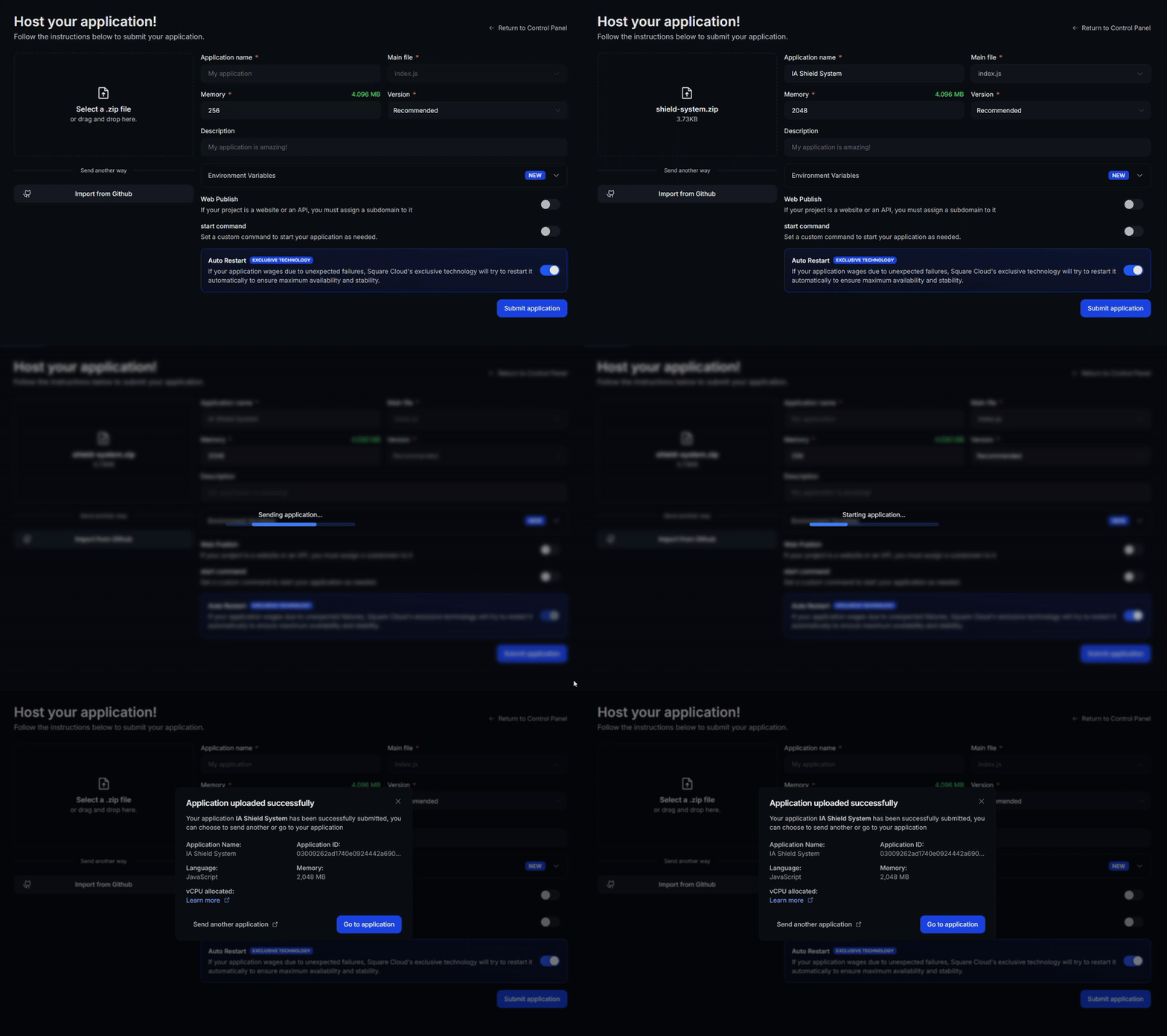
Access the [upload page](https://squarecloud.app/en/dashboard/new) and upload your project zip file.
After uploading your zip, you will need to configure the name, main file or runtime environment and other settings for your project.\
If you are uploading a web project, make sure to select "Web Publication" and set a subdomain to your project.
Finally, click on the "Deploy" button to host your project on Square Cloud.\
After deployment, you can monitor your project's status and logs from the dashboard.
 ### Via CLI
To use this method, you need to create a config file named `squarecloud.app` in the root directory of your project. This file will contain the necessary configuration for your project.
The squarecloud.app file is a configuration file that will be used to configure your application; it will be used to define your environment.
First, you need to have the CLI installed in your environment. If you don't have it yet, run the following command in your terminal:
```
npm install -g @squarecloud/cli
```
If you already have it, we recommend updating it. To do this, run the following command in your terminal:
```bash theme={null}
squarecloud update
```
```bash theme={null}
curl -fsSL https://cli.squarecloud.app/install | bash
```
Now, to authenticate and use other CLI commands, you will find your authorization key [here](https://squarecloud.app/en/account/security) by clicking on "Request API Key". After obtaining your authorization key, run the following command:
```bash theme={null}
squarecloud auth login
```
Finally, to deploy your application to Square Cloud using the CLI, you need to run the following command:
```bash theme={null}
squarecloud upload
```
Or if you created the zip manually, you can use:
```bash theme={null}
squarecloud upload --file
```
## Additional Resources
For more information about Angular, visit the official documentation [here](https://angular.dev).
## Troubleshooting
### Custom Domain
To use a custom domain (e.g., `mysite.com`) instead of the default URL `mysite.squareweb.app`, you need the **Standard plan or higher**. The subdomain is defined by the **SUBDOMAIN** field in the configuration file.
### Minimum RAM Requirements
**Minimum: 512MB RAM** for simple websites/APIs. For sites with frameworks (Next.JS, React, Vue, Angular, etc.), we always recommend **at least 1GB RAM**. For larger applications, allocate more RAM to prevent the application from running out of memory and crashing.
### Could not find this site.
Check if the **subdomain/domain** matches what's configured in the **SUBDOMAIN** field or in the **custom domain settings**. If you just uploaded the site, wait up to **60 seconds** for Square to enable **first access**.
### Site took too long to respond...
Check if you correctly configured **port 80** and **host 0.0.0.0** in the application. We recommend using Square's forced environment variables: **PORT** and **HOST** from the `.env` file.
## Contact us
If you continue facing **technical difficulties**, our **specialized support team** is available to assist you. [**Contact us**](https://squarecloud.app/en/support) and we'll be happy to help you resolve any issue.
### Via CLI
To use this method, you need to create a config file named `squarecloud.app` in the root directory of your project. This file will contain the necessary configuration for your project.
The squarecloud.app file is a configuration file that will be used to configure your application; it will be used to define your environment.
First, you need to have the CLI installed in your environment. If you don't have it yet, run the following command in your terminal:
```
npm install -g @squarecloud/cli
```
If you already have it, we recommend updating it. To do this, run the following command in your terminal:
```bash theme={null}
squarecloud update
```
```bash theme={null}
curl -fsSL https://cli.squarecloud.app/install | bash
```
Now, to authenticate and use other CLI commands, you will find your authorization key [here](https://squarecloud.app/en/account/security) by clicking on "Request API Key". After obtaining your authorization key, run the following command:
```bash theme={null}
squarecloud auth login
```
Finally, to deploy your application to Square Cloud using the CLI, you need to run the following command:
```bash theme={null}
squarecloud upload
```
Or if you created the zip manually, you can use:
```bash theme={null}
squarecloud upload --file
```
## Additional Resources
For more information about Angular, visit the official documentation [here](https://angular.dev).
## Troubleshooting
### Custom Domain
To use a custom domain (e.g., `mysite.com`) instead of the default URL `mysite.squareweb.app`, you need the **Standard plan or higher**. The subdomain is defined by the **SUBDOMAIN** field in the configuration file.
### Minimum RAM Requirements
**Minimum: 512MB RAM** for simple websites/APIs. For sites with frameworks (Next.JS, React, Vue, Angular, etc.), we always recommend **at least 1GB RAM**. For larger applications, allocate more RAM to prevent the application from running out of memory and crashing.
### Could not find this site.
Check if the **subdomain/domain** matches what's configured in the **SUBDOMAIN** field or in the **custom domain settings**. If you just uploaded the site, wait up to **60 seconds** for Square to enable **first access**.
### Site took too long to respond...
Check if you correctly configured **port 80** and **host 0.0.0.0** in the application. We recommend using Square's forced environment variables: **PORT** and **HOST** from the `.env` file.
## Contact us
If you continue facing **technical difficulties**, our **specialized support team** is available to assist you. [**Contact us**](https://squarecloud.app/en/support) and we'll be happy to help you resolve any issue.