> ## Documentation Index
> Fetch the complete documentation index at: https://docs.squarecloud.app/llms.txt
> Use this file to discover all available pages before exploring further.
# How to Host a Selenium Application on Square Cloud
> Complete guide for automating web navigation using Selenium and Chromium on Square Cloud with professional implementation and advanced configurations.
## Professional Selenium Script Development
To implement efficient web automation on Square Cloud, it's essential to establish a proper development environment and follow configuration best practices.
### Essential Technical Prerequisites
* **Python and pip**: Make sure you have **Python** and **pip** installed on your system. If you don't have them, download from the [official Python website](https://www.python.org/) and the [official Pip website](https://pypi.org/).
* **Square Cloud Account**: Create your account through the [signup page](https://squarecloud.app/en/signup), using your email address for registration.
* **Active Paid Plan**: A paid plan is necessary to ensure adequate resources for running Selenium applications. Check our [available plans](https://squarecloud.app/en/pricing) and choose the most suitable for your needs.
### Selenium Environment Configuration
With Python and pip installed, proceed with creating the Selenium script. First, install the Selenium library:
```bash Terminal theme={null}
pip install selenium
```
Next, create a Python file (for example, `main.py`) and add the following code to implement a basic Selenium script:
```python main.py theme={null}
import time
from selenium import webdriver
from selenium.webdriver.chrome.options import Options
from selenium.webdriver.chrome.service import Service
# Configuration options for Chromium
options = Options()
options.add_argument("--headless") # Runs in background without graphical interface
options.add_argument("--no-sandbox") # Required for execution as root in containerized environments
options.add_argument("--disable-dev-shm-usage") # Overcomes shared memory limitations on large pages
# Driver initialization
service = Service('/usr/bin/chromedriver') # Default ChromeDriver path on Square Cloud
driver = webdriver.Chrome(service=service, options=options)
# Browser window dimensions configuration
driver.set_window_size(1920, 1080) # Adjust as needed for your application
# Navigate to web page
driver.get('https://www.google.com')
# Loop for screenshot capture every minute
while True:
driver.save_screenshot('page.png')
print("Page screenshot saved successfully.")
time.sleep(60) # 60-second pause between captures
```
## Dependency Management with requirements.txt
The `requirements.txt` file is an essential component that lists all external libraries needed for your project. It's crucial to include all dependencies used, excluding native Python libraries like `random` and `datetime`. This file should be included when submitting your application to Square Cloud.
```txt requirements.txt theme={null}
selenium
```
## Chromium Path Configuration
In the implementation presented above, it's not necessary to explicitly define the Chromium path, as the Selenium WebDriver can automatically locate the browser when installed in a standard system location. The ChromeDriver, specified with `Service('/usr/bin/chromedriver')`, has knowledge about where to locate the Chromium/Chrome executable.
### Square Cloud Architecture
On Square Cloud, Chromium is installed at `/usr/bin/chromium`, which is the standard system location. Therefore, the Selenium WebDriver can locate it automatically through the specified ChromeDriver. Thus, there's no need to explicitly specify the Chromium path in the code, unless there are specific reasons to do so, such as custom installations or different environment configurations.
## Square Cloud Configuration File
The squarecloud.app file is an essential configuration file that will be used to configure your application on Square Cloud. It defines name, description, version, main file, among other fundamental configurations.
## Project Upload to Square Cloud
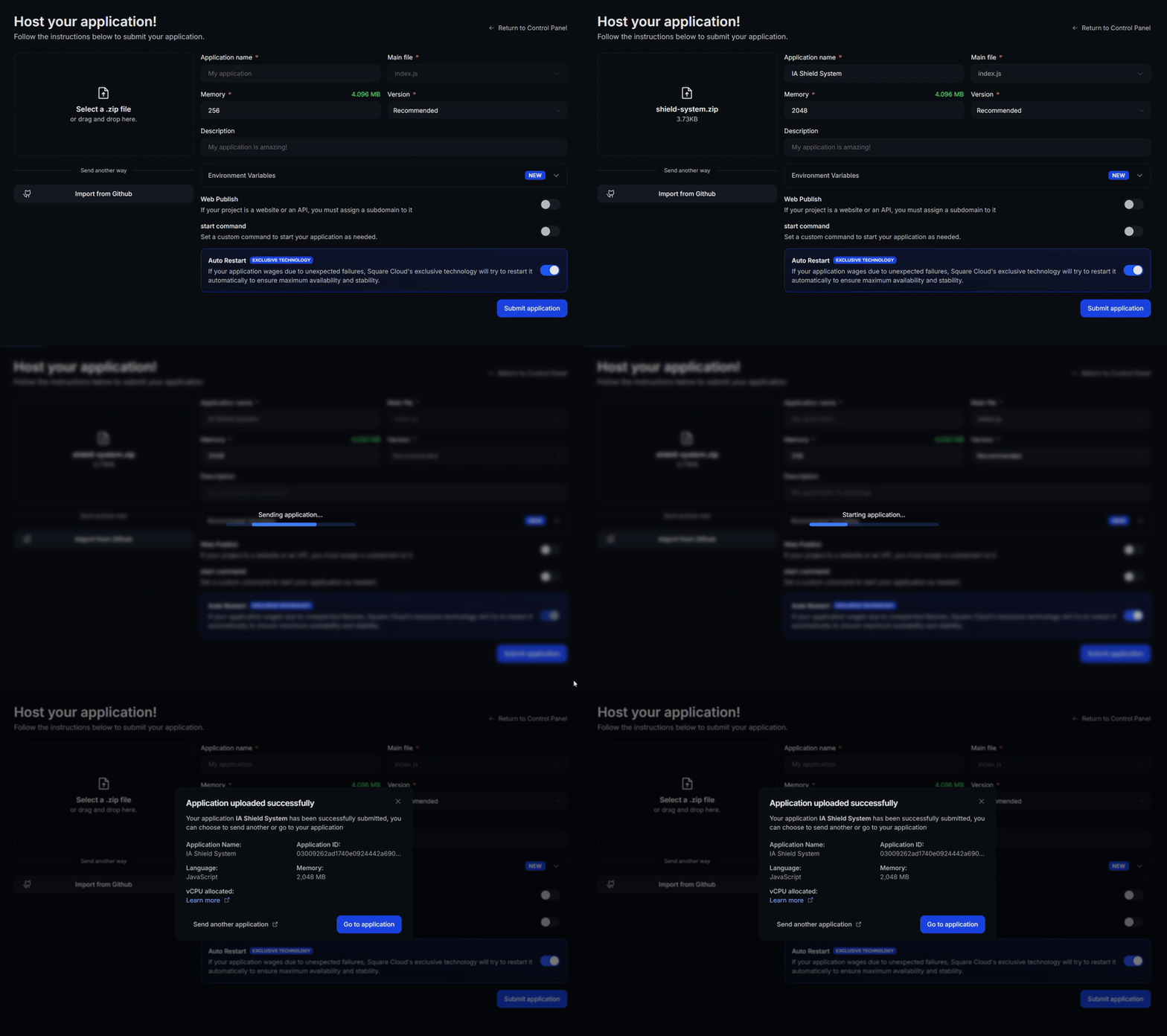
After preparing all project files, proceed with uploading to Square Cloud and host your application professionally.
Access the [Square Cloud Dashboard](https://squarecloud.app/en/dashboard/new) and upload your project files.
 First, you need to have the CLI installed in your environment. If you don't have it yet, run the following command in the terminal:
```bash Terminal theme={null}
npm install -g @squarecloud/cli
```
If you already have it, we recommend updating it. To do this, run the following command in the terminal:
```bash Terminal theme={null}
squarecloud update
```
To authenticate and use other CLI commands, you will find your authorization key [here](https://squarecloud.app/en/account/security) by clicking "Request API Key". After obtaining your authorization key, run the following command:
```bash Terminal theme={null}
squarecloud auth login
```
Finally, to deploy your application to Square Cloud using the CLI, execute the following command, providing the path to your zip file:
```bash Terminal theme={null}
squarecloud upload zip
```
## Additional Resources and Documentation
For more detailed information about Selenium and its advanced tools, visit the [official Selenium documentation](https://www.selenium.dev/documentation/webdriver/getting_started/). There you'll find detailed technical guides, specialized tutorials, and complete API documentation to maximize the use of Selenium functionalities.
## Contact us
If you continue facing **technical difficulties**, our **specialized support team** is available to assist you. [**Contact us**](https://squarecloud.app/en/support) and we'll be happy to help you resolve any issue.
First, you need to have the CLI installed in your environment. If you don't have it yet, run the following command in the terminal:
```bash Terminal theme={null}
npm install -g @squarecloud/cli
```
If you already have it, we recommend updating it. To do this, run the following command in the terminal:
```bash Terminal theme={null}
squarecloud update
```
To authenticate and use other CLI commands, you will find your authorization key [here](https://squarecloud.app/en/account/security) by clicking "Request API Key". After obtaining your authorization key, run the following command:
```bash Terminal theme={null}
squarecloud auth login
```
Finally, to deploy your application to Square Cloud using the CLI, execute the following command, providing the path to your zip file:
```bash Terminal theme={null}
squarecloud upload zip
```
## Additional Resources and Documentation
For more detailed information about Selenium and its advanced tools, visit the [official Selenium documentation](https://www.selenium.dev/documentation/webdriver/getting_started/). There you'll find detailed technical guides, specialized tutorials, and complete API documentation to maximize the use of Selenium functionalities.
## Contact us
If you continue facing **technical difficulties**, our **specialized support team** is available to assist you. [**Contact us**](https://squarecloud.app/en/support) and we'll be happy to help you resolve any issue.