> ## Documentation Index
> Fetch the complete documentation index at: https://docs.squarecloud.app/llms.txt
> Use this file to discover all available pages before exploring further.
# How to create your Lavalink server
> Learn how to create and host your own Lavalink server for Discord - Complete setup tutorial with optimized performance for music bots
## Introduction 🚀
* Follow the tutorial below and host your Lavalink server today, it's super simple! If you need any assistance, feel free to contact us through our official support channels.
* Next, you'll need to create an account on Square Cloud, which can be done through the [signup page](https://squarecloud.app/signup). You can use your email to create an account.
* Finally, you need to have an active paid plan on your account. You can view our plans and purchase one according to your needs [here](https://squarecloud.app/en/pricing).
## Choosing the Version
Choose your desired version of `Lavalink` by clicking [here](https://github.com/freyacodes/Lavalink/releases/). We recommend selecting the latest version for the best experience.
## Creating the Square Cloud configuration file
The squarecloud.app file is a configuration file that will be used to configure your application; it will be used to define the name, description, version, main file, among other things.
## Creating the application.yml
Create a configuration file for your Lavalink server. You can access an example file [here](https://github.com/freyacodes/Lavalink/blob/master/LavalinkServer/application.yml.example).
Set the `port` field in your `application.yml` file to: `80`.
## Enhancing Security
It is highly recommended to configure a secure password in the `password` field of your configuration file (application.yml). We recommend using a password with at least 32 characters.
It's important to remember that you should use port 443 (SSL) and the `secure` option as `true` to connect to your lavalink.
## How to host my Lavalink?
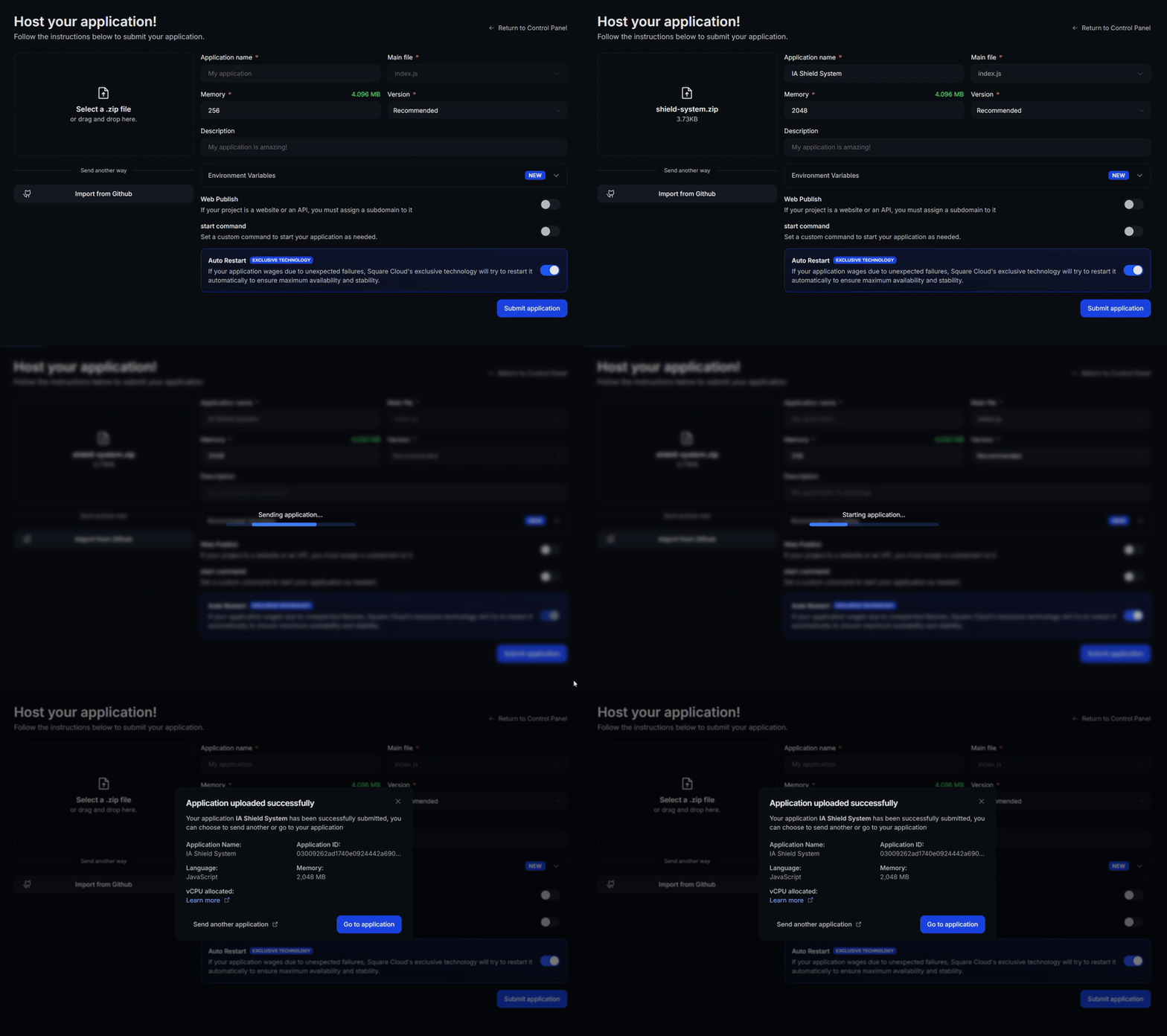
Create a compressed file (.zip) containing the `Lavalink.jar` and `application.yml`. Then, upload your configuration file to Square Cloud.
Access the [Square Cloud Dashboard](https://squarecloud.app/en/dashboard/new) and upload your project files.
 First, you need to have the CLI installed in your environment. If you don't have it yet, run the following command in your terminal:
```
npm install -g @squarecloud/cli
```
If you already have it, we recommend updating it. To do so, run the following command in your terminal:
```bash theme={null}
squarecloud update
```
```bash theme={null}
curl -fsSL https://cli.squarecloud.app/install | bash
```
Now, to authenticate and use other CLI commands, you'll find your authorization key [here](https://squarecloud.app/en/account/security) by clicking "Request API Key". After obtaining your authorization key, run the following command:
```bash theme={null}
squarecloud auth login
```
Finally, to deploy your application on Square Cloud using the CLI, you need to run the following command, passing the path to your zip file:
```bash theme={null}
squarecloud upload server.zip
```
## Contact us
If you continue facing **technical difficulties**, our **specialized support team** is available to assist you. [**Contact us**](https://squarecloud.app/en/support) and we'll be happy to help you resolve any issue.
First, you need to have the CLI installed in your environment. If you don't have it yet, run the following command in your terminal:
```
npm install -g @squarecloud/cli
```
If you already have it, we recommend updating it. To do so, run the following command in your terminal:
```bash theme={null}
squarecloud update
```
```bash theme={null}
curl -fsSL https://cli.squarecloud.app/install | bash
```
Now, to authenticate and use other CLI commands, you'll find your authorization key [here](https://squarecloud.app/en/account/security) by clicking "Request API Key". After obtaining your authorization key, run the following command:
```bash theme={null}
squarecloud auth login
```
Finally, to deploy your application on Square Cloud using the CLI, you need to run the following command, passing the path to your zip file:
```bash theme={null}
squarecloud upload server.zip
```
## Contact us
If you continue facing **technical difficulties**, our **specialized support team** is available to assist you. [**Contact us**](https://squarecloud.app/en/support) and we'll be happy to help you resolve any issue.