> ## Documentation Index
> Fetch the complete documentation index at: https://docs.squarecloud.app/llms.txt
> Use this file to discover all available pages before exploring further.
# How to Host X (Twitter) Bots
> Learn to create and host X (Twitter) bot on Square Cloud. Complete tutorial with configuration, deployment, and practical examples in Node.js and Python.
export const RecommendedPlan = ({lang, plan, tier, cpu, appType}) => {
const url = `https://squarecloud.app/${lang}/pay?plan=${plan.toLowerCase()}&tier=${tier}`;
if (lang == 'en') {
return
Wondering how much RAM and CPU your plan needs to host {appType}?
Don't worry, we're here to help.
Our {plan} plan offers {tier}GB of RAM and {cpu}vCPU, which should be sufficient for most {appType}.
However, if you are working on a larger project and seeking extra stability, we recommend considering our Pro plan. With additional resources, you can maintain stability even during demand spikes.
To purchase, simply click here.
;
} else {
return
Está se perguntando quanta RAM e CPU seu plano precisa para hospedar {appType}?
Não se preocupe, estamos aqui para ajudar.
Nosso plano {plan} oferece {tier}GB de RAM e {cpu}vCPU, o que deve ser suficiente para a maioria dos {appType}.
No entanto, se você estiver trabalhando em um projeto maior e precisar de mais estabilidade, recomendamos considerar nosso plano Pro.
Com recursos adicionais, você pode manter a estabilidade mesmo durante picos de demanda.
Para comprar, basta clicar aqui.
;
}
};
export const appType_0 = "a X (Twitter) bot"
## Introduction
To develop and host {appType_0} on Square Cloud, it's essential to follow a structured sequence of configurations and prerequisites. This technical guide will cover the entire process, from initial setup to production deployment.
### Prerequisites
* **Square Cloud Account**: Register through the [signup page](https://squarecloud.app/en/signup) using your email.
* **Active Paid Plan**: Ensures dedicated resources and optimized performance for your application. Check our [available plans](https://squarecloud.app/en/pricing) and choose the most suitable for your needs.
### Creating project
An active X (Twitter) account is required for authentication and bot operation. If you don't have an account, sign up at the [official X website](https://x.com/).\
A X Developer account is also required to access the APIs. Request access through the [X Developer Portal](https://developer.x.com/en).
### Bot application on X
1. Go to the [X Developer Portal](https://developer.x.com/en/portal/dashboard).
2. Log in with your X (Twitter) account.
3. If this is your first time, complete the developer access request process.
1. In the dashboard, click "Create Project".
2. Choose a name for your project (e.g. "Square Cloud Bot").
3. Select the most appropriate use case (e.g. "Making a bot").
4. Provide a detailed description of your bot.
5. Confirm project creation.
1. Within the created project, click "Create App".
2. Define a unique name for your application.
3. Confirm application creation.
4. Note down the generated **App ID** for future reference.
1. Navigate to the "Keys and tokens" section of your application.
2. In the "Consumer Keys" section, click "Regenerate" to generate:
* **API Key** (Consumer Key)
* **API Secret Key** (Consumer Secret)
3. **Important**: Copy and save these keys immediately, as you won't be able to view them again.
1. Go to the "App permissions" section.
2. Click "Edit" to modify permissions.
3. Select "Read and write" to allow your bot to post tweets.
4. If necessary, select "Read and write and Direct message" for DM functionality.
5. Save the changes.
1. Return to the "Keys and tokens" section.
2. In the "Access Token and Secret" section, click "Generate".
3. Confirm token generation.
4. Copy and save:
* **Access Token**
* **Access Token Secret**
5. **Warning**: These tokens cannot be viewed again after closing the page.
1. Confirm that you have all 4 required credentials:
* API Key (Consumer Key)
* API Secret Key (Consumer Secret)
* Access Token
* Access Token Secret
2. Store these credentials in a secure location
3. **Important**: Never share or expose these credentials publicly
## Developing project
1. **Node.js check**: Verify that Node.js is installed on your system. If not, download it from the [official Node.js website](https://nodejs.org/).
2. **Project initialization**: Create a new Node.js project by running:
```bash Terminal theme={null}
npm init -y
```
3. **Install dependencies**: Install the libraries required for the bot:
```bash Terminal theme={null}
npm install twitter-api-v2
```
4. **Environment variables setup**: Create a `.env` file to store your credentials securely:
```env .env theme={null}
API_KEY=your_api_key_here
API_SECRET_KEY=your_api_secret_key_here
ACCESS_TOKEN=your_access_token_here
ACCESS_TOKEN_SECRET=your_access_token_secret_here
```
5. **Create the main file**: Develop the `index.js` file with the bot's base structure:
```javascript index.js theme={null}
// Import necessary modules
const { TwitterApi } = require('twitter-api-v2');
// Configure Twitter client with authentication
const client = new TwitterApi({
appKey: process.env.API_KEY,
appSecret: process.env.API_SECRET_KEY,
accessToken: process.env.ACCESS_TOKEN,
accessSecret: process.env.ACCESS_TOKEN_SECRET,
});
// Client with read and write permissions
const rwClient = client.readWrite;
// Stores the authenticated bot user id (set in verifyBot)
let botUserId = null;
// Function to check if the bot is working
async function verifyBot() {
try {
// Get authenticated user information (X API v2)
const me = await rwClient.v2.me();
botUserId = me.data.id;
console.log(`Bot successfully initialized! User: @${me.data.username}`);
return true;
} catch (error) {
console.error('Error verifying bot:', error);
return false;
}
}
// Function to post a tweet
async function postTweet(text) {
try {
const tweet = await rwClient.v2.tweet(text);
console.log(`Tweet posted successfully! ID: ${tweet.data.id}`);
return tweet;
} catch (error) {
console.error('Error posting tweet:', error);
throw error;
}
}
// Function to respond to mentions
async function respondToMentions() {
if (!botUserId) return;
try {
// Fetch recent mentions (X API v2)
const mentions = await rwClient.v2.userMentionTimeline(botUserId, {
max_results: 10,
});
for (const tweet of mentions.data?.data ?? []) {
// Check if it's a new mention (implement control logic)
if (tweet.text.includes('!ping')) {
// Reply to the mention
await rwClient.v2.reply(
'Pong! 🤖 X Bot working correctly!',
tweet.id
);
console.log(`Replied to mention (tweet ID: ${tweet.id})`);
}
}
} catch (error) {
console.error('Error processing mentions:', error);
}
}
// Function to search and interact with specific tweets
async function searchAndInteract(query) {
if (!botUserId) return;
try {
// Search recent tweets (X API v2)
const tweets = await rwClient.v2.search(query, {
max_results: 10,
});
for (const tweet of tweets.data?.data ?? []) {
// Like the tweet
await rwClient.v2.like(botUserId, tweet.id);
console.log(`Liked tweet ID: ${tweet.id}`);
// Wait a bit between actions to avoid rate limiting
await new Promise(resolve => setTimeout(resolve, 2000));
}
} catch (error) {
console.error('Error searching and interacting:', error);
}
}
// Main bot function
async function runBot() {
console.log('Starting X bot...');
// Check if the bot is configured correctly
const botOk = await verifyBot();
if (!botOk) {
console.error('Bot initialization failed');
return;
}
// Example: Post an initialization tweet
try {
await postTweet('🤖 X Bot initialized and running on Square Cloud!');
} catch (error) {
console.log('Initialization tweet failed, but bot continues running');
}
// Main bot loop
setInterval(async () => {
try {
// Check and respond to mentions every 5 minutes
await respondToMentions();
// Example: Search and interact with tweets about a specific topic
// await searchAndInteract('#SquareCloud');
} catch (error) {
console.error('Error in main loop:', error);
}
}, 5 * 60 * 1000); // 5 minutes
console.log('Bot running. Press Ctrl+C to stop.');
}
// Signal handling for graceful shutdown
process.on('SIGINT', () => {
console.log('\nShutting down X bot...');
process.exit(0);
});
process.on('SIGTERM', () => {
console.log('\nShutting down X bot...');
process.exit(0);
});
// Initialize the bot
runBot();
```
## Deploying
After preparing your project files, you can now upload them to Square Cloud and host your project.
To do so, create a ZIP file containing all your project files.
**Security**: Never include your API credentials directly in code. Always use environment variables on Square Cloud.
On Square Cloud, configure the following environment variables via the control panel:
* `API_KEY`: Your X API key
* `API_SECRET_KEY`: Your X API secret key
* `ACCESS_TOKEN`: Your access token
* `ACCESS_TOKEN_SECRET`: Your access token secret
### Via dashboard
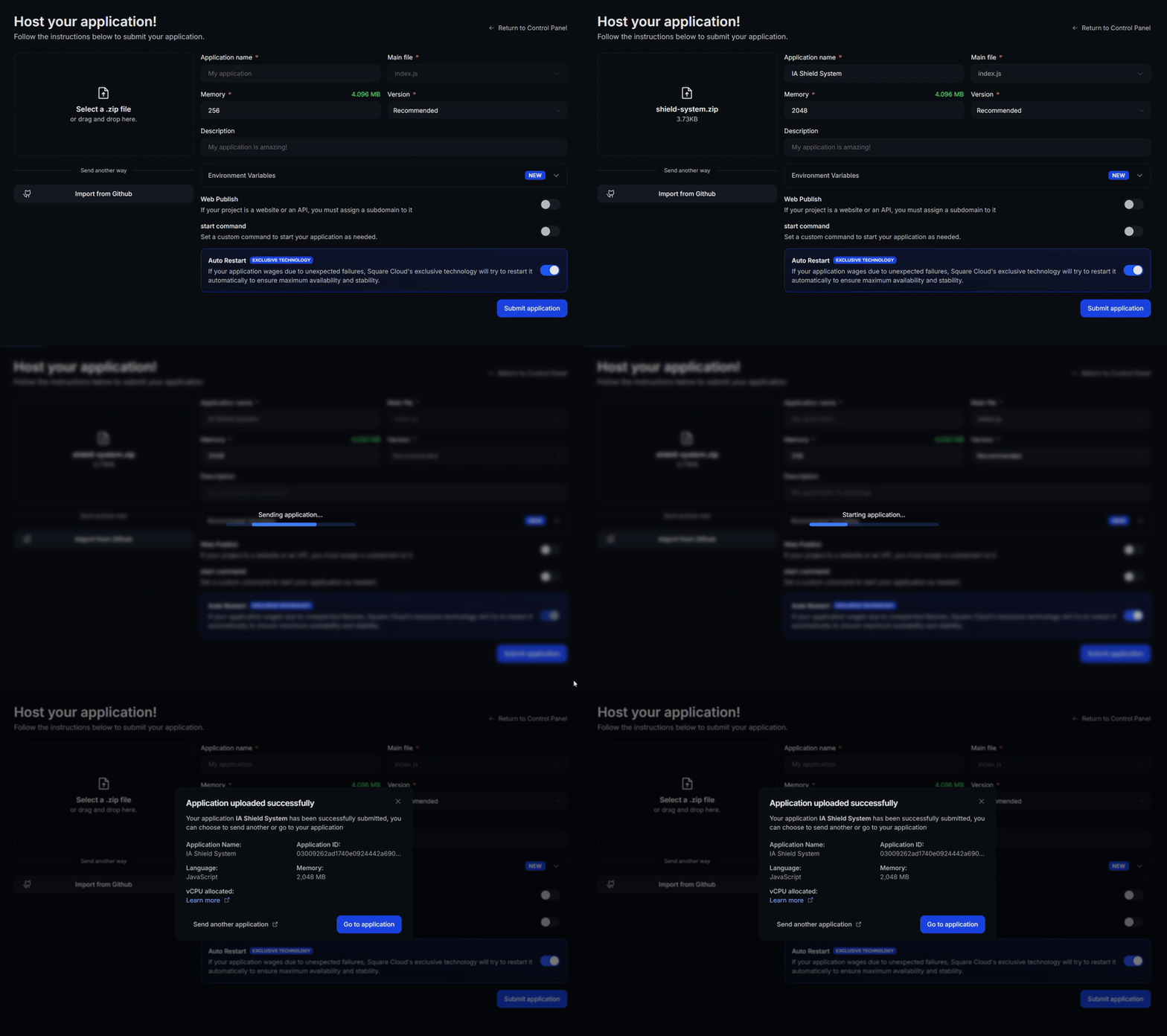
Access the [upload page](https://squarecloud.app/en/dashboard/new) and upload your project zip file.
After uploading your zip, you will need to configure the name, main file or runtime environment and other settings for your project.\
If you are uploading a web project, make sure to select "Web Publication" and set a subdomain to your project.
Finally, click on the "Deploy" button to host your project on Square Cloud.\
After deployment, you can monitor your project's status and logs from the dashboard.
 ### Via CLI
To use this method, you need to create a config file named `squarecloud.app` in the root directory of your project. This file will contain the necessary configuration for your project.
The squarecloud.app file is a configuration file that will be used to configure your application; it will be used to define your environment.
First, you need to have the CLI installed in your environment. If you don't have it yet, run the following command in your terminal:
```
npm install -g @squarecloud/cli
```
If you already have it, we recommend updating it. To do this, run the following command in your terminal:
```bash theme={null}
squarecloud update
```
```bash theme={null}
curl -fsSL https://cli.squarecloud.app/install | bash
```
Now, to authenticate and use other CLI commands, you will find your authorization key [here](https://squarecloud.app/en/account/security) by clicking on "Request API Key". After obtaining your authorization key, run the following command:
```bash theme={null}
squarecloud auth login
```
Finally, to deploy your application to Square Cloud using the CLI, you need to run the following command:
```bash theme={null}
squarecloud upload
```
Or if you created the zip manually, you can use:
```bash theme={null}
squarecloud upload --file
```
## Additional resources
To deepen your knowledge about developing X bots using twitter-api-v2, check the [official twitter-api-v2 library documentation](https://github.com/PLhery/node-twitter-api-v2). The documentation provides detailed guides, advanced tutorials and full API references to maximize your implementation.
Also see:
* [Official X API documentation](https://docs.x.com/overview)
* [X API usage policies](https://developer.x.com/en/developer-terms/policy)
* [Bot best practices guide](https://docs.x.com/x-api/getting-started/about-x-api)
### Hashtag Monitoring
```javascript theme={null}
// Function to monitor specific hashtags
async function monitorHashtags(hashtags) {
for (const hashtag of hashtags) {
try {
const tweets = await rwClient.v2.search(`#${hashtag}`, {
max_results: 10,
});
// Process found tweets
for (const tweet of tweets.data?.data ?? []) {
console.log(`Tweet found with #${hashtag}: ${tweet.text}`);
// Implement interaction logic
}
} catch (error) {
console.error(`Error monitoring #${hashtag}:`, error);
}
}
}
```
### Scheduled Posts
```javascript theme={null}
// Function to schedule posts
function schedulePost(text, delay) {
setTimeout(async () => {
try {
await postTweet(text);
console.log('Scheduled post published successfully!');
} catch (error) {
console.error('Error publishing scheduled post:', error);
}
}, delay);
}
// Example: Schedule a post for 1 hour
schedulePost('🤖 Scheduled post by the bot!', 60 * 60 * 1000);
```
### Rate Limiting
X (Twitter) has strict rate limits. Implement controls to avoid exceeding these limits:
```javascript theme={null}
// Rate limiting control
const rateLimiter = {
lastRequest: 0,
minInterval: 1000, // 1 second between requests
async wait() {
const now = Date.now();
const timeSinceLastRequest = now - this.lastRequest;
if (timeSinceLastRequest < this.minInterval) {
const waitTime = this.minInterval - timeSinceLastRequest;
await new Promise(resolve => setTimeout(resolve, waitTime));
}
this.lastRequest = Date.now();
}
};
```
### Error Handling
```javascript theme={null}
// Helper function to retry an operation on failure
async function retryOperation(operation, maxRetries = 3) {
for (let i = 0; i < maxRetries; i++) {
try {
return await operation();
} catch (error) {
console.error(`Attempt ${i + 1} failed:`, error.message);
if (i === maxRetries - 1) {
throw error;
}
// Wait before retrying
await new Promise(resolve => setTimeout(resolve, 2000 * (i + 1)));
}
}
}
```
## Contact us
If you continue facing **technical difficulties**, our **specialized support team** is available to assist you. [**Contact us**](https://squarecloud.app/en/support) and we'll be happy to help you resolve any issue.
### Via CLI
To use this method, you need to create a config file named `squarecloud.app` in the root directory of your project. This file will contain the necessary configuration for your project.
The squarecloud.app file is a configuration file that will be used to configure your application; it will be used to define your environment.
First, you need to have the CLI installed in your environment. If you don't have it yet, run the following command in your terminal:
```
npm install -g @squarecloud/cli
```
If you already have it, we recommend updating it. To do this, run the following command in your terminal:
```bash theme={null}
squarecloud update
```
```bash theme={null}
curl -fsSL https://cli.squarecloud.app/install | bash
```
Now, to authenticate and use other CLI commands, you will find your authorization key [here](https://squarecloud.app/en/account/security) by clicking on "Request API Key". After obtaining your authorization key, run the following command:
```bash theme={null}
squarecloud auth login
```
Finally, to deploy your application to Square Cloud using the CLI, you need to run the following command:
```bash theme={null}
squarecloud upload
```
Or if you created the zip manually, you can use:
```bash theme={null}
squarecloud upload --file
```
## Additional resources
To deepen your knowledge about developing X bots using twitter-api-v2, check the [official twitter-api-v2 library documentation](https://github.com/PLhery/node-twitter-api-v2). The documentation provides detailed guides, advanced tutorials and full API references to maximize your implementation.
Also see:
* [Official X API documentation](https://docs.x.com/overview)
* [X API usage policies](https://developer.x.com/en/developer-terms/policy)
* [Bot best practices guide](https://docs.x.com/x-api/getting-started/about-x-api)
### Hashtag Monitoring
```javascript theme={null}
// Function to monitor specific hashtags
async function monitorHashtags(hashtags) {
for (const hashtag of hashtags) {
try {
const tweets = await rwClient.v2.search(`#${hashtag}`, {
max_results: 10,
});
// Process found tweets
for (const tweet of tweets.data?.data ?? []) {
console.log(`Tweet found with #${hashtag}: ${tweet.text}`);
// Implement interaction logic
}
} catch (error) {
console.error(`Error monitoring #${hashtag}:`, error);
}
}
}
```
### Scheduled Posts
```javascript theme={null}
// Function to schedule posts
function schedulePost(text, delay) {
setTimeout(async () => {
try {
await postTweet(text);
console.log('Scheduled post published successfully!');
} catch (error) {
console.error('Error publishing scheduled post:', error);
}
}, delay);
}
// Example: Schedule a post for 1 hour
schedulePost('🤖 Scheduled post by the bot!', 60 * 60 * 1000);
```
### Rate Limiting
X (Twitter) has strict rate limits. Implement controls to avoid exceeding these limits:
```javascript theme={null}
// Rate limiting control
const rateLimiter = {
lastRequest: 0,
minInterval: 1000, // 1 second between requests
async wait() {
const now = Date.now();
const timeSinceLastRequest = now - this.lastRequest;
if (timeSinceLastRequest < this.minInterval) {
const waitTime = this.minInterval - timeSinceLastRequest;
await new Promise(resolve => setTimeout(resolve, waitTime));
}
this.lastRequest = Date.now();
}
};
```
### Error Handling
```javascript theme={null}
// Helper function to retry an operation on failure
async function retryOperation(operation, maxRetries = 3) {
for (let i = 0; i < maxRetries; i++) {
try {
return await operation();
} catch (error) {
console.error(`Attempt ${i + 1} failed:`, error.message);
if (i === maxRetries - 1) {
throw error;
}
// Wait before retrying
await new Promise(resolve => setTimeout(resolve, 2000 * (i + 1)));
}
}
}
```
## Contact us
If you continue facing **technical difficulties**, our **specialized support team** is available to assist you. [**Contact us**](https://squarecloud.app/en/support) and we'll be happy to help you resolve any issue.