> ## Documentation Index
> Fetch the complete documentation index at: https://docs.squarecloud.app/llms.txt
> Use this file to discover all available pages before exploring further.
# How to Host Slack Bots
> Learn to create and host Slack bots on Square Cloud. Complete tutorial with configuration, deployment, and practical examples in Node.js and Python.
export const RecommendedPlan = ({lang, plan, tier, cpu, appType}) => {
const url = `https://squarecloud.app/${lang}/pay?plan=${plan.toLowerCase()}&tier=${tier}`;
if (lang == 'en') {
return
Wondering how much RAM and CPU your plan needs to host {appType}?
Don't worry, we're here to help.
Our {plan} plan offers {tier}GB of RAM and {cpu}vCPU, which should be sufficient for most {appType}.
However, if you are working on a larger project and seeking extra stability, we recommend considering our Pro plan. With additional resources, you can maintain stability even during demand spikes.
To purchase, simply click here.
;
} else {
return
Está se perguntando quanta RAM e CPU seu plano precisa para hospedar {appType}?
Não se preocupe, estamos aqui para ajudar.
Nosso plano {plan} oferece {tier}GB de RAM e {cpu}vCPU, o que deve ser suficiente para a maioria dos {appType}.
No entanto, se você estiver trabalhando em um projeto maior e precisar de mais estabilidade, recomendamos considerar nosso plano Pro.
Com recursos adicionais, você pode manter a estabilidade mesmo durante picos de demanda.
Para comprar, basta clicar aqui.
;
}
};
export const appType_0 = "a Slack bot"
## Introduction
To develop and host {appType_0} on Square Cloud, it's essential to follow a structured sequence of configurations and prerequisites. This technical guide will cover the entire process, from initial setup to production deployment.
### Prerequisites
* **Square Cloud Account**: Register through the [signup page](https://squarecloud.app/en/signup) using your email.
* **Active Paid Plan**: Ensures dedicated resources and optimized performance for your application. Check our [available plans](https://squarecloud.app/en/pricing) and choose the most suitable for your needs.
## Creating project
To create a Slack Bot, you will need an account and permissions to create apps on Slack. Create or access your account at [https://slack.com/](https://slack.com/) before following next steps.
### Bot application on Slack
1. Go to the [Slack API - Your Apps](https://api.slack.com/apps) and click "Create New App".
2. Choose "From scratch", give the app a name and select the workspace where you will install it.
3. Note the *Signing Secret* (under "Basic Information") and create a *Bot Token* in the "OAuth & Permissions" section, adding the appropriate scopes for your bot (e.g. `chat:write`, `channels:read`, `commands`, `app_mentions:read`).
**Security:** Never expose the Signing Secret or the Bot Token publicly. Treat them as sensitive credentials.
## Developing project
Use the sections below depending on the language you choose. Both examples demonstrate a bot that responds to mentions or simple commands.
**Node.js Environment Setup**
1. Make sure Node.js is installed.
2. Initialize a project and install dependencies:
```bash Terminal theme={null}
npm init -y
npm install @slack/bolt
```
3. Create an `index.js` file with the following content:
```javascript index.js theme={null}
const { App } = require('@slack/bolt');
const app = new App({
signingSecret: process.env.SLACK_SIGNING_SECRET,
token: process.env.SLACK_BOT_TOKEN,
});
// Responds when mentioned
app.event('app_mention', async ({ event, say }) => {
await say(`<@${event.user}> Thanks for mentioning me!`);
});
// Example slash command
app.command('/hello', async ({ ack, respond }) => {
await ack();
await respond('Hello from Square Cloud!');
});
(async () => {
await app.start(process.env.PORT || 3000);
console.log('⚡️ Slack Bolt app is running!');
})();
```
Note: on Square Cloud, set the environment variables `SLACK_SIGNING_SECRET` and `SLACK_BOT_TOKEN` in the application panel.
**Python Environment Setup**
1. Make sure Python and pip are installed.
2. Install the Bolt for Python library:
```bash Terminal theme={null}
pip install slack_bolt
```
3. Create an `app.py` file with the following content:
```python app.py theme={null}
from slack_bolt import App
import os
app = App(
signing_secret=os.environ.get('SLACK_SIGNING_SECRET'),
token=os.environ.get('SLACK_BOT_TOKEN')
)
@app.event('app_mention')
def handle_mention(event, say):
user = event.get('user')
say(f'<@{user}> Thanks for mention!')
@app.command('/hello')
def hello_command(ack, respond):
ack()
respond('Hello from Square Cloud!')
if __name__ == '__main__':
app.start(port=int(os.environ.get('PORT', 3000)))
```
4. For Python projects, include a `requirements.txt` with:
```txt requirements.txt theme={null}
slack_bolt
```
## Deploying
After preparing your project files, you can now upload them to Square Cloud and host your project.
To do so, create a ZIP file containing all your project files.
### Via dashboard
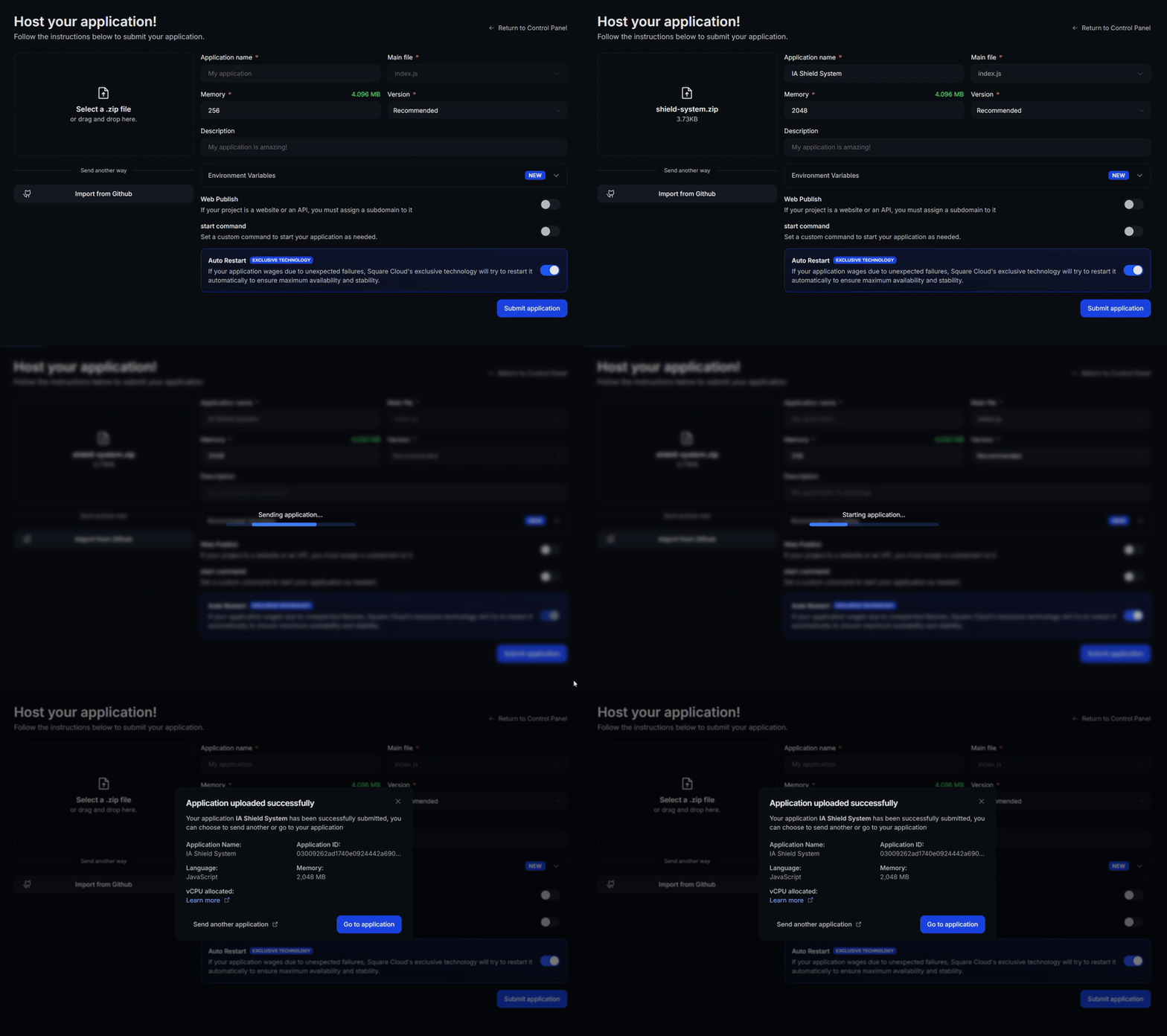
Access the [upload page](https://squarecloud.app/en/dashboard/new) and upload your project zip file.
After uploading your zip, you will need to configure the name, main file or runtime environment and other settings for your project.\
If you are uploading a web project, make sure to select "Web Publication" and set a subdomain to your project.
Finally, click on the "Deploy" button to host your project on Square Cloud.\
After deployment, you can monitor your project's status and logs from the dashboard.
 ### Via CLI
To use this method, you need to create a config file named `squarecloud.app` in the root directory of your project. This file will contain the necessary configuration for your project.
The squarecloud.app file is a configuration file that will be used to configure your application; it will be used to define your environment.
First, you need to have the CLI installed in your environment. If you don't have it yet, run the following command in your terminal:
```
npm install -g @squarecloud/cli
```
If you already have it, we recommend updating it. To do this, run the following command in your terminal:
```bash theme={null}
squarecloud update
```
```bash theme={null}
curl -fsSL https://cli.squarecloud.app/install | bash
```
Now, to authenticate and use other CLI commands, you will find your authorization key [here](https://squarecloud.app/en/account/security) by clicking on "Request API Key". After obtaining your authorization key, run the following command:
```bash theme={null}
squarecloud auth login
```
Finally, to deploy your application to Square Cloud using the CLI, you need to run the following command:
```bash theme={null}
squarecloud upload
```
Or if you created the zip manually, you can use:
```bash theme={null}
squarecloud upload --file
```
## Testing the Bot
1. In the Slack App panel, under "OAuth & Permissions", install the app to the workspace.
2. If the bot exposes endpoints (for events or commands), configure the Request URL in "Event Subscriptions" and "Slash Commands" to point to your application's public URL (Square Cloud provides the domain after deployment).
3. Test mentions in a channel or the `/hello` command to validate responses.
Example install link (replace the client\_id):
```txt theme={null}
https://slack.com/oauth/v2/authorize?client_id=000000000000.000000000000&scope=commands,chat:write,app_mentions:read
```
## Additional Resources
For further reading, check the official Slack documentation:
* Bolt for JavaScript: [https://docs.slack.dev/tools/bolt-js/](https://docs.slack.dev/tools/bolt-js/)
* Bolt for Python: [https://docs.slack.dev/tools/bolt-python/](https://docs.slack.dev/tools/bolt-python/)
## Contact us
If you continue facing **technical difficulties**, our **specialized support team** is available to assist you. [**Contact us**](https://squarecloud.app/en/support) and we'll be happy to help you resolve any issue.
### Via CLI
To use this method, you need to create a config file named `squarecloud.app` in the root directory of your project. This file will contain the necessary configuration for your project.
The squarecloud.app file is a configuration file that will be used to configure your application; it will be used to define your environment.
First, you need to have the CLI installed in your environment. If you don't have it yet, run the following command in your terminal:
```
npm install -g @squarecloud/cli
```
If you already have it, we recommend updating it. To do this, run the following command in your terminal:
```bash theme={null}
squarecloud update
```
```bash theme={null}
curl -fsSL https://cli.squarecloud.app/install | bash
```
Now, to authenticate and use other CLI commands, you will find your authorization key [here](https://squarecloud.app/en/account/security) by clicking on "Request API Key". After obtaining your authorization key, run the following command:
```bash theme={null}
squarecloud auth login
```
Finally, to deploy your application to Square Cloud using the CLI, you need to run the following command:
```bash theme={null}
squarecloud upload
```
Or if you created the zip manually, you can use:
```bash theme={null}
squarecloud upload --file
```
## Testing the Bot
1. In the Slack App panel, under "OAuth & Permissions", install the app to the workspace.
2. If the bot exposes endpoints (for events or commands), configure the Request URL in "Event Subscriptions" and "Slash Commands" to point to your application's public URL (Square Cloud provides the domain after deployment).
3. Test mentions in a channel or the `/hello` command to validate responses.
Example install link (replace the client\_id):
```txt theme={null}
https://slack.com/oauth/v2/authorize?client_id=000000000000.000000000000&scope=commands,chat:write,app_mentions:read
```
## Additional Resources
For further reading, check the official Slack documentation:
* Bolt for JavaScript: [https://docs.slack.dev/tools/bolt-js/](https://docs.slack.dev/tools/bolt-js/)
* Bolt for Python: [https://docs.slack.dev/tools/bolt-python/](https://docs.slack.dev/tools/bolt-python/)
## Contact us
If you continue facing **technical difficulties**, our **specialized support team** is available to assist you. [**Contact us**](https://squarecloud.app/en/support) and we'll be happy to help you resolve any issue.