> ## Documentation Index
> Fetch the complete documentation index at: https://docs.squarecloud.app/llms.txt
> Use this file to discover all available pages before exploring further.
# Database Hosting
> Host databases for your applications with the largest platform in Latin America. Enterprise performance and security for your data
 ## Why choose Square Cloud?
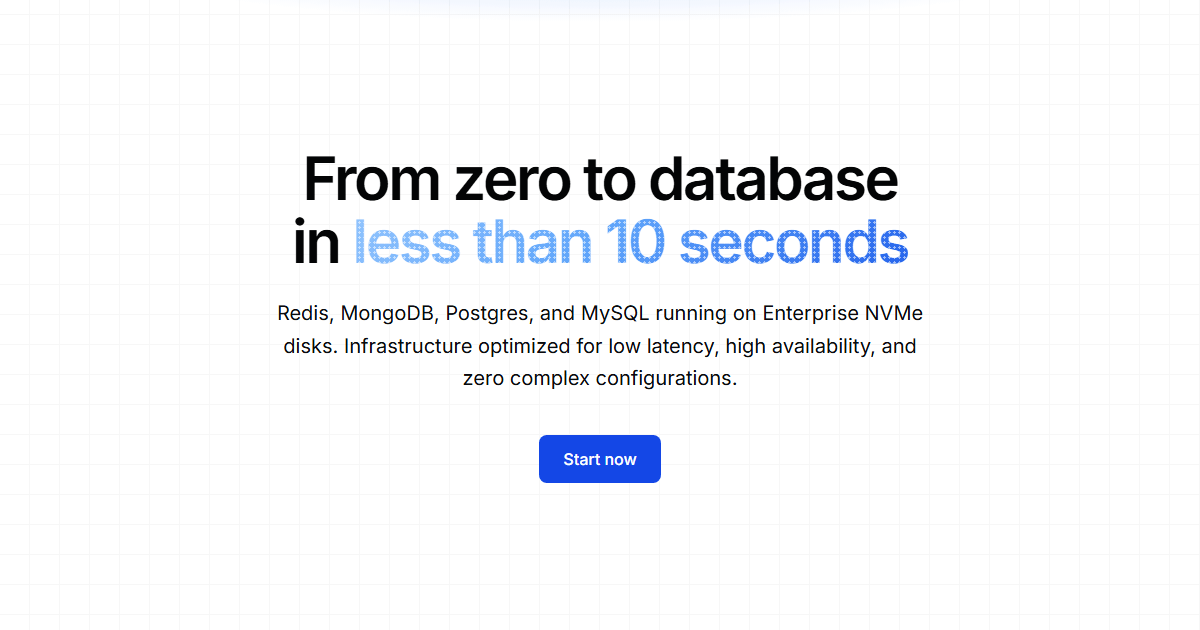
Managed PostgreSQL, MySQL, MongoDB and Redis instances, provisioned in a couple of clicks and reachable over an encrypted, certificate-authenticated connection. You get a production database without tuning a server, managing backups or paying for the bandwidth your app moves.
Instances run on **enterprise Samsung NVMe SSDs**, where random-read latency dominates real-world query performance — so indexed lookups and write-heavy workloads stay fast.
**No ingress or egress charges.** Read and write as much as your application needs without a metered-bandwidth bill — a cost that quietly dominates on most cloud providers.
**One-click restore points** included at no extra cost. Recover from a bad migration or accidental delete without leaving the dashboard.
Instances **only accept SSL/TLS connections** with Square Cloud-managed certificates. Plaintext connections are refused, so your data is encrypted in transit without any extra configuration.
## Supported databases
We offer some databases already configured to connect and start using.
### Versions
| SGBD | Version |
| :--------: | :-----: |
| PostgreSQL | 17.x.x |
| MySQL | 9.x.x |
| MongoDB | 8.x.x |
| Redis | 7.4.x |
## How do I host my database?
Hosting your database with Square Cloud is simple and straightforward, you need an **active Standard plan or higher** and follow these steps:
Go to the [Databases](https://squarecloud.app/en/dashboard/databases) page and click on the "Create Database" button.
Select the database type you want to host and fill in the required information, such as the database name and RAM.
Click on the "Create" button and wait for the database to be created. Once it's ready, you can find the connection details in the database dashboard.
## How do I connect to my database?
Our databases are configured to only allow secure connections with certificate. To connect to your brand new database, you need to follow these steps:
Get the credentials to connect to your database. You will need the host, port, username and password, which you can find in the URL and you will need the certificates.
Use the credentials and certificates to connect to your database using your preferred database client or library.\
Make sure to use SSL/TLS for secure connections and use the certificates as CA, root certificate or client certificate and key certificate.\
Normally you will need only the `.pem` but some clients may require the `.key` and `.cert` files separately or `.p12` file.
Once connected, you can start using your database instance, storing and managing your data.\
You can also monitor the performance and usage of your database through the Square Cloud dashboard.
## Why choose Square Cloud?
Managed PostgreSQL, MySQL, MongoDB and Redis instances, provisioned in a couple of clicks and reachable over an encrypted, certificate-authenticated connection. You get a production database without tuning a server, managing backups or paying for the bandwidth your app moves.
Instances run on **enterprise Samsung NVMe SSDs**, where random-read latency dominates real-world query performance — so indexed lookups and write-heavy workloads stay fast.
**No ingress or egress charges.** Read and write as much as your application needs without a metered-bandwidth bill — a cost that quietly dominates on most cloud providers.
**One-click restore points** included at no extra cost. Recover from a bad migration or accidental delete without leaving the dashboard.
Instances **only accept SSL/TLS connections** with Square Cloud-managed certificates. Plaintext connections are refused, so your data is encrypted in transit without any extra configuration.
## Supported databases
We offer some databases already configured to connect and start using.
### Versions
| SGBD | Version |
| :--------: | :-----: |
| PostgreSQL | 17.x.x |
| MySQL | 9.x.x |
| MongoDB | 8.x.x |
| Redis | 7.4.x |
## How do I host my database?
Hosting your database with Square Cloud is simple and straightforward, you need an **active Standard plan or higher** and follow these steps:
Go to the [Databases](https://squarecloud.app/en/dashboard/databases) page and click on the "Create Database" button.
Select the database type you want to host and fill in the required information, such as the database name and RAM.
Click on the "Create" button and wait for the database to be created. Once it's ready, you can find the connection details in the database dashboard.
## How do I connect to my database?
Our databases are configured to only allow secure connections with certificate. To connect to your brand new database, you need to follow these steps:
Get the credentials to connect to your database. You will need the host, port, username and password, which you can find in the URL and you will need the certificates.
Use the credentials and certificates to connect to your database using your preferred database client or library.\
Make sure to use SSL/TLS for secure connections and use the certificates as CA, root certificate or client certificate and key certificate.\
Normally you will need only the `.pem` but some clients may require the `.key` and `.cert` files separately or `.p12` file.
Once connected, you can start using your database instance, storing and managing your data.\
You can also monitor the performance and usage of your database through the Square Cloud dashboard.