> ## Documentation Index
> Fetch the complete documentation index at: https://docs.squarecloud.app/llms.txt
> Use this file to discover all available pages before exploring further.
# Bot Hosting
> Host your Discord, WhatsApp and Telegram bots on the largest platform in Latin America. Enterprise performance, advanced security and development tools for your project.
 ## Why choose Square Cloud?
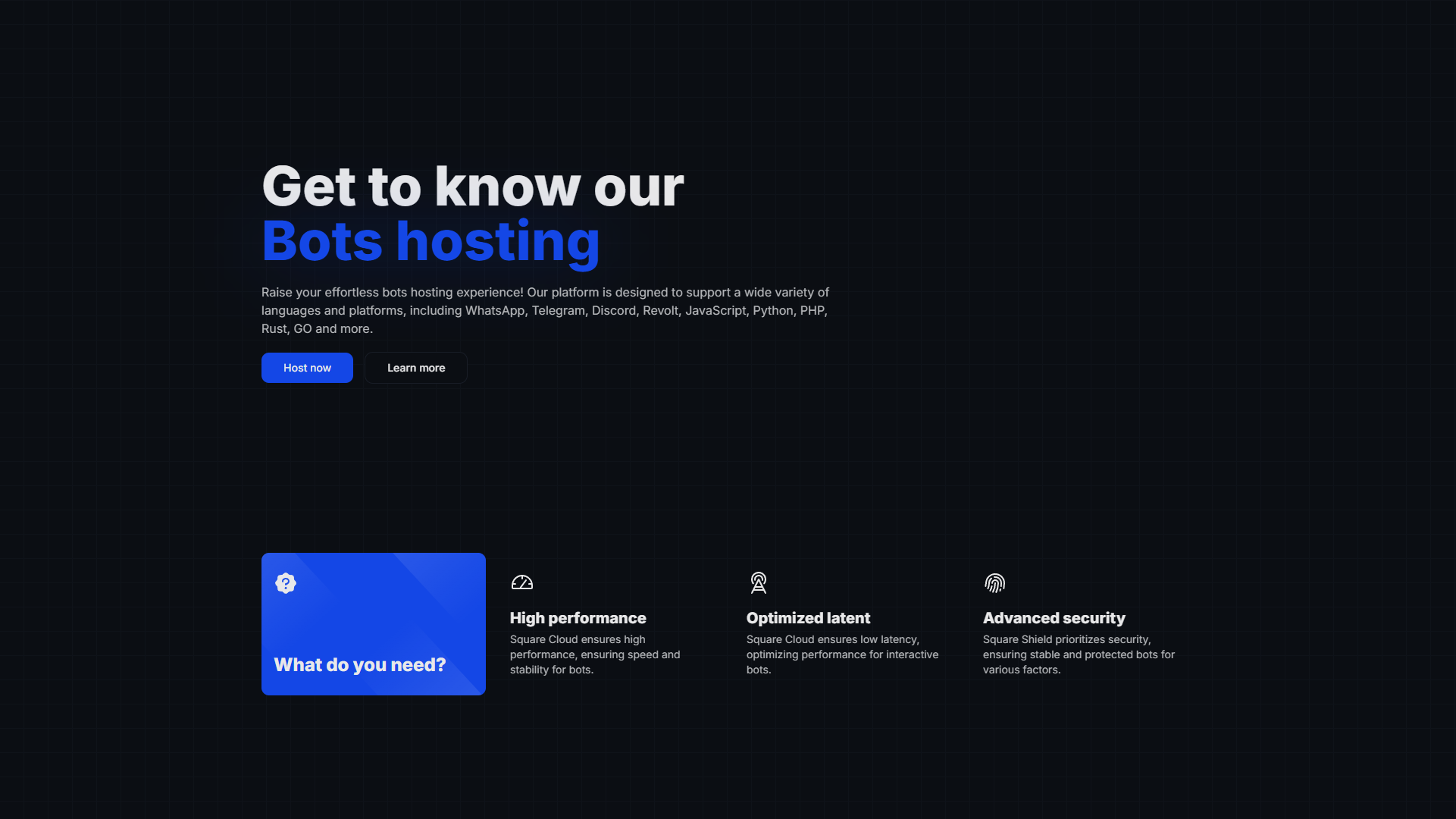
We are the **largest bot hosting platform in Latin America**, trusted by **80 of the 100 largest Brazilian Discord servers**. Our platform was built with developers' needs in mind, offering an optimized environment and tools that simplify your project management.
Cutting-edge hardware with **enterprise Samsung NVMe SSDs** and **10Gbps** networks ensuring **maximum performance** and **ultra-low latency** for your bots.
We offer **CLI**, **SDKs**, **VSCode extension** and **GitHub Actions** to **optimize your workflow** and **accelerate development**.
Integrated protection with **Square Shield** to keep your bot **secure** and **within API limits**, preventing **bans** and **instabilities**.
**Exclusive** technology for **1-click** restore points, included **at no additional cost**, ensuring **complete security** for your data.
**Proven trust:** Our reputation has been built through years of serving developers from Brazil and throughout Latin America, providing stability and quality you can trust for your most important projects.
***
## Supported environments
We offer broad compatibility so you can develop with your preferred technology.
### Platforms
### Languages
In addition to these, we support various other languages and libraries. Our infrastructure is flexible to adapt to your project's needs.
***
## Main Features
### Cutting-Edge Infrastructure
Our network is built with enterprise-level **Samsung NVMe SSDs** and **10Gbps uplinks** per cluster, ensuring ultra-fast and stable connections. This translates to a bot with minimal response time and high availability.
### Security with Square Shield
**Square Shield** is our intelligent protection layer. It monitors and protects your bot to ensure it doesn't exceed platform API request limits (like Discord), preventing bans and instabilities.
### Simplified Management
We perform automatic backups of your application daily, allowing you to restore a previous version with just one click in case of problems.
Access complete and real-time logs of your application to debug errors and efficiently monitor your bot's behavior.
Monitor resource consumption (CPU, RAM, Network) and your bot's overall performance through an intuitive analytics panel.
### Development Tools
To optimize your workflow, we offer a complete ecosystem of tools:
Manage your applications directly from the terminal. Deploy, check logs, and much more, quickly and practically.
```bash theme={null}
npm install -g @squarecloud/cli
squarecloud auth login
```
Integrate hosting management into your favorite code editor, simplifying the development and deployment process.
Automate continuous deployment (CI/CD) of your bot. With each `push` to your repository, your application is automatically updated on our platform.
**Attention:** To use deployment via GitHub Actions, you need to configure an API `token` in your repository secrets. Check our specific documentation for the step-by-step guide.
## How to host my bot?
The first step to host your bot on **Square Cloud** is creating a detailed configuration file. This file is not just a simple text document, but a comprehensive guide that defines the settings for the application on **Square Cloud**. It functions as an architectural blueprint for your project on the platform.
Once you've acquired the plan, you need to create this file, detailing each configuration and filling it out correctly. Details on how to create this file are available [here](https://docs.squarecloud.app/getting-started/config-file), with a step-by-step guide.
With the configuration file ready, the next step is preparing your application for upload. This involves placing the application files and the **Square Cloud** configuration file inside a .zip file.
However, not all files need to be included in this .zip. Files like `node_modules`, `package-lock.json`, `pyproject.toml`, and `poetry.lock` are not necessary, as they can be automatically generated on the server side.
Another crucial aspect is including the dependencies file in the .zip. This file tells the **Square Cloud** platform which dependencies to install for your project. For a Node.js project, this file is `package.json`, and for a Python project, it's `requirements.txt`.
These files list the libraries and packages necessary for the application to function correctly. Keeping these files updated is crucial to avoid installation errors. Additionally, it's important to note that native dependencies, like `node-fetch` in Node.js and `random` in Python, should not be included in these files, as they are native libraries.
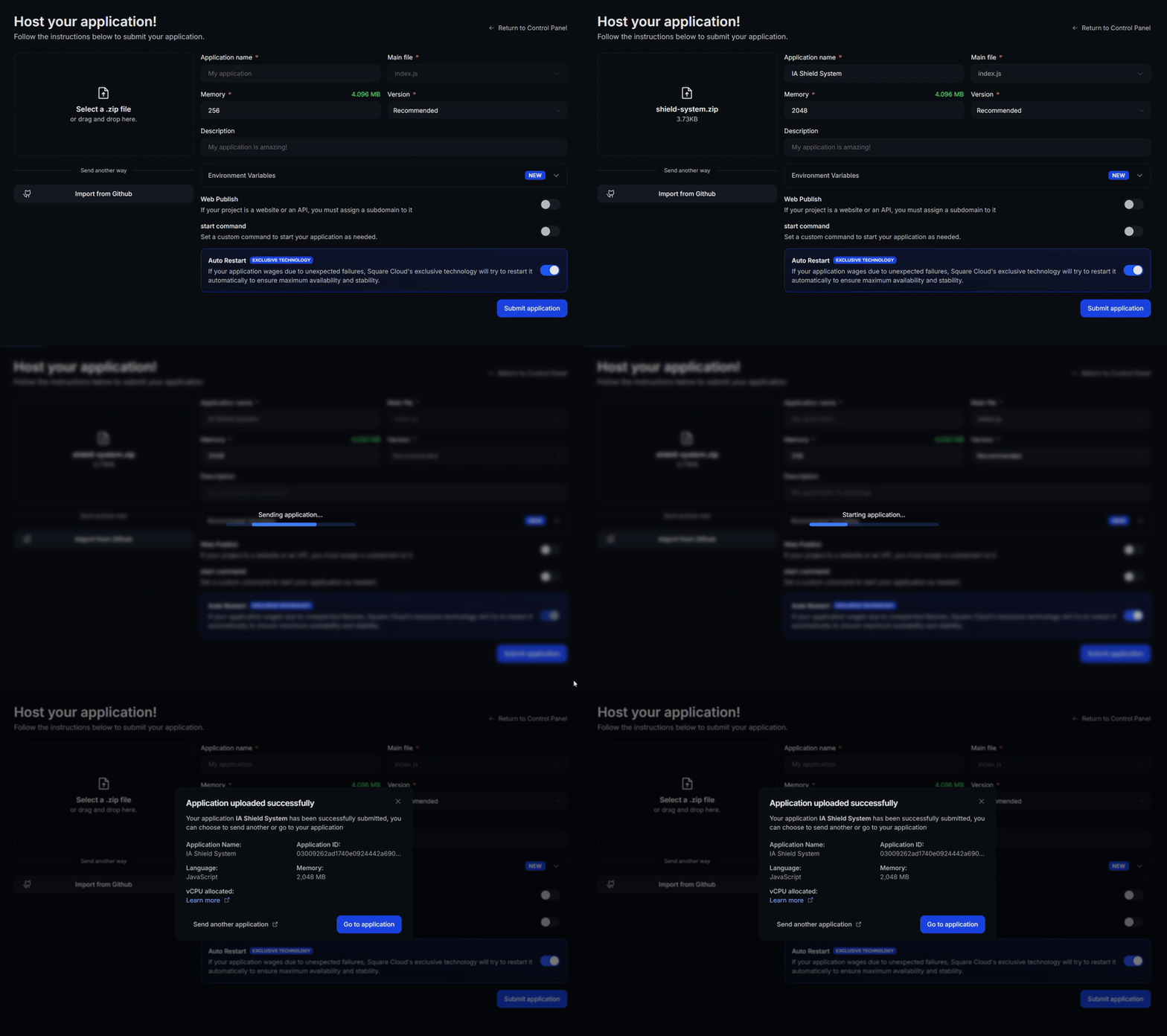
After following all the steps and configuring your project for **Square Cloud**, it's time to upload your bot. Access the upload page on the **Square Cloud** website and send your .zip file [here](https://squarecloud.app/en/dashboard/new).
The process is simple: select your .zip file and click the upload button. The **Square Cloud** platform will start the deployment process, installing necessary dependencies and configuring the environment based on the configuration file.
## Why choose Square Cloud?
We are the **largest bot hosting platform in Latin America**, trusted by **80 of the 100 largest Brazilian Discord servers**. Our platform was built with developers' needs in mind, offering an optimized environment and tools that simplify your project management.
Cutting-edge hardware with **enterprise Samsung NVMe SSDs** and **10Gbps** networks ensuring **maximum performance** and **ultra-low latency** for your bots.
We offer **CLI**, **SDKs**, **VSCode extension** and **GitHub Actions** to **optimize your workflow** and **accelerate development**.
Integrated protection with **Square Shield** to keep your bot **secure** and **within API limits**, preventing **bans** and **instabilities**.
**Exclusive** technology for **1-click** restore points, included **at no additional cost**, ensuring **complete security** for your data.
**Proven trust:** Our reputation has been built through years of serving developers from Brazil and throughout Latin America, providing stability and quality you can trust for your most important projects.
***
## Supported environments
We offer broad compatibility so you can develop with your preferred technology.
### Platforms
### Languages
In addition to these, we support various other languages and libraries. Our infrastructure is flexible to adapt to your project's needs.
***
## Main Features
### Cutting-Edge Infrastructure
Our network is built with enterprise-level **Samsung NVMe SSDs** and **10Gbps uplinks** per cluster, ensuring ultra-fast and stable connections. This translates to a bot with minimal response time and high availability.
### Security with Square Shield
**Square Shield** is our intelligent protection layer. It monitors and protects your bot to ensure it doesn't exceed platform API request limits (like Discord), preventing bans and instabilities.
### Simplified Management
We perform automatic backups of your application daily, allowing you to restore a previous version with just one click in case of problems.
Access complete and real-time logs of your application to debug errors and efficiently monitor your bot's behavior.
Monitor resource consumption (CPU, RAM, Network) and your bot's overall performance through an intuitive analytics panel.
### Development Tools
To optimize your workflow, we offer a complete ecosystem of tools:
Manage your applications directly from the terminal. Deploy, check logs, and much more, quickly and practically.
```bash theme={null}
npm install -g @squarecloud/cli
squarecloud auth login
```
Integrate hosting management into your favorite code editor, simplifying the development and deployment process.
Automate continuous deployment (CI/CD) of your bot. With each `push` to your repository, your application is automatically updated on our platform.
**Attention:** To use deployment via GitHub Actions, you need to configure an API `token` in your repository secrets. Check our specific documentation for the step-by-step guide.
## How to host my bot?
The first step to host your bot on **Square Cloud** is creating a detailed configuration file. This file is not just a simple text document, but a comprehensive guide that defines the settings for the application on **Square Cloud**. It functions as an architectural blueprint for your project on the platform.
Once you've acquired the plan, you need to create this file, detailing each configuration and filling it out correctly. Details on how to create this file are available [here](https://docs.squarecloud.app/getting-started/config-file), with a step-by-step guide.
With the configuration file ready, the next step is preparing your application for upload. This involves placing the application files and the **Square Cloud** configuration file inside a .zip file.
However, not all files need to be included in this .zip. Files like `node_modules`, `package-lock.json`, `pyproject.toml`, and `poetry.lock` are not necessary, as they can be automatically generated on the server side.
Another crucial aspect is including the dependencies file in the .zip. This file tells the **Square Cloud** platform which dependencies to install for your project. For a Node.js project, this file is `package.json`, and for a Python project, it's `requirements.txt`.
These files list the libraries and packages necessary for the application to function correctly. Keeping these files updated is crucial to avoid installation errors. Additionally, it's important to note that native dependencies, like `node-fetch` in Node.js and `random` in Python, should not be included in these files, as they are native libraries.
After following all the steps and configuring your project for **Square Cloud**, it's time to upload your bot. Access the upload page on the **Square Cloud** website and send your .zip file [here](https://squarecloud.app/en/dashboard/new).
The process is simple: select your .zip file and click the upload button. The **Square Cloud** platform will start the deployment process, installing necessary dependencies and configuring the environment based on the configuration file.