> ## Documentation Index
> Fetch the complete documentation index at: https://docs.squarecloud.app/llms.txt
> Use this file to discover all available pages before exploring further.
# Getting Started on Square Cloud with Node.js
> Learn how to get started on Square Cloud with Node.js
## 🚀 Introduction
* Before getting started, ensure that Node.js and npm are installed on your system. If you don't have them yet, you can download them from the [official Node.js website](https://nodejs.org/).
* Next, you will need to create an account on Square Cloud, which can be done through the [login page](https://squarecloud.app/en/signup). You can use your email, GitHub, or both to create the account.
* Finally, you need to have an active paid plan on your account. You can view our plans and purchase one according to your needs [here](https://squarecloud.app/en/pricing).
## ⚙️ squarecloud.app file configuration
If you are uploading your application via the Square Cloud website, you can ignore this section. The site automatically creates the `squarecloud.app` configuration file for you.
The squarecloud.app file is a configuration file that will be used to
configure your application; it will serve to define the name, description,
version, main file, among other things.
## 📄 Required Files
* If the `START` field is not defined in the configuration file, Square Cloud will by default execute `node` with optimization options and specific parameters. If the `START` field is defined, the value in it will be executed directly. For more information about configuration file parameters, visit [configuration parameters](https://docs.squarecloud.app/en/getting-started/config-file#configuration-parameters).
* If the `START` field is not defined in the configuration file, Square Cloud will by default execute `npx tsx MAIN` to compile and run the main TypeScript file specified in `MAIN`. If the `START` field is defined, the value in it will be executed directly. For more information about configuration file parameters, visit [configuration parameters](https://docs.squarecloud.app/en/getting-started/config-file#configuration-parameters).
* If the `node_modules` folder does not exist, Square Cloud will execute `npm install --no-package-lock --no-audit --no-fund` to install dependencies and clean the `.npm` folder.
## 🖥️ Preparing the project
### 📁 Essential configuration files
When preparing your Node.js project for deploy on Square Cloud, ensure you include the configuration file (`squarecloud.app/.config`) and the essential files of your application inside a zip file.
The configuration file (`squarecloud.app/.config`) must be located at the root of the zip file. Otherwise, Square Cloud will not be able to find it during deploy.
#### 🗑️ Files to exclude before uploading
* `node_modules`: This folder does not need to be uploaded, as it will be recreated during installation in production.
* `package-lock.json`: This file is not necessary as the production environment will install dependencies based on `package.json`.
### 🤔 Why exclude these files?
There are several reasons to exclude `node_modules` and `package-lock.json` before uploading your project:
1. **Installation consistency:** Not uploading `node_modules` guarantees that dependencies are installed by the production environment, resulting in a consistent build free of local system discrepancies.
2. **Updated installations:** The production environment will install the latest compatible versions of the dependencies listed in `package.json`, providing a clean start for your application.
3. **Upload size reduction:** Not including these folders reduces the size of the uploaded file, speeding up the upload process and making the deploy more efficient.
By doing this, you ensure that your Node.js application is optimally prepared for hosting on Square Cloud.
### 📄 Required Files
Three files are necessary to host your Node project:
* [squarecloud.app/.config](https://docs.squarecloud.app/en/getting-started/config-file)
* mainFile.js/.ts (Example of main file)
* [package.json](./how-to-create-your-package-json) (Dependencies file)
Square Cloud supports `TypeScript` natively, executing your project via
ts-node, but it is always recommended to compile to `JavaScript`, as we are
a production platform.
## 💡 Troubleshooting
This error occurs when the file defined as "main" for your application in the
configuration file does not exist, is written incorrectly, or the path
is wrong. If your main file is inside a folder, for
example, you must specify `folder/file.js`.
The minimum amount of RAM required to host a bot is 256MB and for
a site/API is 512MB. However, depending on the size and complexity of
your application, it may be advisable to allocate a larger amount of RAM to
avoid your application running out of memory and crashing.
## 📤 How to host your project
Now that you have prepared all the files for your Node.js project, the next step is to upload them to Square Cloud and put your application online. There are several ways to upload, but we will cover two: via Dashboard or via CLI.
### Via dashboard
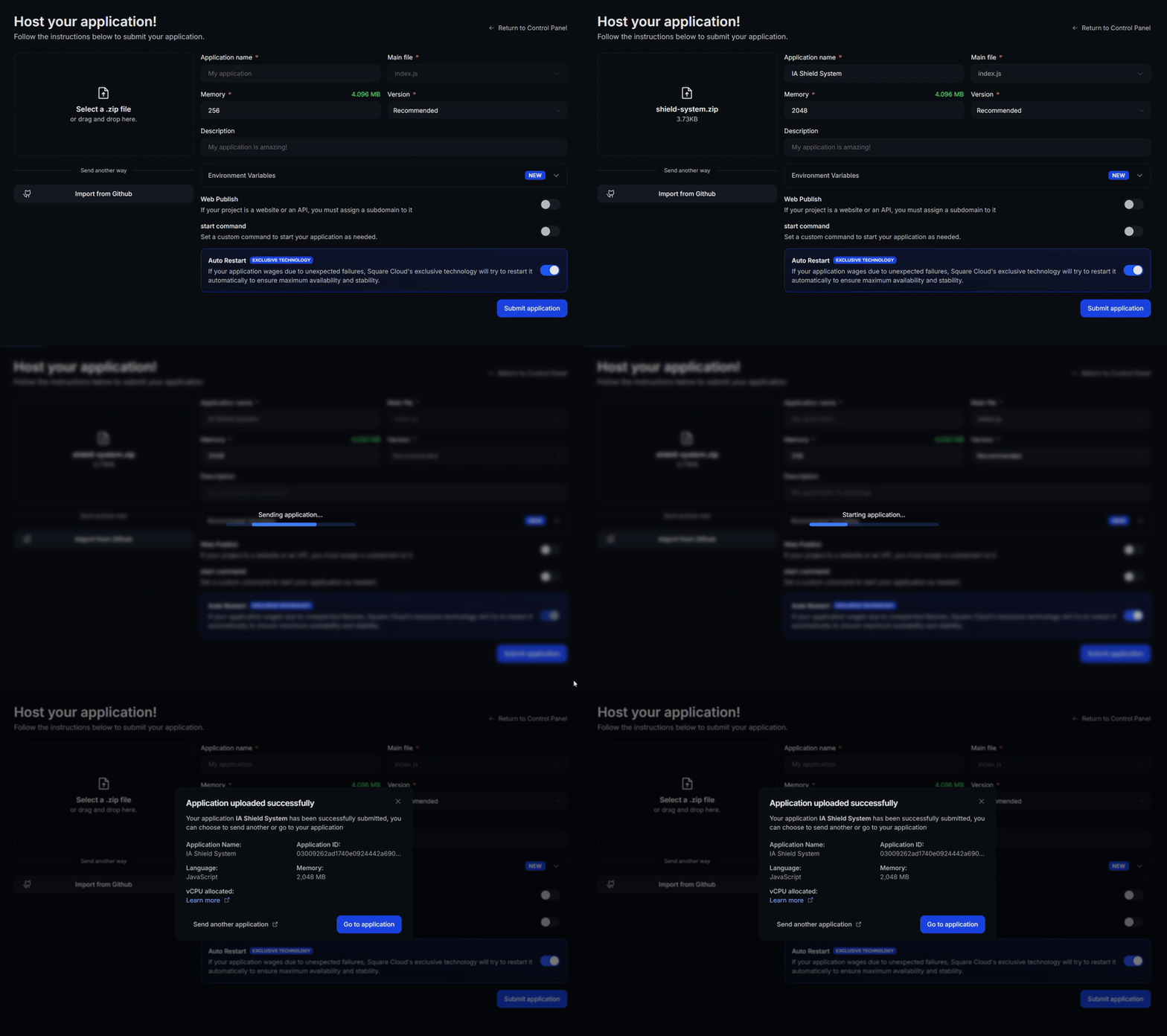
Access the [upload page](https://squarecloud.app/en/dashboard/new) and upload your project zip file.
After uploading your zip, you will need to configure the name, main file or runtime environment and other settings for your project.\
If you are uploading a web project, make sure to select "Web Publication" and set a subdomain to your project.
Finally, click on the "Deploy" button to host your project on Square Cloud.\
After deployment, you can monitor your project's status and logs from the dashboard.
 ### Via CLI
To use this method, you need to create a config file named `squarecloud.app` in the root directory of your project. This file will contain the necessary configuration for your project.
The squarecloud.app file is a configuration file that will be used to configure your application; it will be used to define your environment.
First, you need to have the CLI installed in your environment. If you don't have it yet, run the following command in your terminal:
```
npm install -g @squarecloud/cli
```
If you already have it, we recommend updating it. To do this, run the following command in your terminal:
```bash theme={null}
squarecloud update
```
```bash theme={null}
curl -fsSL https://cli.squarecloud.app/install | bash
```
Now, to authenticate and use other CLI commands, you will find your authorization key [here](https://squarecloud.app/en/account/security) by clicking on "Request API Key". After obtaining your authorization key, run the following command:
```bash theme={null}
squarecloud auth login
```
Finally, to deploy your application to Square Cloud using the CLI, you need to run the following command:
```bash theme={null}
squarecloud upload
```
Or if you created the zip manually, you can use:
```bash theme={null}
squarecloud upload --file
```
## Contact us
If you continue facing **technical difficulties**, our **specialized support team** is available to assist you. [**Contact us**](https://squarecloud.app/en/support) and we'll be happy to help you resolve any issue.
### Via CLI
To use this method, you need to create a config file named `squarecloud.app` in the root directory of your project. This file will contain the necessary configuration for your project.
The squarecloud.app file is a configuration file that will be used to configure your application; it will be used to define your environment.
First, you need to have the CLI installed in your environment. If you don't have it yet, run the following command in your terminal:
```
npm install -g @squarecloud/cli
```
If you already have it, we recommend updating it. To do this, run the following command in your terminal:
```bash theme={null}
squarecloud update
```
```bash theme={null}
curl -fsSL https://cli.squarecloud.app/install | bash
```
Now, to authenticate and use other CLI commands, you will find your authorization key [here](https://squarecloud.app/en/account/security) by clicking on "Request API Key". After obtaining your authorization key, run the following command:
```bash theme={null}
squarecloud auth login
```
Finally, to deploy your application to Square Cloud using the CLI, you need to run the following command:
```bash theme={null}
squarecloud upload
```
Or if you created the zip manually, you can use:
```bash theme={null}
squarecloud upload --file
```
## Contact us
If you continue facing **technical difficulties**, our **specialized support team** is available to assist you. [**Contact us**](https://squarecloud.app/en/support) and we'll be happy to help you resolve any issue.